Billing & Points
Manage your AI points, monitor usage, and track transaction history.
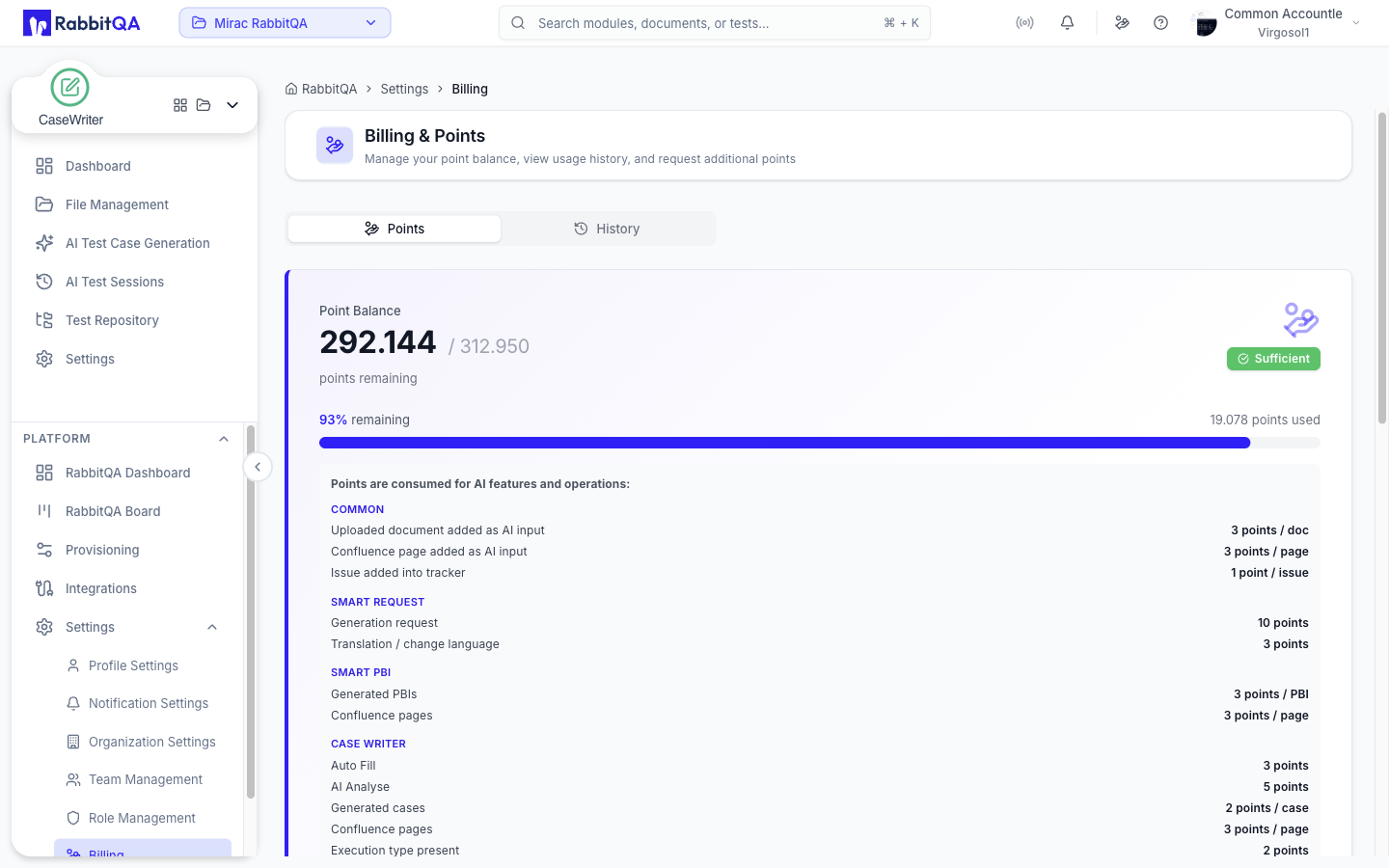
The page is Settings › Billing, titled Billing & Points. RabbitQA calls its AI currency RQP — RabbitQA Points.
Billing is the one platform page with no admin shortcut: it is shown only to someone who actually holds organization:billing:read. Being an administrator is not enough, because the backend does not grant admins that key either.
The page has two tabs:
| Tab | Contents |
|---|---|
| Points | The point balance card, and the request form if you may raise one |
| History | Usage breakdown by operation, and the transaction table |
Point Balance
The Points tab shows a single balance card:
| Element | Meaning |
|---|---|
| Point Balance | Points remaining, over the total allocated |
| Progress bar | Percentage of the allocation still remaining |
| Points used | Points consumed so far |
| Status badge | Critical, Low Balance, Moderate or Sufficient |
Beneath it, the card lists what each AI operation costs, grouped by module. Those costs are served by the backend rather than fixed in the interface, so the card is the authoritative price list.
Balance Display
The balance is also reachable from the header, through a Point Balance button that opens the same figures and cost breakdown, plus a shortcut to the Billing page. The button carries a coloured dot once the balance drops below 100.
Status thresholds are the same in both places:
- 🟢 Sufficient — 500 or more
- 🟡 Moderate — 100 to 499
- 🔴 Low — under 100
- 🔴 Critical — exactly 0
Usage Analytics
The History tab opens with a usage breakdown by operation type:
| Column | Meaning |
|---|---|
| Operation Type | The named AI operation |
| Operations | How many times it ran |
| Points Used | Points that operation consumed |
| Percentage | Its share of total usage |
A Total Usage figure sits in the card header, and a totals row closes the table.
Transaction History
Below the breakdown, the transaction table lists every movement, newest first:
| Column | Meaning |
|---|---|
| Date | When it happened |
| Type | Addition, Deduction or Refund |
| Operation | The operation that caused it |
| Amount | Points added or deducted |
| Activity Details | A link through to the related session or item, where one exists |
| Balance After | The balance once the movement was applied |
The table is paged rather than filtered — choose a page size and step through with Previous and Next.
Requesting Points
The Request Additional Points form appears on the Points tab for anyone holding organization:billing:request.
| Field | Notes |
|---|---|
| Amount | A slider from 0 to 100,000 in steps of 100. The minimum you can submit is 100 points. |
| Reason | Optional, up to 500 characters. A detailed reason speeds up processing. |
Submit Request sends it to [email protected], who will contact you to discuss pricing and payment terms. Clear resets the form.
Best Practices
Point Management
- Monitor usage weekly on the History tab
- Watch the header badge — it colours once you fall under 100
- Plan for high-usage periods, and request points before a large run
Cost Optimization
- Avoid unnecessary regeneration
- Check the cost breakdown on the balance card before a big generation
- Review usage patterns per operation type
