Settings
SmartRequest settings live at /smartrequest/settings and are saved separately for the active workspace.
Switching workspaces changes the settings loaded on this page.
The page is shown to administrators only.
Settings are organized into four tabs.
| Tab | Configures |
|---|---|
| Threshold | The minimum score a request must reach |
| Priority | The order of the six scoring factors |
| Custom Fields | Extra fields collected on request forms |
| Approval Flow | The sequential approver chain and auto-assignment |
Saving
Changes are held until you save them.
A bar appears at the bottom of the page as soon as anything changes, reading You have unsaved changes and offering two actions.
| Action | Effect |
|---|---|
| Save Settings | Writes the changes |
| Reset to Defaults | Restores every setting to its default, after a confirmation |
Leaving the page or closing the tab with unsaved changes prompts before discarding them.
Threshold
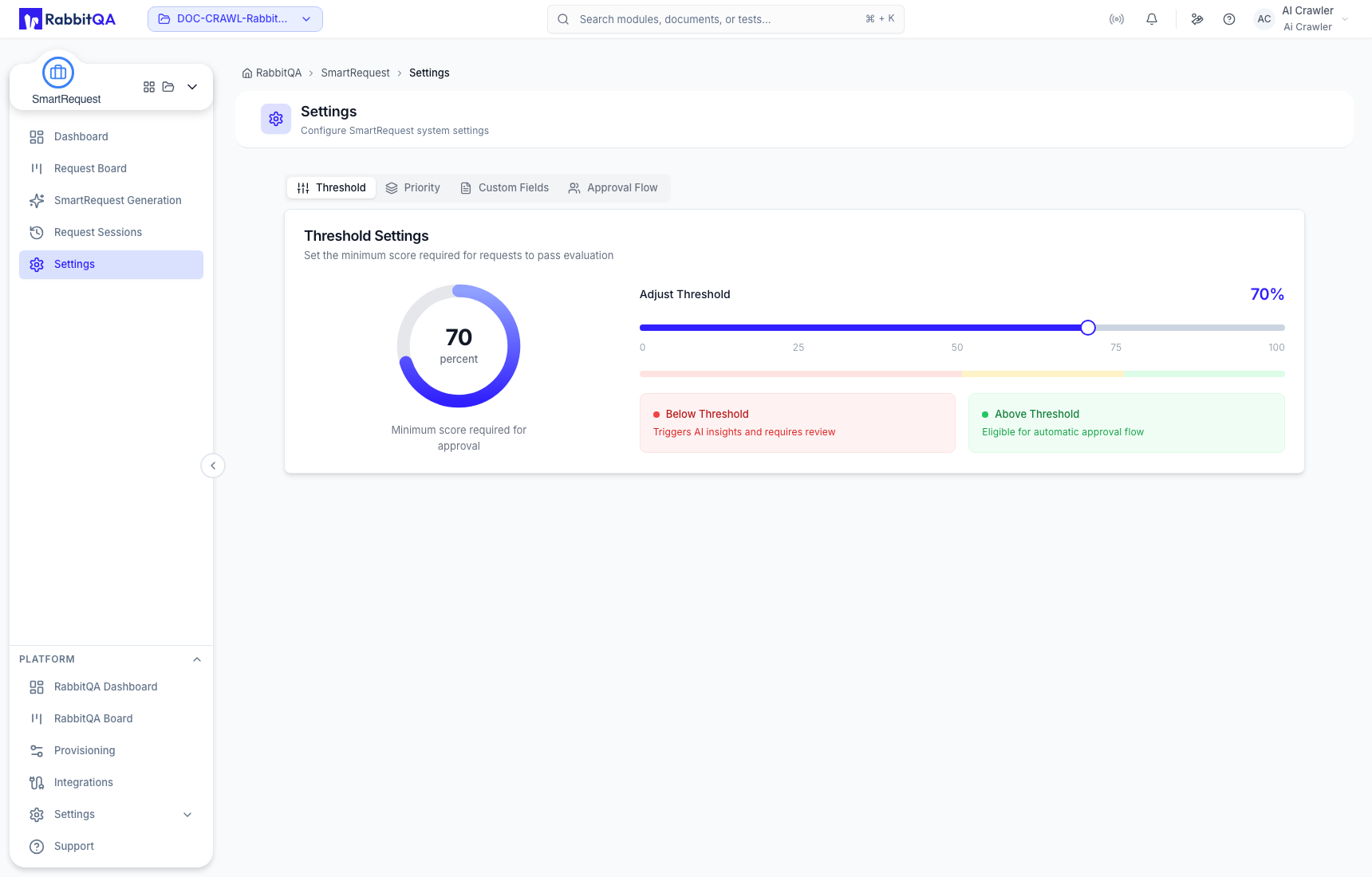
The threshold is the minimum score a request must reach to pass evaluation.
A dial shows the current value, and a slider sets it anywhere from 0 to 100. The default is 70.
| Side of the threshold | What it means |
|---|---|
| Below | Triggers AI insights and requires review |
| Above | Eligible for the automatic approval flow |
A product can carry its own threshold, set in Provisioning, which applies to requests filed against that product.
Priority
The six scoring factors are ranked rather than weighted individually.
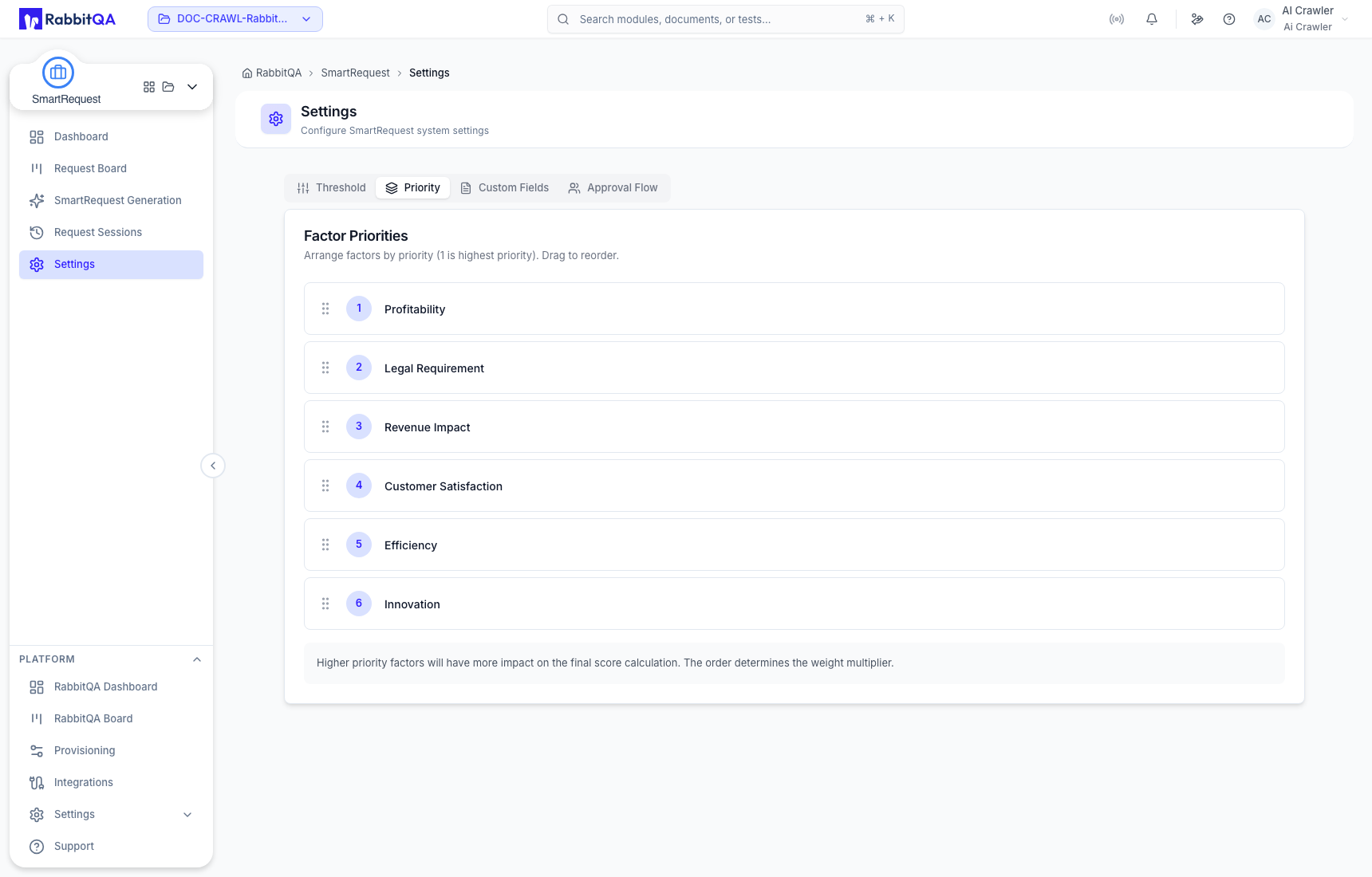
Drag a factor to reorder it; position 1 is the highest priority. The order determines the weight multiplier applied in the score calculation, so a factor higher in the list has more impact on the final score.
| Order | Factor |
|---|---|
| 1 | Profitability |
| 2 | Legal Requirement |
| 3 | Revenue Impact |
| 4 | Customer Satisfaction |
| 5 | Efficiency |
| 6 | Innovation |
The table above shows the default ordering.
Custom Fields
Custom fields collect additional information when users submit requests. The AI answers them from the evaluation, and the answers appear in the request preview and in the PDF export.
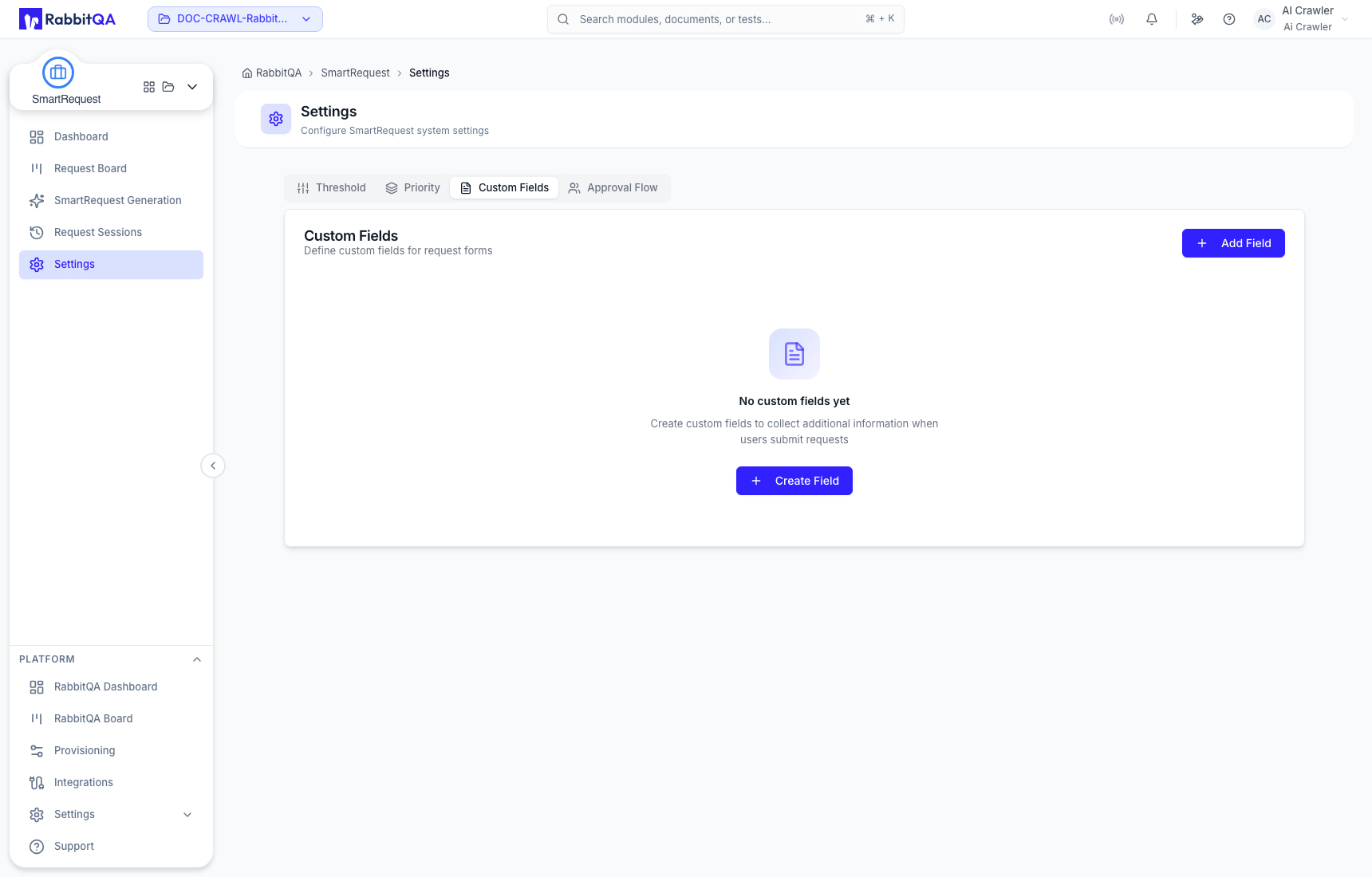
Fields are listed in a table showing the label, the machine name, the type, the placeholder, and whether the field is required. Each row can be edited or deleted, and the footer reports how many fields are configured.
Field types
| Type | Input |
|---|---|
| Text | Single line |
| Textarea | Multiple lines |
| Number | Numeric, with an optional range |
| Select | A dropdown of options |
| Date | A date picker |
| Checkbox | Yes or no |
Field options
| Option | Purpose |
|---|---|
| Label | What the user sees |
| Name | The machine name the field is stored under |
| Placeholder | Hint text in the empty field |
| Helper text | A short explanation below the field |
| Required | Whether an answer is mandatory |
| Min / Max | The range, for number fields |
| Options | The choices, for select fields |
A module can define its own custom fields in Provisioning, on top of the ones set here.
Approval Flow
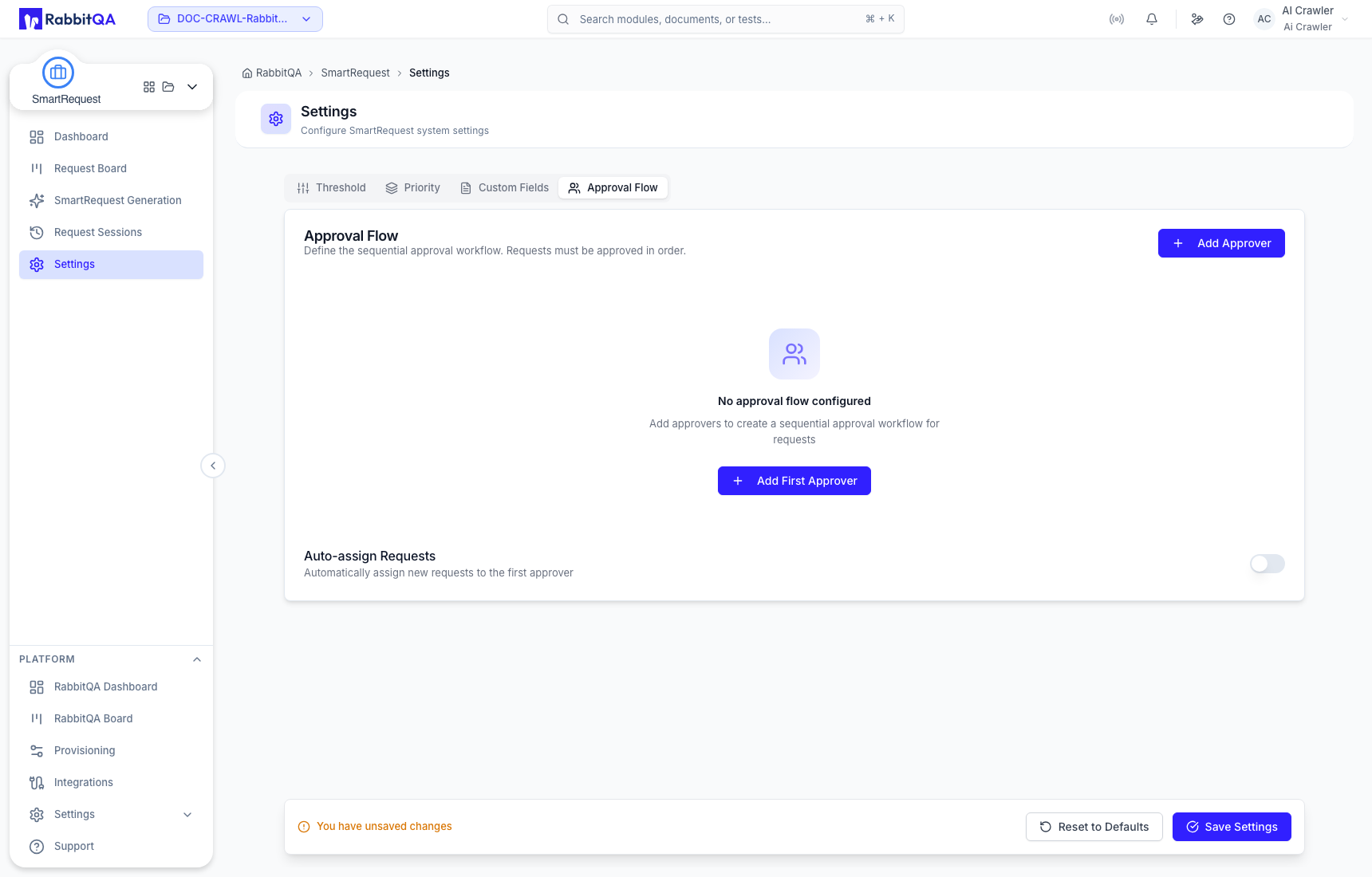
The approval flow is a sequential chain: approvals proceed from the top of the list downward, and each step waits on the one before it.
Approvers are added from a picker that lists only users who hold the permission to approve a request, so a read-only role cannot be placed in a chain it could never act on.
Each approver appears as a numbered step showing their name, email, and role, with a label describing its position — initial approval, an intermediate step, or the final approval before the request is approved.
Drag a step to reorder it, and use the bin icon to remove one.
Auto-assign
Auto-assign Requests assigns each new request to the first approver in the flow.
The toggle is disabled while the flow is empty, since there would be nobody to assign to, and it explains why. When it is on, the panel names the person new requests are assigned to. Removing the last approver turns it off rather than leaving a setting that could never take effect.
A product can define its own approvers in Provisioning, which take the place of this workspace-level chain for requests filed against that product.
Step states
| State | Meaning |
|---|---|
PENDING | Waiting on this approver |
APPROVED | This approver approved |
REJECTED | This approver rejected |
SKIPPED | This step was skipped |
