SmartRequest Generation
The wizard at /smartrequest/generation turns a written description into a scored, structured request through an AI conversation.
 The landing page shows three running figures — requests generated, sessions today, and average score — plus shortcuts to Request Sessions and Settings.
A Recent Sessions panel runs down the side. Open resumes a session, and Load Config reuses a previous session's product, module, and language selections for the new one.
A collapsible Pro Tips card offers guidance on writing a description that scores well.
The Four Steps
| Step | What you do |
|---|---|
| Product & Module | Pick the product, the module, and the languages |
| Description & Files | Write the description and attach supporting files |
| AI Evaluation | Answer the AI's questions and watch the score |
| Preview & Submit | Review, edit, translate, export, and submit |
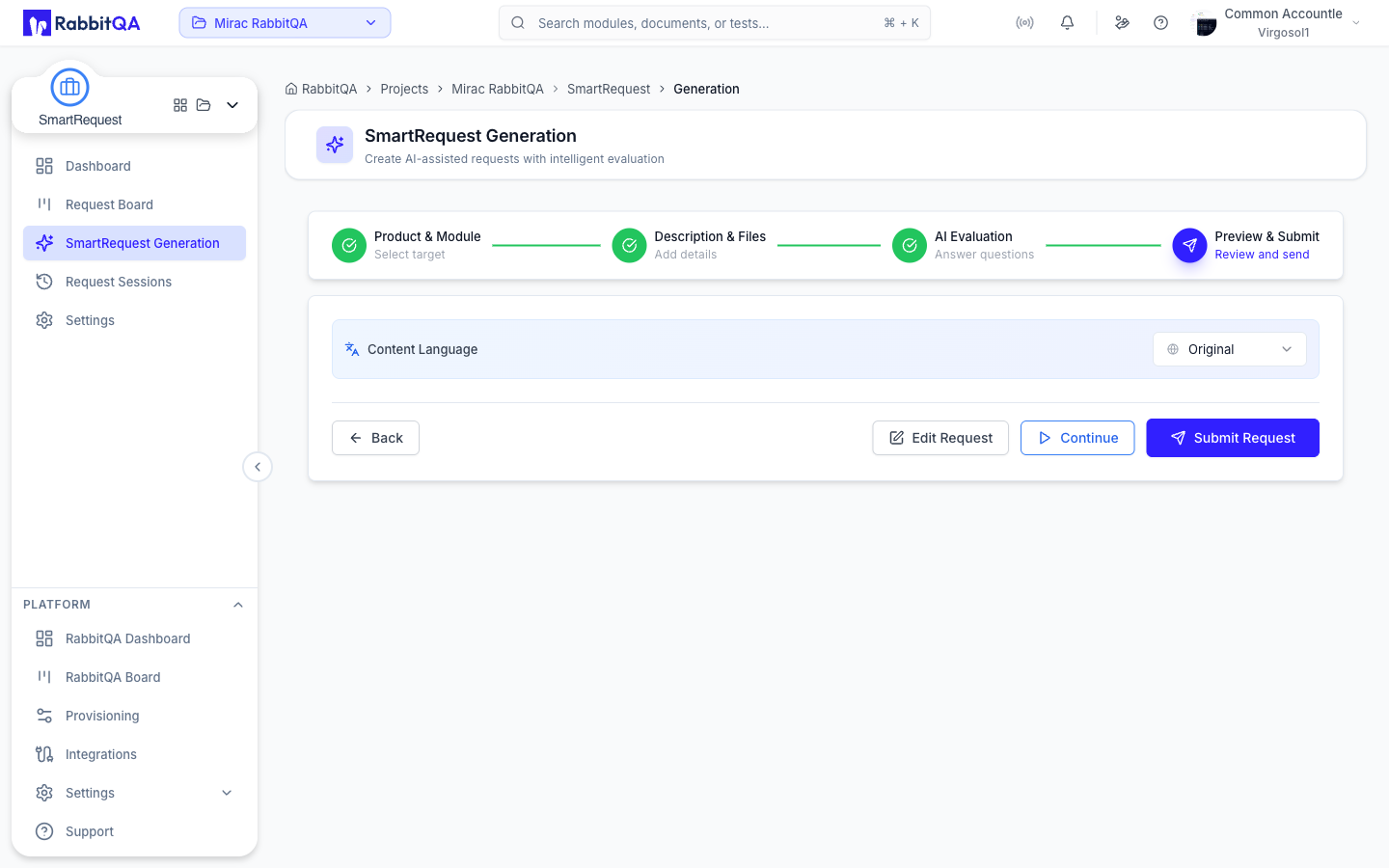
The progress bar across the top of the wizard names the steps in that order, and marks each one complete as you pass it. Starting a brand new request is the exception: the Generation landing page asks for the description first, and Continue opens the wizard with the remaining steps. The sections below follow the order you meet them when you start from scratch.
Step 1 — Description & Files
Description
The card is headed Request Description, with Supporting Documents beneath it.
Describe the problem, the expected outcome, and the context. The description must be at least 20 characters before you can continue, and a counter next to the field tracks it.
Pasted images
Pressing Ctrl+V in the description field pastes an image from the clipboard rather than replacing your text.
- Up to 5 pasted images.
- Up to 10 MB per image.
- Duplicates of an image already added are rejected.
Each thumbnail opens a preview with a download button, and can be removed.

Supporting documents
Attach files that give the AI more to work with.
- Up to 5 files.
- Up to 10 MB per file.
- PDF, DOC, DOCX, XLS, XLSX, PNG, JPG, GIF.
Files over 10 MB upload directly to storage through a pre-authorized link and are confirmed afterwards.
Uploaded documents are indexed for retrieval, so the AI can quote and reason over their content when it asks questions and drafts the request.
Continue creates the session and starts the evaluation.
Step 2 — Product & Module
Product
Choose the product the request belongs to. Products are configured in Provisioning, at the platform level.
Module
Choose a module within that product. The selected path is shown beneath the picker, so a deeply nested module is unambiguous.
The product and module determine which reference documents ground the evaluation, and which threshold, factor priorities, custom fields, and approvers apply.
Language preferences
Two independent settings.
| Setting | Controls |
|---|---|
| Interaction Language | The language the AI asks questions in |
| Output Language | The language the generated request is written in |
Both offer Auto Detect, English, Turkish, German, French, Spanish, Italian, Dutch, and Albanian.
Evaluate starts the AI evaluation.
Step 3 — AI Evaluation
The AI reads your description and the grounding documents, then asks questions in rounds. Each answer contributes to the score.
Question types
| Type | How you answer |
|---|---|
| Single choice | Pick one numbered option |
| Multiple choice | Tick any number of options |
| Yes / No | Confirm or decline |
| Free text | Write an answer |
A question that is not marked required can be skipped.
The score
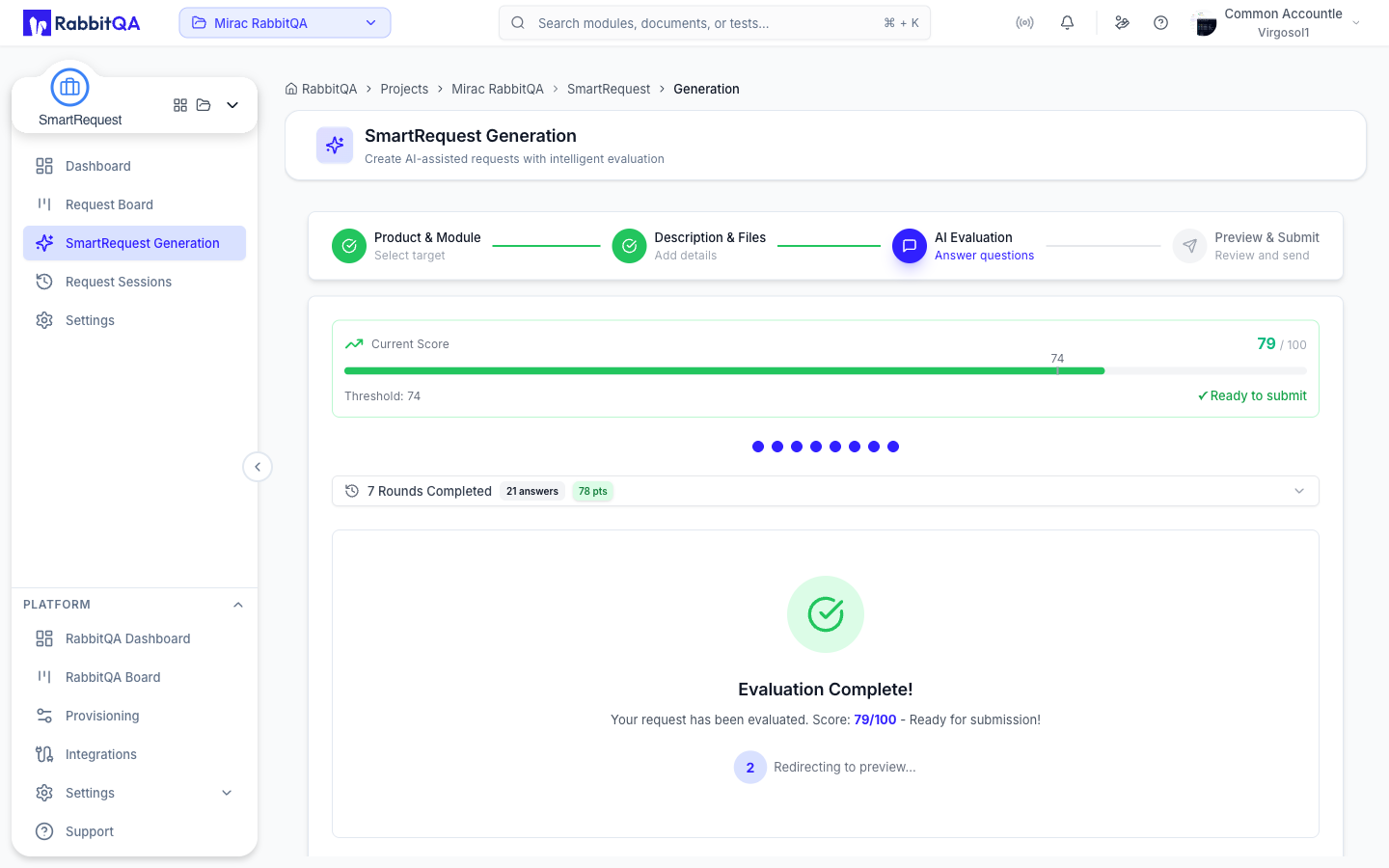
A score card sits above the conversation and updates after every answer.
- The score runs from 0 to 100.
- A marker on the bar shows the threshold.
- Below the threshold, the card says how many points are still needed.
- At or above it, the card reads Ready to submit.
Reaching the threshold does not end the evaluation. A banner appears offering Finish & Preview, and you can keep answering to raise the score further.
Revising an answer
Answered questions are grouped by round beneath the current question, each round showing the points it contributed.
Selecting Edit on an answered question reopens it. Saving a new answer re-runs the scoring, so the score reflects the change rather than keeping the original contribution.
Controls
| Control | Effect |
|---|---|
| Back | Return to the previous step |
| Restart | Start the evaluation over |
| Finish & Preview | End the questions and generate the preview |
When the AI has nothing further to ask, the evaluation completes on its own and the wizard advances.
Step 4 — Preview & Submit
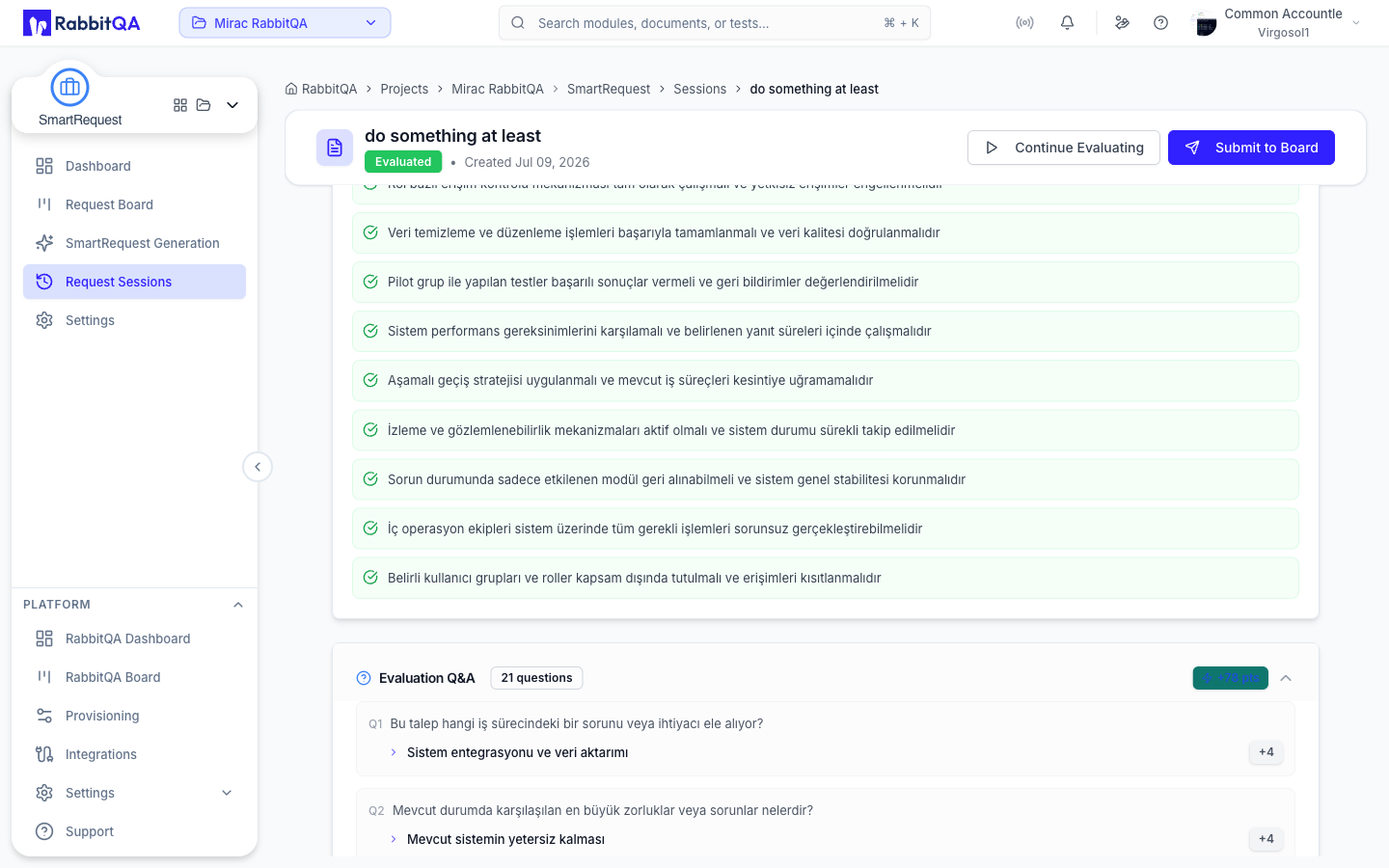
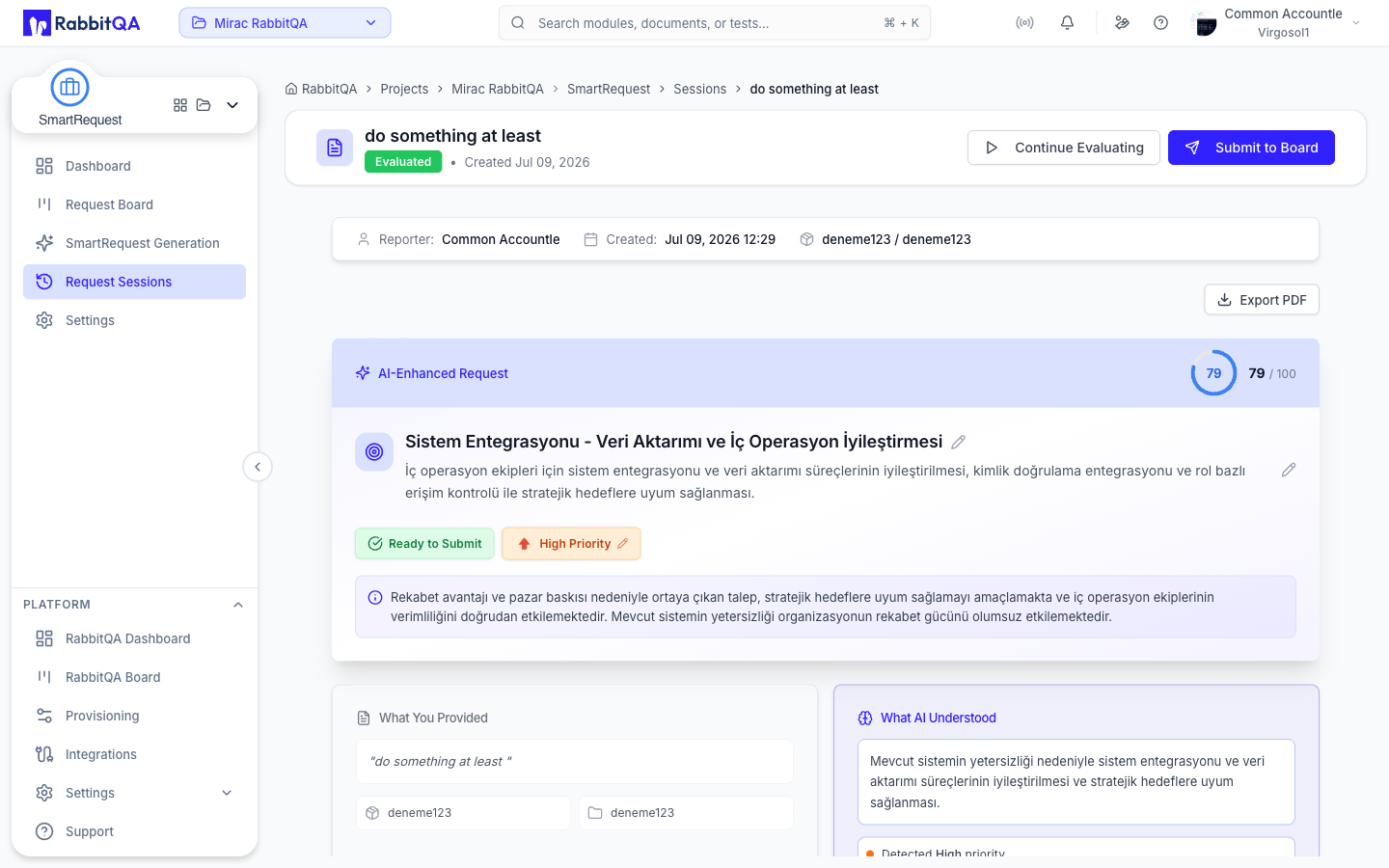
The preview is the generated request as it will appear on the board.
What the preview contains
| Section | Contents |
|---|---|
| Header | Generated title and description, the score, status badges, and the recommended priority with its reasoning |
| Transformation | What you wrote, side by side with what the AI understood |
| AI Analysis & Recommendations | Key insights the AI detected, and recommended actions |
| Detailed Summary | The full generated summary |
| Acceptance Criteria | The generated criteria list |
| Custom Fields | The custom fields the AI answered, each with its value and the reason for it |
| Evaluation Q&A | The full question-and-answer transcript, collapsed by default |
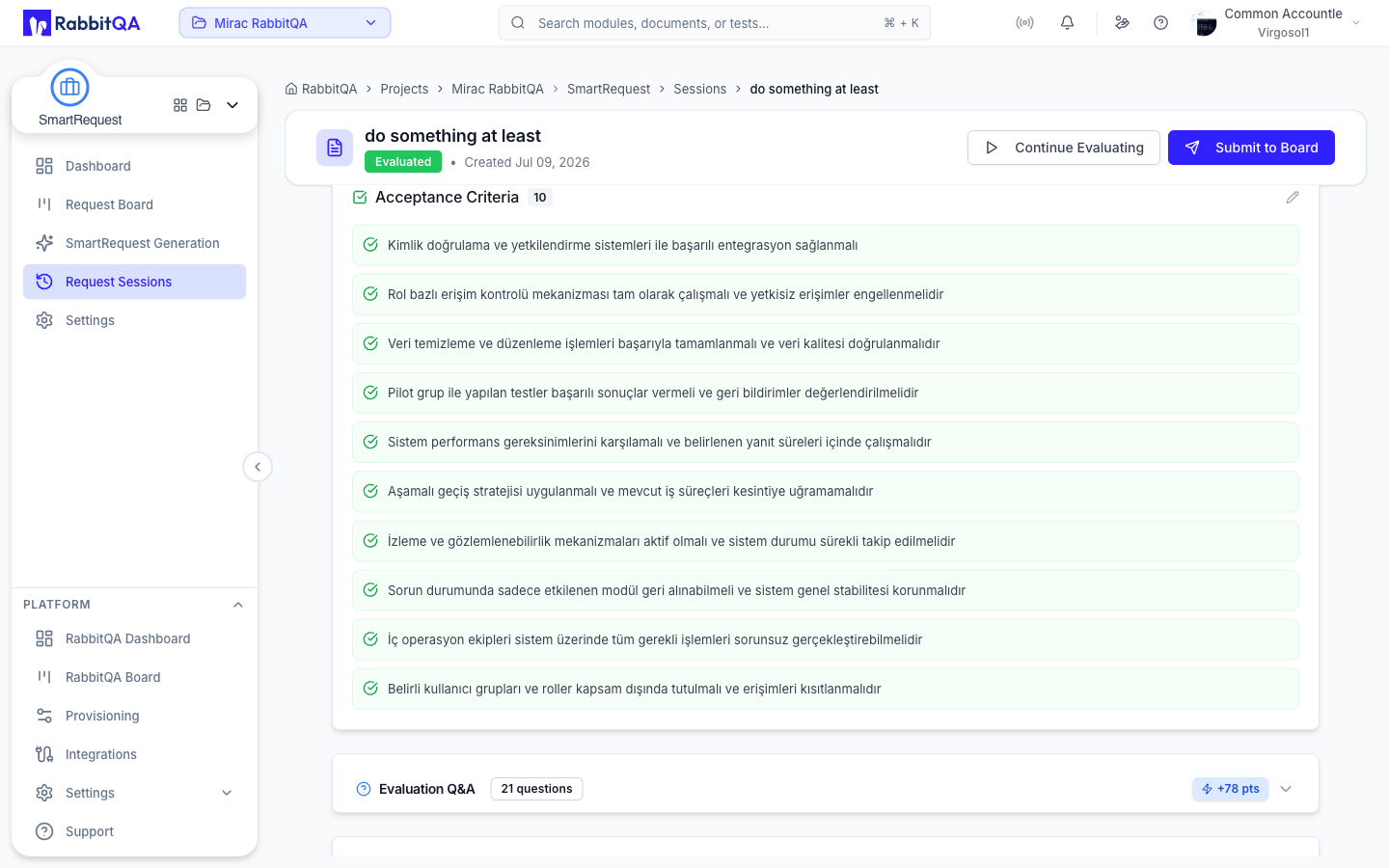
Editing generated fields
The title, description, summary, acceptance criteria, and priority are edited in place. Each edit is saved back to the session, so what you see afterwards is the stored record rather than a local draft — the same value the board and the session detail page will show.
Fields render read-only for users without update rights.
Translation
A language picker translates the generated request into another language.
The original is not overwritten. Both versions are kept on the session, and a toggle switches the view between them wherever the request is displayed.
Translation covers the title, description, summary, priority reasoning, acceptance criteria, custom field answers, and the evaluation answers. The source and target languages must differ.
Export
Export PDF opens the section picker described in Request Board, so you can share the request for review before it is submitted.
Submitting
Submit Request is enabled once the score is at or above the threshold.
Submitting moves the session to SUBMITTED and puts the request on the Request Board as a Pending card.
Where the score is at or above the threshold but below 100 and the round limit has not been reached, a Continue button is offered alongside it — its tooltip reads Continue answering to improve score — so you can keep raising the score before submitting.
Sessions and Resuming
Every evaluation is a session, saved as you go.
Opening /smartrequest/generation?sessionId=… resumes that session at the point it reached.
Sessions are listed, filtered, and managed on Request Sessions.
Confluence Pages
A generation session can carry references to Confluence pages, which are stored on the session alongside its documents and passed to the AI as further grounding material.
The generation wizard has no Confluence page picker of its own. Confluence is connected at the platform level under Integrations.
