Alerting
Alerting answers two questions: who gets told when a monitor fails, and when to stay quiet.
The screen at /healthcheck/alerting has four tabs.
| Tab | What it holds |
|---|---|
| Channels | Notification methods and connected integrations |
| Silences | Temporary mutes for a single monitor |
| Maintenance | Scheduled exclusion windows |
| Escalation | Escalation policies, read-only |
Channels
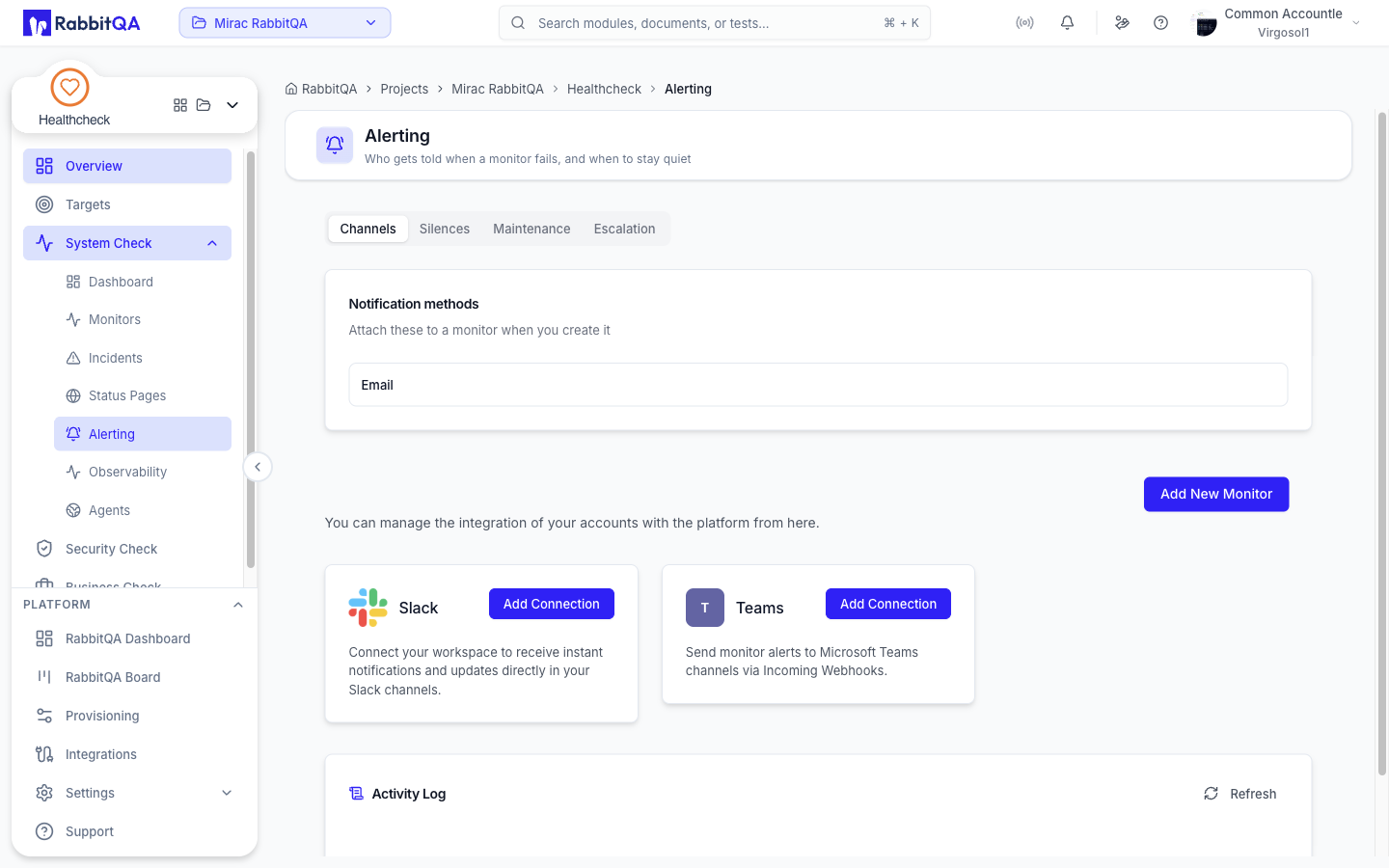
Notification methods
The Notification methods card lists a fixed set of nine methods: Email, Sms, Jira, Discord, Slack, PagerDuty, Teams, Telegram, and Webhook. These are what you attach to a monitor when you create it — see Monitors.
The card is read-only; methods are not created here, and the list is the same for everyone.
Connectable integrations
Two providers can be connected from this screen:
| Provider | Fields |
|---|---|
| Slack | Channel and Webhook URL |
| Microsoft Teams | Webhook URL |
Click Add Connection on a provider, fill in the fields, and click Connect. A connected provider shows Connected; clicking it offers Disconnect.
The webhook URL is created in the provider's own channel settings, under integrations and webhooks.
Slack and Microsoft Teams are the only providers offered here. The backend also carries Discord, Jira, PagerDuty, SMS, Telegram, and Webhook, but this screen filters them out because none of them has a connection form yet. They are not selectable, so do not plan on paging through PagerDuty or SMS in this release.
Activity log
The bottom of the Channels tab shows recent activity, with columns for When, Action, Entity, Details, and By. Click Refresh to reload it.
Silences
A silence mutes alerting for one monitor for a fixed period. Checks keep running; only the alerts are suppressed.
- Pick a Monitor.
- Pick a Duration —
1h,4h,8h, or24h. - Optionally give a Reason, such as
Deploying. - Click Silence.
Active silences are listed underneath with their reason, when they end, and who created them. Each can be removed, which restores alerting immediately.
Silences cannot be edited — delete and recreate one instead.
Maintenance
Maintenance windows, also called exclusions, suppress alerts during planned work. As with a silence, checks continue to run and data is still collected.
The list shows Name, Monitors, Start Date, End Date, and Status, which is Active or Inactive.
Creating a window
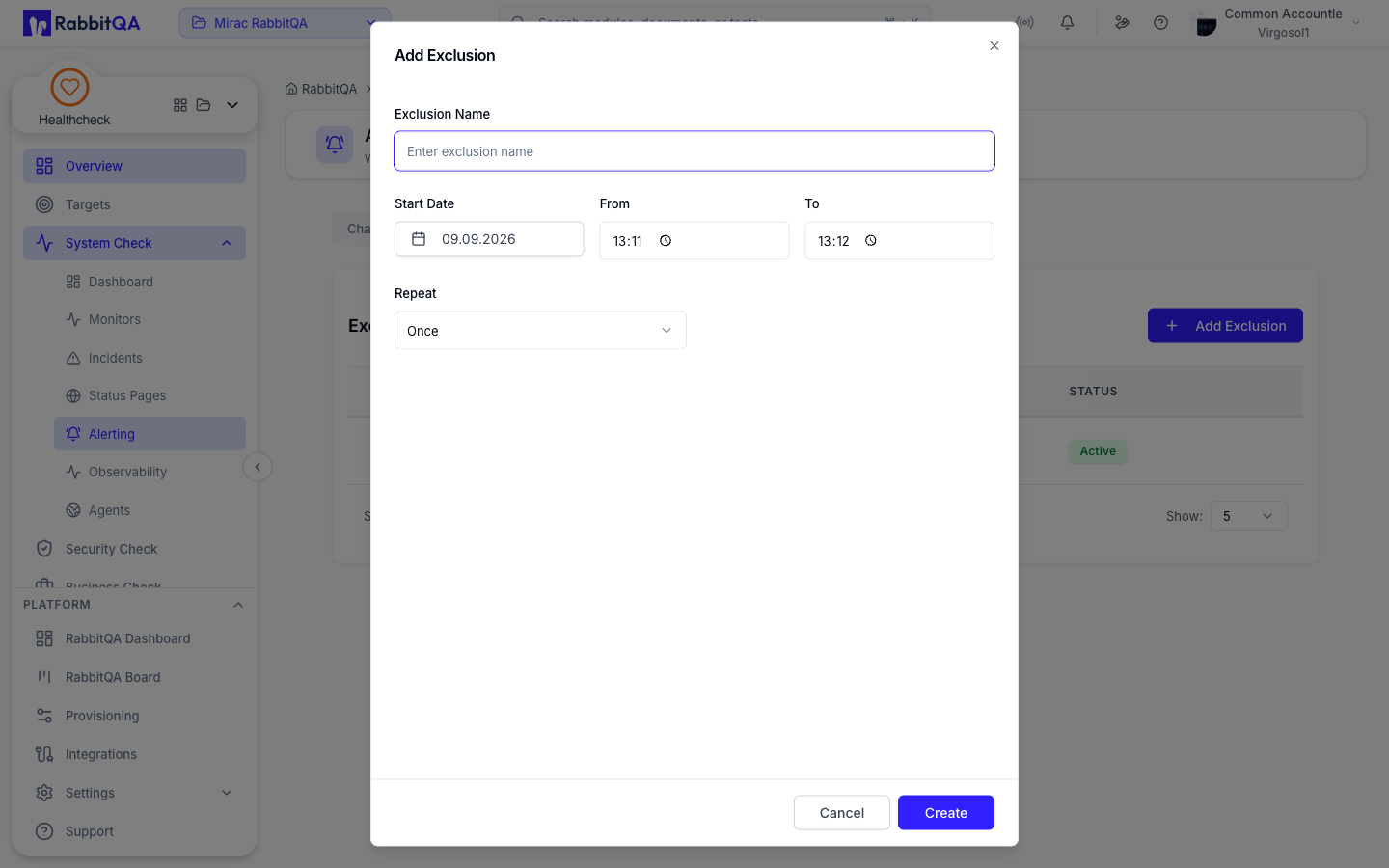
Click Add Exclusion and fill in:
| Field | Notes |
|---|---|
| Exclusion Name | Alphanumeric, up to 100 characters |
| Start Date | The first day the window applies |
| From and To | The daily time range |
| Repeat | Once, Every Day, Every Week, or Every Month |
| Days of Week | Required for a weekly repeat |
| Days of Month | Required for a monthly repeat |
| End | Never, or Date with an end date and time |
Windows can be edited and deleted from the row menu. Deleting an active window re-enables alerting immediately.
A window created from this tab is saved without any monitors attached. There is no monitor picker in the dialog — the monitor is taken from the link you arrived by. Open a monitor first if you need the window to apply to it.
Maintenance windows are a paid feature. On a plan that does not include them the list is disabled and an upgrade prompt is shown instead.
Escalation
Escalation policies decide who is paged, and in what order.
The tab lists each policy with its name, its description, and how many steps it has. With none defined it reads No escalation policy defined — alerts go straight to the monitor's notification methods.
This tab is read-only. Policies, their steps, delays, and on-call rotations cannot be created or edited from the interface in this release.
