Appium Config Generator
Generate Appium/WebDriver capabilities for automated testing with Device Farm.
Overview
The Config Generator helps you create Appium capabilities for connecting to Device Farm. It generates code examples in multiple languages with proper authentication.
Server URL
Use this URL as your Appium server endpoint:
https://api.rabbitqa.com/df/wd/hub
This endpoint supports the standard WebDriver protocol and is compatible with Appium clients in all languages.
Connection Configuration
Connect your test framework to Device Farm using these settings:
| Setting | Value |
|---|---|
| Hostname | api.rabbitqa.com |
| Port | 443 |
| Protocol | https |
| Path | /df/wd/hub |
| Full URL | https://api.rabbitqa.com/df/wd/hub |
Authentication is done via the X-API-Key header or the df:apiKey capability.
Device Farm Capabilities
In addition to standard Appium capabilities, Device Farm supports these custom capabilities:
| Capability | Type | Default | Description |
|---|---|---|---|
df:apiKey | string | - | API key for authentication (required) |
df:deviceId | string | - | Specific device ID (or use appium:udid) |
df:resign | boolean | true | Re-sign iOS apps before install |
df:liveView | boolean | false | Enable live video streaming during automation |
df:recordVideo | boolean | false | Record video of the test |
df:recordLogs | boolean | true | Capture device logs during test |
df:options
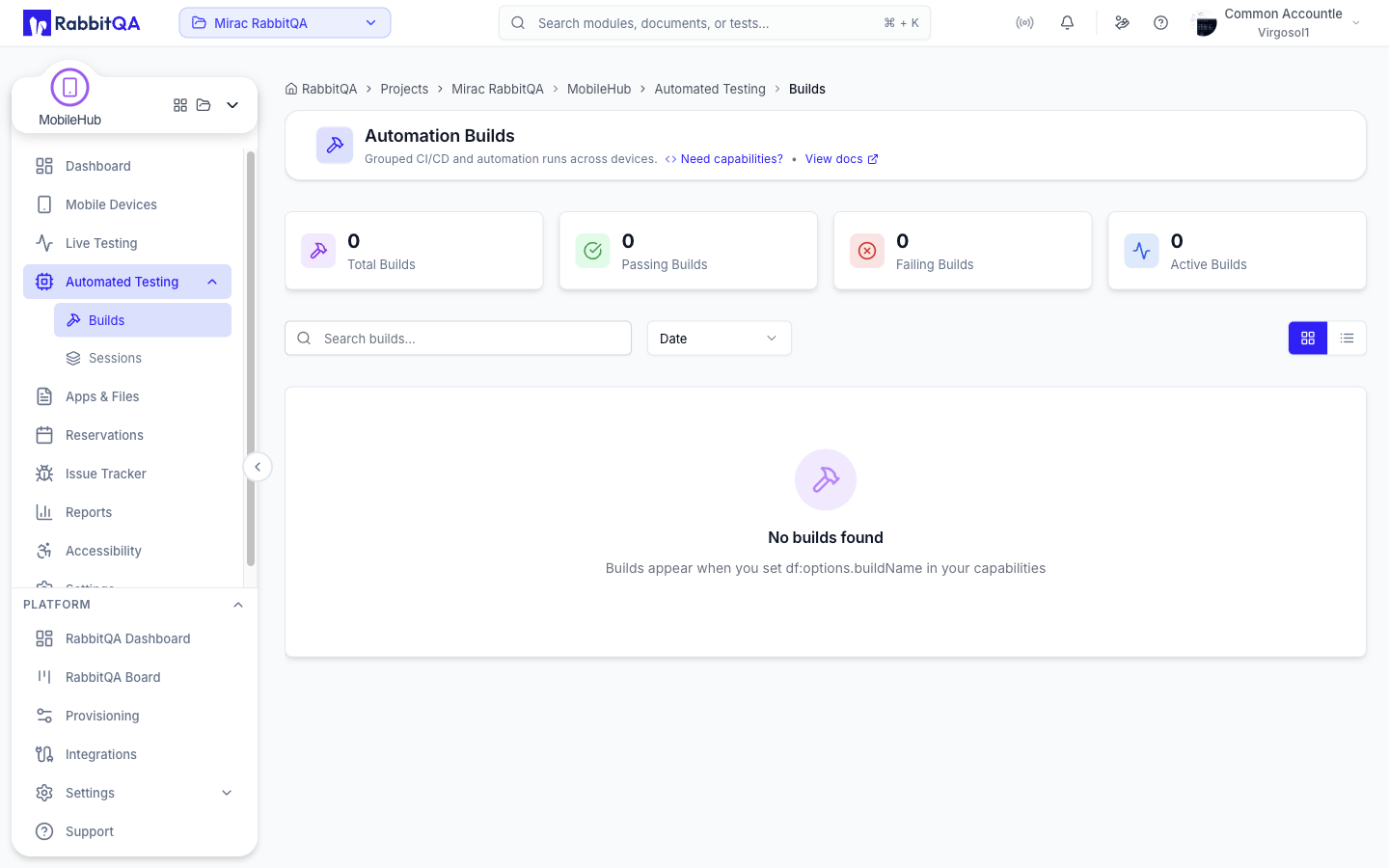
Use the df:options object to organize your test runs with builds, projects, and tags. This
metadata appears in the Dashboard and Reports for filtering and grouping.
| Field | Type | Description |
|---|---|---|
buildName | string | Build identifier (groups sessions into a build) |
projectName | string | Project name for categorization |
sessionName | string | Human-readable session label |
tags | string[] | Tags for filtering (e.g. ["smoke", "android"]) |
Example:
{
  "platformName": "Android",
  "appium:automationName": "UiAutomator2",
  "appium:app": "df://file-uuid-here",
  "df:apiKey": "YOUR_API_KEY",
  "df:options": {
    "buildName": "release-2.1.0-build-42",
    "projectName": "Regression Tests",
    "sessionName": "login-flow-pixel-8",
    "tags": ["regression", "android", "login"]
  }
}
Sessions with the same buildName are grouped together in the Dashboard. Use your CI build
number or version tag (e.g. v2.1.0-rc1-1234) to track test runs across devices.
If you don't need build grouping, simply omit buildName. The session will appear as a
standalone entry.
App Installation
Use df:// URLs to install apps from your uploaded files:
{
  "appium:app": "df://file-uuid-here"
}
The file ID can be found in the Files section or by using the Config Generator which shows your uploaded apps.
Platform Version Matching
Use wildcards for flexible version matching:
| platformVersion | Matches | Does NOT match |
|---|---|---|
"13" | 13 | 13.0, 13.0.1, 14 |
"13.0" | 13.0 | 13, 13.0.1, 13.1 |
"13.*" | 13, 13.0, 13.0.1, 13.1 | 14, 12.x |
"17.1.x" | 17.1, 17.1.0, 17.1.2 | 17, 17.0, 17.2 |
Tips
Use df://fileId in appium:app to install uploaded apps automatically.
Set df:resign: false if your IPA is already signed with the correct profile.
Use df:deviceId or appium:udid for specific device, or leave empty for
auto-selection.
If you provide appium:app, we'll extract and set bundleId/appPackage
automatically.
