Impact Analyzer
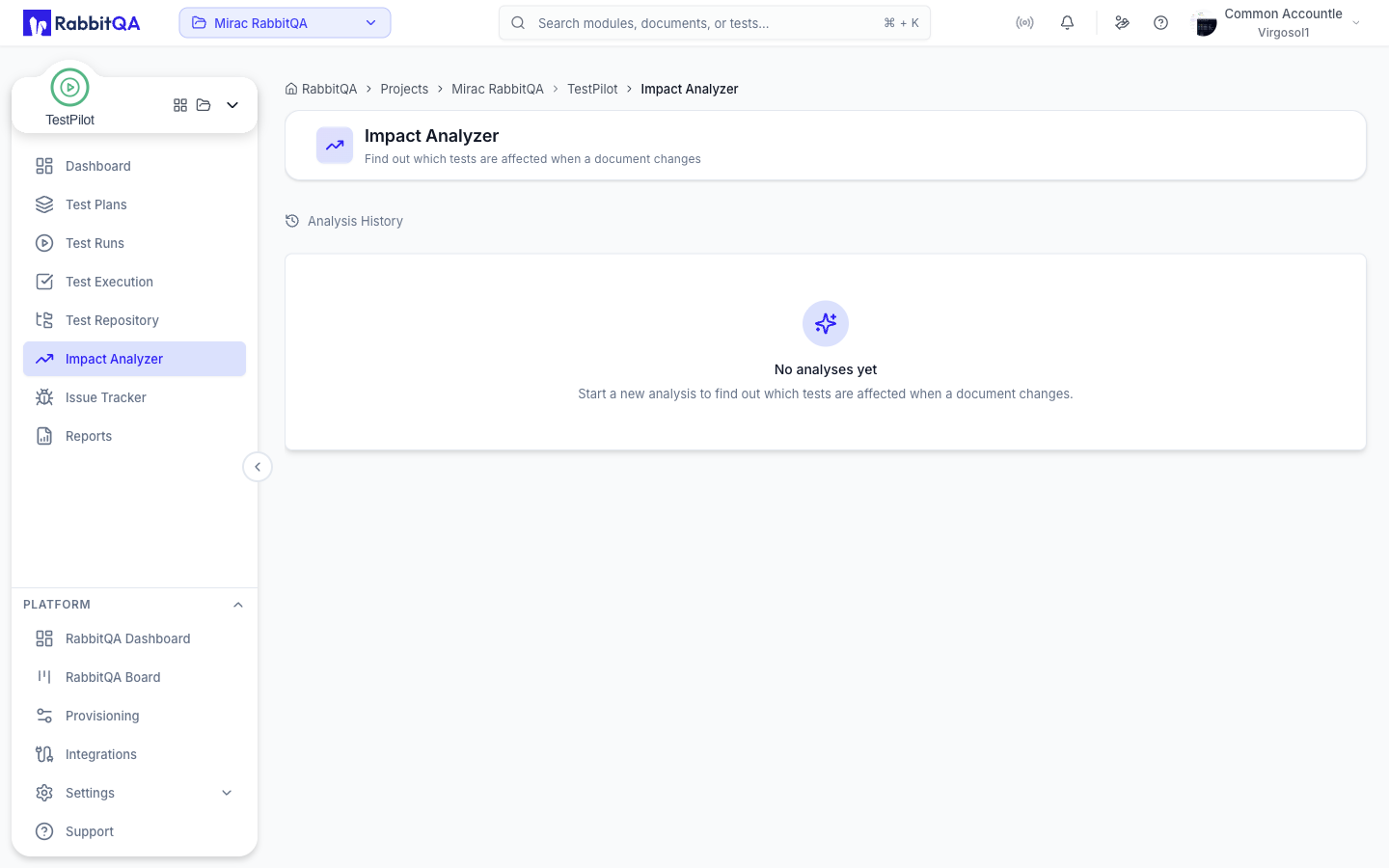
Impact Analyzer compares two versions of a source document, works out what changed, and suggests regression test cases for those changes. Approved suggestions are written into the test repository as real test cases.
Open TestPilot > Impact Analyzer.
What it does
An analysis takes one document that already exists in Analyzer, plus two of its versions. It produces:
- AI-suggested regression cases for the changes between the two versions, each carrying the source change it came from.
- A suggested regression set that collects those suggestions for review.
There is no separate diff screen: a finished analysis takes you straight to its regression set.
Running an analysis
1. Start a new analysis
Click Run New Analysis and fill in the dialog:
| Field | Notes |
|---|---|
| Document | A source document from Analyzer |
| Base Version | The version to compare against; defaults to the oldest |
| Compared Version | The newer version; defaults to the newest |
2. Confirm the cost estimate
Before the analysis starts, a Start Impact Analysis dialog shows an estimated credit cost, a per-line breakdown, and an estimated run time. Confirm to start, or close the dialog to abandon it.
A cost estimate is short-lived. If you leave the dialog open too long the estimate expires and you are asked to recalculate.
3. Watch it run
While the analysis runs, the page shows a progress card with the current phase:
- Collecting candidates
- Dispatching analysis
- Analyzing document changes
- Generating suggested cases
- Assigning priority
- Packaging results
You can cancel a running analysis from this card.
When the analysis finishes, the page opens the resulting regression set. If the analysis found nothing, you get a "No affected cases" message instead. If it failed, the page shows the reported reason and a way back to the history list.
Reviewing the regression set
A completed analysis produces a suggested regression set with one row per AI-suggested case.
Counters
The top of the set shows:
- Total rows in the set
- Sent - how many rows have already been materialized into the repository
- A count per priority level: Critical, Very High, High, Medium, Low
Rows
Each row shows the suggested title and its priority. Expand a row to see the full suggestion:
- Source change - the document change the suggestion came from
- Description
- Preconditions
- Steps
- Expected result
Filtering and selection
Filter rows by priority, and select rows individually or with the All checkbox. Selection drives the bulk actions in the footer bar.
Adjusting priority
With rows selected, use the priority menu to override the AI-assigned priority, or to clear an override and revert to the original value.
Priority changes are held on the draft set. They are written into the created test cases only when you materialize the set.
Materializing a set
Materialize turns the selected suggestions into real test cases in the test repository.
| Field | Notes |
|---|---|
| Target TestSet | The test set the new cases are created under; the root test set is preselected |
| Create a sub-folder | Optional; creates a named child test set under the target |
Rows that have already been materialized are skipped, so you can materialize a set in several passes. When every row has been materialized the set is marked as fully materialized and the page says so.
After materializing, the confirmation dialog reports how many test cases were created and offers a shortcut to the Test Repository.
Materializing does not require a formal approval step. The regression set lifecycle has an approval state on the backend, and a rejected set cannot be materialized, but a set that has never been approved can be. Treat the review described above - checking the suggestions and their priorities before you materialize - as the real gate.
Analysis history
The Impact Analyzer home view lists your recent analyses, newest first.
Each entry shows the document and version comparison, the number of impacted cases, who started it, when it finished, and its status: PENDING, RUNNING, COMPLETED, FAILED, or CANCELLED.
The list refreshes on its own so statuses update without a reload.
Select an analysis to reopen it. If it already produced a regression set, you go straight to that set.
Shareable links
The page keeps its state in the address bar, so you can share or bookmark a specific analysis.
| Link | Result |
|---|---|
/testpilot/impact-analyzer | The analysis history |
/testpilot/impact-analyzer?setId=<id> | A specific regression set |
/testpilot/impact-analyzer?reportId=<id> | A specific analysis, re-resolved to its current state |
Who can do what
Impact Analyzer uses your platform role rather than the TestPilot permission keys:
| Capability | Required |
|---|---|
| View analyses and results | Any signed-in user with access to the module |
| Start or cancel an analysis | Lead or Admin |
| Edit a regression set | Lead or Admin |
| Materialize a set | Admin |
A user without access to the module sees an access notice instead of the page.
Next steps
- Test Repository - where materialized cases land
- Test Runs - put the new regression cases into a run
