PBI Sessions
Every generation run is stored as a session.
The list at /smart-pbi/sessions is titled PBI Sessions — Manage and track your Product Backlog Item generation sessions.
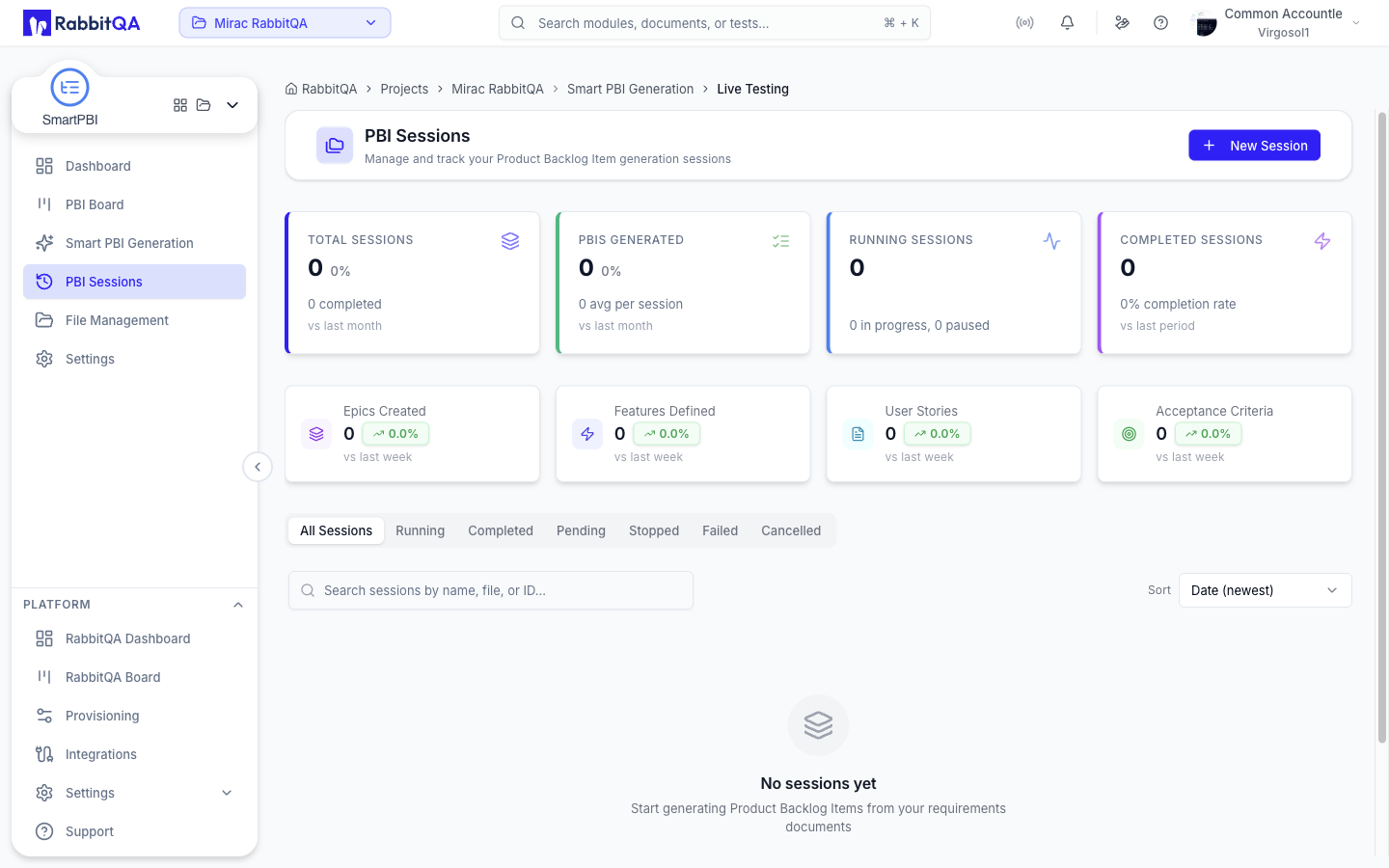 New Session in the header opens the generation wizard.
Session list
Metric cards
Four cards run across the top.
| Card | Value | Subtitle |
|---|---|---|
| Total Sessions | All sessions | How many are completed |
| PBIs Generated | Items produced across all sessions | Average per session |
| Running Sessions | Sessions currently generating | How many are in progress and how many paused |
| Completed Sessions | Sessions that finished | Completion rate |
Total Sessions, PBIs Generated, and Completed Sessions carry a trend against the previous period.
A second row breaks the output down by type — Epics Created, Features Defined, User Stories, and Acceptance Criteria — each with a week-over-week change.
Status tabs
Seven tabs filter the list, each with a count.
| Tab |
|---|
| All Sessions |
| Running |
| Completed |
| Pending |
| Stopped |
| Failed |
| Cancelled |
Search and sort
A single search box matches session name, file, or ID, applied shortly after you stop typing.
The Sort dropdown offers Date (newest), Date (oldest), Name (A-Z), PBIs (high to low), and — on the All Sessions tab only — Status.
There is no date filter and no source-type filter on this page.
Session cards
Sessions are shown as cards, not rows. Each card carries:
- Session name and its short code
- Status badge; a running session also shows a pulsing Live marker
- Creation date and time
- PBIs Generated count and Duration
- A Progress percentage with a bar
- A footer stamp for the outcome — completed, running, paused, stopped, or failed, with the matching timestamp and, for a failure, the error reason
Clicking a card opens the session. The list loads more sessions as you scroll rather than paging, and refreshes on its own every few seconds.
Statuses
| Status shown | Meaning |
|---|---|
| In Progress | Generation is running |
| Completed | Generation finished |
| Paused | Session is waiting |
| Stopped | Generation was stopped |
| Failed | Generation failed |
The tab that collects waiting sessions is labeled Pending, but the badge on those sessions reads Paused.
A cancelled session shows its raw status value, CANCELLED, on the badge.
Session actions
The menu on each card offers:
| Action | Available when |
|---|---|
| Stop | The session is running |
| Resume | The session is waiting |
| Regenerate PBIs | The session is completed — reopens the wizard preloaded with this session's configuration and source |
| View Details | Always |
| Copy URL | Always |
| Delete | You hold the session delete permission |
Deleting asks for confirmation and warns that every PBI in the session is removed with it.
There is no duplicate-session action, and sessions cannot be exported from this list — export lives inside a session.
Session detail
Opening a session shows one continuous page. While a session is still running it refreshes every couple of seconds and stops polling once it completes.
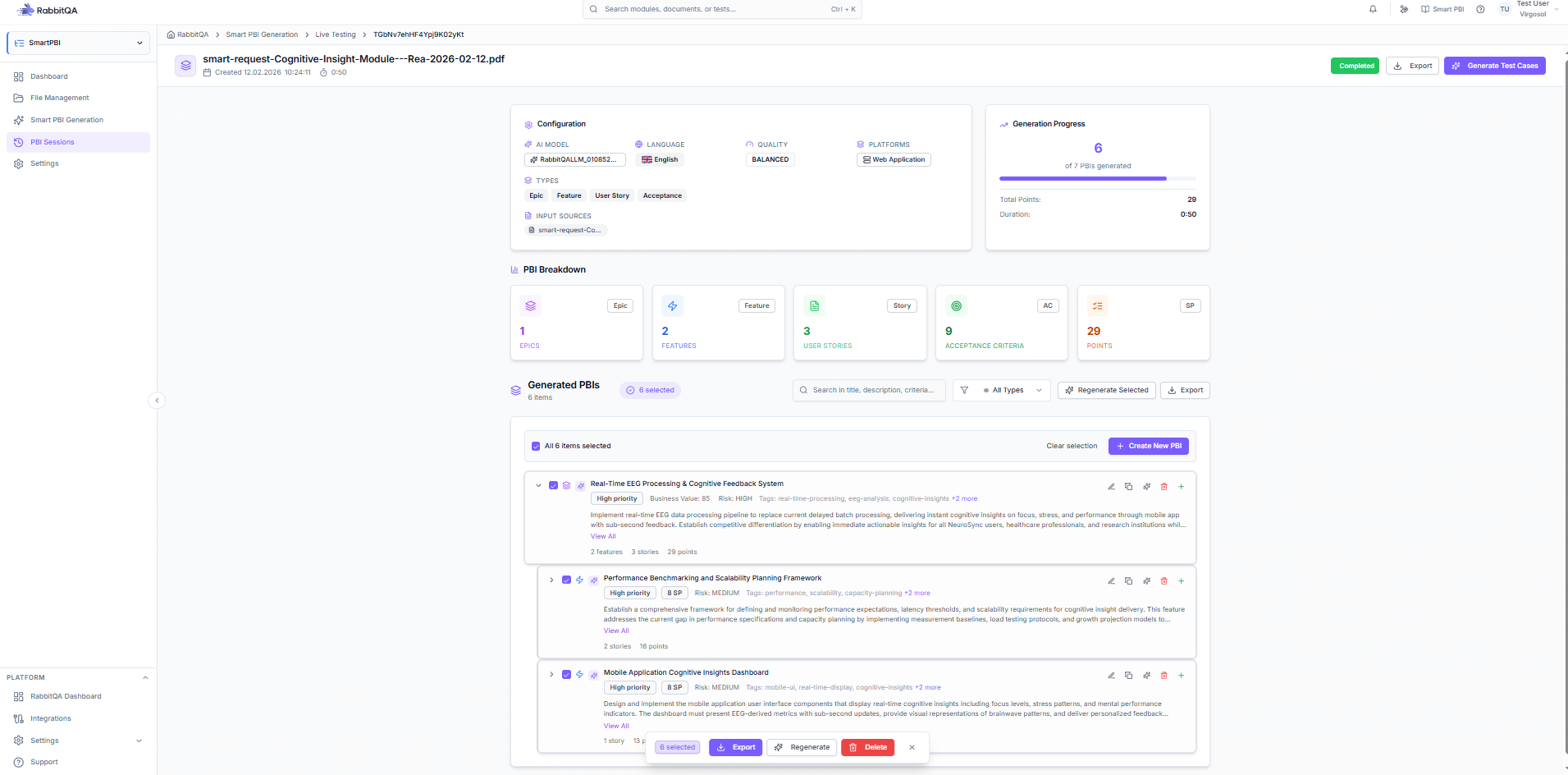
Header
The header shows the session name (or, for a text-only session, the requirement text), the creation date, source file name, and duration, plus the status badge.
The buttons depend on status:
| Status | Buttons |
|---|---|
| Running | Stop |
| Waiting | Resume, Stop |
| Anything else | Export, Generate Test Cases |
Generate Test Cases hands the current selection — or all items, if nothing is selected — to CaseWriter.
Clicking the header title opens the source: a Requirement Text modal for a text session, or a File Information modal with the file name, upload date, PBI count, and any attached images.
Configuration
A Configuration card reads back what the session ran with: AI Model, Language, Quality, Platforms, Types, and Input Sources.
Clicking Input Sources opens a dialog listing the actual inputs — the document, the requirement text with its character count, a URL, selected PBIs, and image thumbnails you can open full size.
Progress and breakdown
Generation Progress shows items generated against the target, total story points, and duration.
PBI Breakdown counts Epics, Features, User Stories, Acceptance Criteria, and Points.
Generated PBIs
The backlog renders as a nested tree — Epic, then Feature, then User Story — with epics expanded by default and everything expanded while a search or filter is active.
Each row shows a type icon, an AI Generated badge for AI-produced items, the title, priority and story-point badges, business value, size, risk, tags, and a description you can expand. User stories carry an Acceptance Criteria panel. Parent rows roll up their child counts and points.
Above the tree:
- A search box matching title, description, and acceptance criteria
- A type filter: All Types, Epics, Features, User Stories
- On a completed session, Regenerate Selected and Export
- A select-all bar, a Clear selection action, and Create New PBI
Checkbox selection cascades to child items.
Editing items
Each row offers Edit, Duplicate, Regenerate, Delete, and — on epics and features — a + to add a child item of the next level down. Each button appears only if you hold the matching permission.
The edit drawer shows fields appropriate to the type:
| Type | Fields |
|---|---|
| Epic | Title, Description, Business Value (0-100), Priority, Risk, Tags |
| Feature | Title, Description, Story Points, Priority, Risk, Tags |
| User Story | The Feature fields plus Acceptance Criteria |
An empty acceptance criterion blocks saving. Closing the drawer with unsaved edits asks whether to Discard Changes or Keep Editing.
Bulk actions
Selecting one or more items raises a floating toolbar with Export, Regenerate, Delete, and Add To Board.
Add To Board opens a checklist of the selection and transfers the chosen items to the PBI Board.
Regeneration
Regenerate works on a single item or on a selection.
The dialog lists the items to regenerate and requires an Additional Instructions note describing what to improve, with example instructions offered alongside. While a regeneration runs, the dialog's cancel action becomes Cancel Regeneration.
When it finishes, a comparison view opens showing Original against AI Regenerated side by side — title, description, acceptance criteria, and tags. For each item you choose Keep Original or Use Regenerated; the footer counts how many items will be updated, and Apply Changes stays disabled until every item has a decision.
Regenerated items are stored as new items linked back to the ones they replace, so nothing is lost while you are still deciding.
Export
Export opens the Export PBIs dialog.
| Target | What it needs |
|---|---|
| Jira | A project key, loaded from the saved Jira integration |
| Azure DevOps | A project or board name |
| Excel | Nothing further |
Below the target, a hierarchical picker chooses which items to export, with a Quick Select menu for All Epics, All Features, All Stories, or Clear All. Quick Select replaces the current selection rather than adding to it.
Only Excel produces a file download; Jira and Azure DevOps create the items in the target system and report success.
There is no PDF export. Jira, Azure DevOps, and Excel are the only targets.
