Smart PBI Generation
The generation wizard at /smart-pbi/generation turns requirements into a backlog.
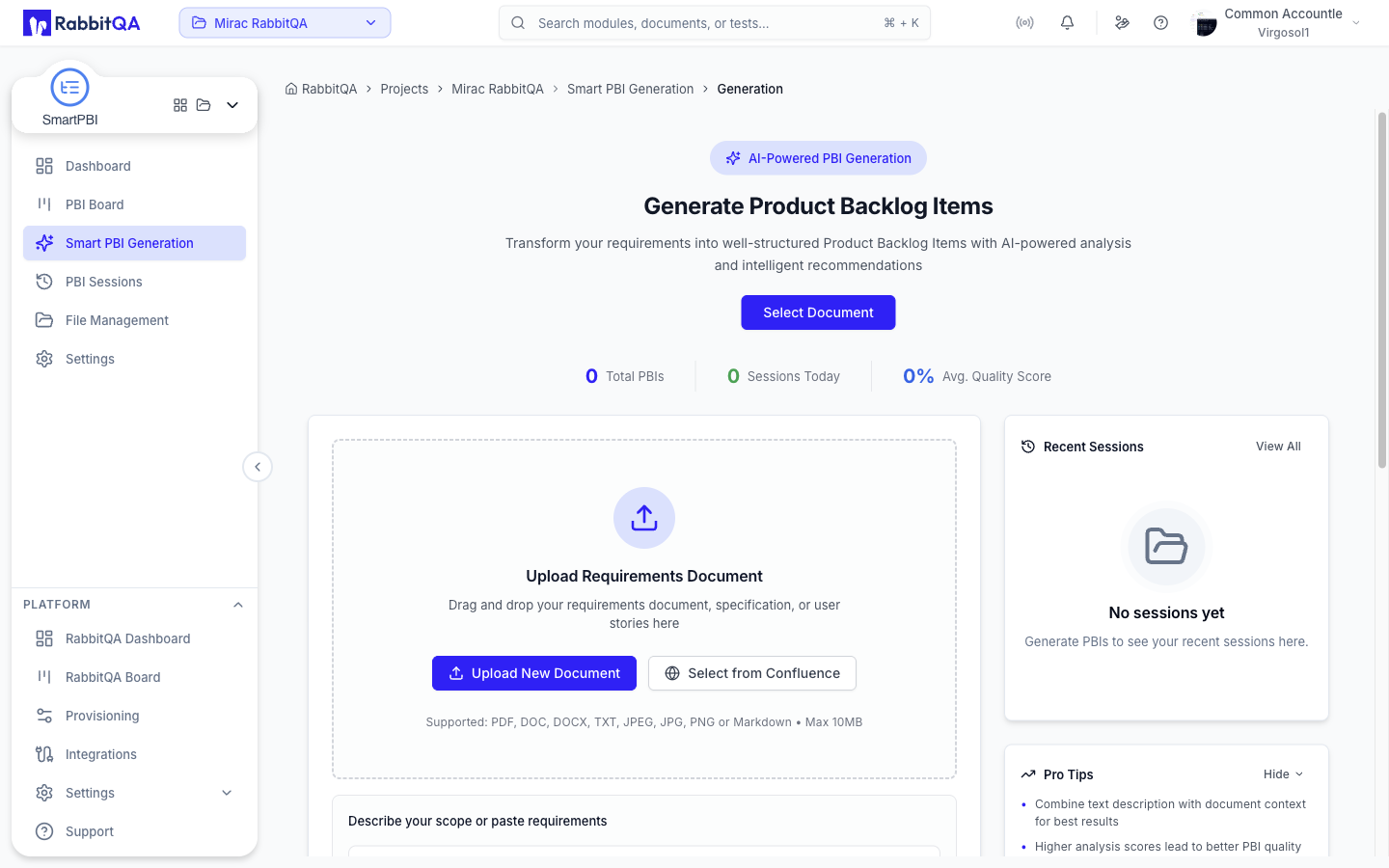 The page opens on Generate Product Backlog Items with a Select Document button, a strip showing total PBIs, sessions today, and average quality score, and a Recent Sessions panel down the side.
Reaching the page needs the permission to create a session or a PBI.
The steps
| Step | What happens |
|---|---|
| File Selection | Choose your sources and set the generation options |
| Analyze | The AI processes the input |
| View Results | Review, edit, regenerate, export, or transfer the output |
Configuration is not a separate step of its own. Every generation option lives in an Advanced Configuration accordion on the File Selection screen, so sources and settings are chosen together before you press Generate Now.
Step 1: File Selection
Sources are stacked cards on one screen rather than tabs. They are all optional and can be combined — a run needs at least one of them, plus at least one target platform and at least one PBI type.
Documents
Drag a file onto the drop zone, or use Upload New Document.
| Constraint | Value |
|---|---|
| Formats | PDF, DOC, DOCX, TXT, JPEG, JPG, PNG, Markdown |
| Maximum size | 10 MB per file |
| Documents per upload | Up to 10 |
The upload dialog also lets you attach the file as a New Version of Existing Document instead of a new one, and to tag it.
A selected document shows its version, analysis score (or unscored), and upload date, with Change File to swap it and + Add another document to stack more. Dropped images are added as context images rather than treated as documents.
Documents come from and go to the shared store described in File Management.
Confluence
A second button on the drop zone opens the Confluence page tree so you can pick pages as input. This needs the Confluence integration to be connected.
Text
Describe your scope or paste requirements takes free text — requirements, acceptance criteria, or extra context — up to 5,000 characters, with up to 5 inline images.
If text is your only source, it must be at least 50 characters. Below that the hint reads At least 50 characters for text-only; above it, You can generate without a document.
SmartRequest
SmartRequest (optional) pulls an AI-analyzed SmartRequest in as context. Use Select, Change, and Clear to manage the choice.
Existing PBIs
Smart PBI (optional) lets you pick backlog items from an earlier session and use them as context for a new one. Select PBIs opens a session-and-item picker; the field then shows how many items are selected and which session they came from.
Separately, an Include previous PBIs checkbox in the configuration accordion feeds your company's previously generated items in as context, which helps the AI avoid duplicates and build on what exists. It notes that it incurs additional cost.
Figma
Figma Designs imports design frames so UI context feeds the generation. If Figma is not connected, the card links to the integrations page instead.
Selected Sources
Everything you have chosen is summarized in a Selected Sources list, each row with a Remove link, so you can see the whole input set before generating.
Configuration
Presets
A Preset picker at the top of the accordion loads a saved AI configuration. Presets are managed under the organization's AI Configurations, and the one marked as default is applied automatically unless you change the selection.
Once a preset is loaded you can Clear it, Re-apply it, or Delete it, and a note reminds you that the fields below can still be overridden before generating.
Save as Preset, beside Generate Now, stores the current form as a reusable preset.
| Field | Notes |
|---|---|
| Module | Locked to Smart PBI |
| Scope | Personal (only you), or Company (everyone) |
| Name | Required, up to 255 characters, unique within the module |
| Description | Up to 1,000 characters |
| Default preset | Marks it as the module's suggested default — one per module |
A preset captures the language, platforms, PBI count, quality, and which PBI types are enabled. It does not capture the AI model.
AI Model
Model picks the model for the run, listing your company's models and any custom models added under the platform's AI Models integration.
Output Language
Sets the language the backlog is written in. The list comes from your platform configuration; see Settings for the languages available.
Target Platforms
Target Platforms (max 3) is required — at least one platform must be selected, and adding a fourth warns Maximum 3 platforms allowed. The platform list and its categories are in Settings.
PBI Types to Generate
Four checkboxes decide what the run produces.
| Type | Description in the UI |
|---|---|
| Epic | High-level initiative grouping features |
| Feature | Deliverable slices within an epic |
| User Story | As a … I want … so that … |
| Acceptance Criteria | Done conditions for stories |
Three shortcut buttons set common combinations.
| Preset | Selects |
|---|---|
| Story Only | User Story + Acceptance Criteria |
| Feature Set | Feature + User Story + Acceptance Criteria |
| Full Set | Epic + Feature + User Story + Acceptance Criteria |
Two rules are enforced:
- Acceptance Criteria and User Story move together — unchecking User Story clears Acceptance Criteria, and checking Acceptance Criteria checks User Story.
- At least one of Epic, Feature, or User Story must be selected. With none of them on, a red banner appears and both Generate Now and Save as Preset are disabled.
Hierarchy modes
There is no separate hierarchy setting. The combination of Epic, Feature, and User Story you enable is what determines the shape of the generated backlog.
| Types enabled | Result |
|---|---|
| Epic + Feature + User Story | The full hierarchy: epics broken into features, features broken into stories |
| Epic + Feature | Epics with features beneath them, no stories |
| Epic + User Story | Epics with stories beneath them; the feature level is skipped |
| Feature + User Story | Features with stories beneath them, with no parent epics |
| Epic only | Standalone epics |
| Feature only | Standalone features |
| User Story only | Standalone stories |
The three single-type modes generate flat lists, so they are not limited by the multiplication that a nested hierarchy implies and can produce larger sets.
Quality Level
| Level | Description in the UI |
|---|---|
| Speed | Lower quality, fastest turnaround |
| Balanced | Recommended default |
| Accuracy | Higher quality, more detail |
PBI Items
A single slider sets the target number of items, from 1 to 50, shown as {n}+.
The count covers epics, features, and user stories together; the + signals that it is a target rather than a hard quota.
There is no separate automatic-versus-manual quantity mode.
Step 2: Analyze
Pressing Generate Now starts the run and moves to the Analyze step.
A processing animation walks through four stages while the AI works.
| Stage | What it covers |
|---|---|
| Input Analysis | Parsing and analyzing document structure |
| Requirement Extraction | Extracting requirements and user stories |
| Quality Validation | Validating quality and completeness |
| PBI Generation | Creating Product Backlog Items with AI |
An elapsed-time counter runs alongside it. The wizard moves on to the results as soon as the session produces its first items or reports completion, so a fast run does not wait for the animation.
Cancel Generation stops the run. It asks to confirm — This will stop the current generation process and return to configuration. Any progress will be lost. — and returns you to the start.
Navigating away or pressing the browser's back button while a generation is running also prompts before leaving, and stops the run if you continue.
If generation fails, a Generation Failed dialog reports the reason and returns you to the input screen.
Step 3: View Results
The output renders as a single hierarchical tree — epics, then features beneath them, then user stories — with epics expanded by default. There is no separate flat-list view.
Each row shows a type icon, an AI Generated badge for AI-produced items, the title, priority and story-point badges, business value, size, risk, tags, and a description you can expand. User stories carry an acceptance-criteria checklist. Parent rows roll up their child counts and points.
While generation is still running, results stream in — the page shows Generating more PBIs below the list, a progress bar with the percentage and item count, and a Stop button.
Finding items
- A search box matching title, description, and acceptance criteria
- A type filter: All Types, Epics, Features, User Stories
Working with items
| Action | Where |
|---|---|
| Edit | Pencil on a row — opens an edit drawer |
| Duplicate | Copy icon on a row |
| Regenerate | Sparkles icon on a row, or the bulk toolbar |
| Delete | Trash icon on a row, or the bulk toolbar |
| Add a child item | Plus on an epic or feature row |
| Create New PBI | Above the list |
| Generate Test Cases | Above the list — hands the selection to CaseWriter |
Selecting one or more items raises a floating toolbar with Export, Regenerate, Delete, and Add To Board.
Each control appears only if you hold the matching permission.
Editing
Editing happens in a drawer, not in place. Fields depend on the type:
| Type | Fields |
|---|---|
| Epic | Title, Description, Business Value (0-100), Priority, Risk, Tags |
| Feature | Title, Description, Story Points, Priority, Risk, Tags |
| User Story | The Feature fields plus an Acceptance Criteria editor |
Priority runs Critical, Very High, High, Medium, Low. Risk is Low, Medium, or High. Story points come from 1, 2, 3, 5, 8, 13, 21.
An empty acceptance criterion blocks saving.
Create New PBI adds a type selector and an optional parent picker on top of those fields.
Regeneration
Regeneration reruns the AI on items you are not happy with, either one at a time or in bulk.
The dialog requires Additional Instructions describing what to improve, and offers example instructions to start from. Those instructions also steer which parts of the original source material the AI retrieves as context, so a specific instruction produces a more targeted rewrite than a vague one. When the original source context is unavailable, the AI falls back to the item's own content.
While it runs, the dialog's cancel action becomes Cancel Regeneration.
When it completes, a comparison view shows Original against AI Regenerated for each item — title, description, acceptance criteria, and tags. Choose Keep Original or Use Regenerated per item; Apply Changes stays disabled until every item has a decision, and any item left undecided keeps its original.
Regenerated items are stored as new items with a link back to the ones they came from, so accepting replaces the original and declining discards the proposal.
Regeneration also works on older sessions: if the generation service no longer holds the session in memory, it is rebuilt from the stored session and items before the rerun starts.
Add to Board
Add To Board transfers the selected items to the PBI Board. The dialog lists the selection as a tree and lets you tick exactly which items to move.
Export
Export opens the Export PBIs dialog.
| Target | Extra option |
|---|---|
| Jira | Project Key, loaded from the saved Jira integration |
| Azure DevOps | Project or board name |
| Excel | None |
Below the target sits an Items to Export tree with a running n / m selected count, a type breakdown, a select-all checkbox, and a Quick Select menu offering All Epics, All Features, All Stories, and Clear All.
Quick Select replaces the current selection rather than adding to it.
Selecting a parent selects its children; deselecting a collapsed parent deselects its children, while deselecting an expanded one deselects only the parent.
Only Excel downloads a file. Jira and Azure DevOps create the items in the target system and report success.
There is no PDF export. Jira, Azure DevOps, and Excel are the only targets.
Resuming and reusing
The wizard keeps its state in the URL, so refreshing or sharing the link returns you to the same step and session.
Recent Sessions beside the input screen lists your last five sessions with their status and item count.
| Button | Effect |
|---|---|
| Load Config | Replaces the current selections with that session's settings and sources |
| Open | Opens that session's results |
Loading a configuration restores the model, language, platforms, item count, PBI types, quality, text, images, document and version, SmartRequest, and any existing-PBI selection.
Regenerate PBIs on a completed session in PBI Sessions opens the wizard the same way.
