Status Pages
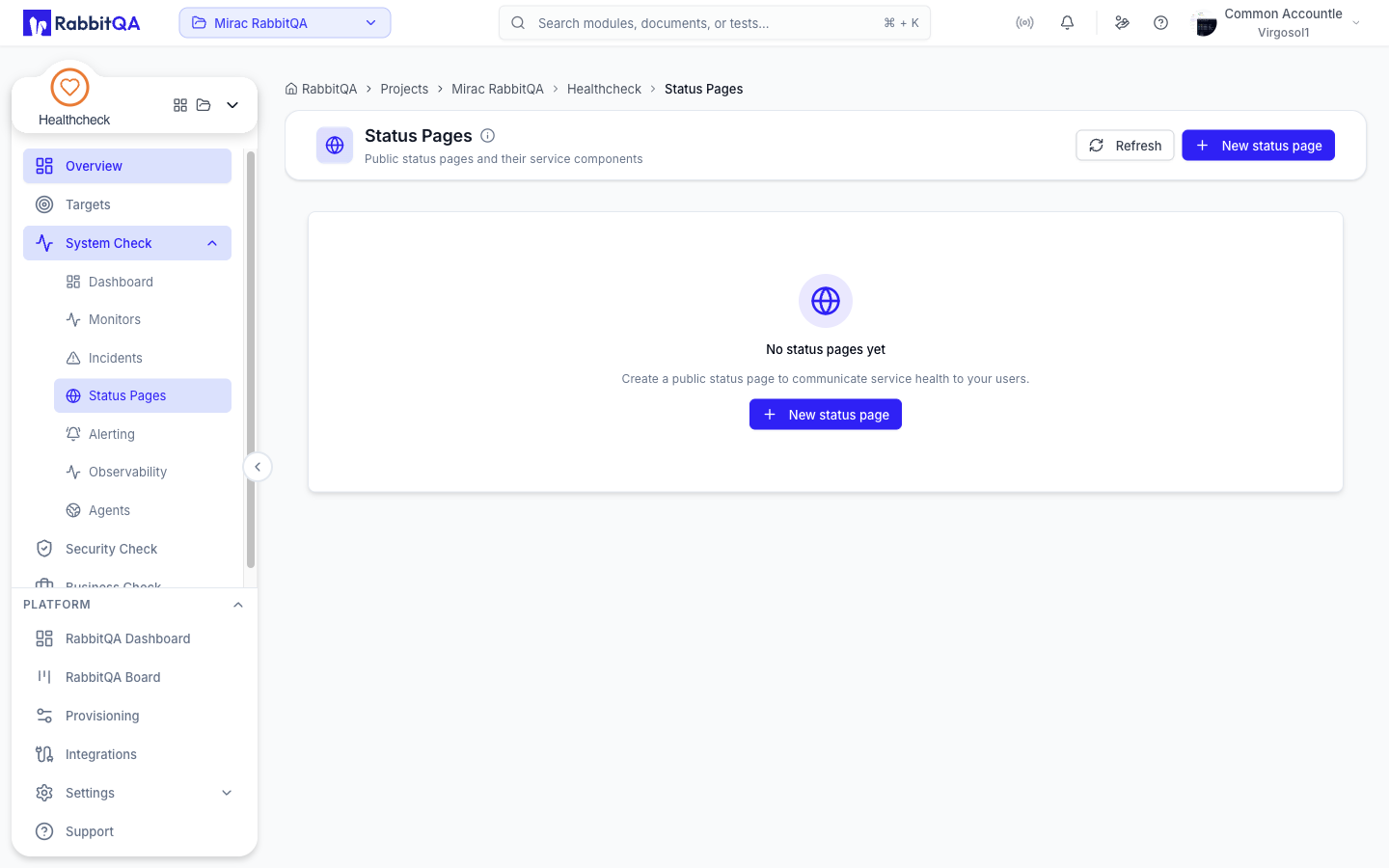
A status page communicates service health outside RabbitQA. Each page is a list of components, and each component is one of your monitors — the monitor's live status becomes the component's status.
The screen is at /healthcheck/status-pages.
Creating a page
Click New status page and fill in:
| Field | Notes |
|---|---|
| Title | For example Acme Status |
| Slug | The page's address. It is generated from the title and previewed live |
| Description | Optional |
| Publicly reachable without a password | Whether the page needs no password |
Click Create. A page cannot be edited after creation, so check the slug before saving.
Adding components
A new page has no components until you add them.
- Click Component on the page.
- Pick a Monitor.
- Optionally override the Display name, which defaults to the monitor name.
- Click Add.
Components can be removed individually.
Reading a page card
Each page card shows its title, a Public or Private badge, its description, and its address.
An overall status pill summarizes the components:
| Pill | Meaning |
|---|---|
| No components | Nothing has been added to the page yet |
| All systems operational | Every component is up |
| Partial outage (N) | N components are down |
| Major outage | Every component is down |
Component rows carry their own status: Operational, Down, Paused, or Unknown.
There is no in-app renderer for the public view in this release.
The address shown on the card, /healthcheck/api/v1/public/status-pages/{slug}, is the API the page
is served from rather than a finished customer-facing page.
