Dynamic Forms
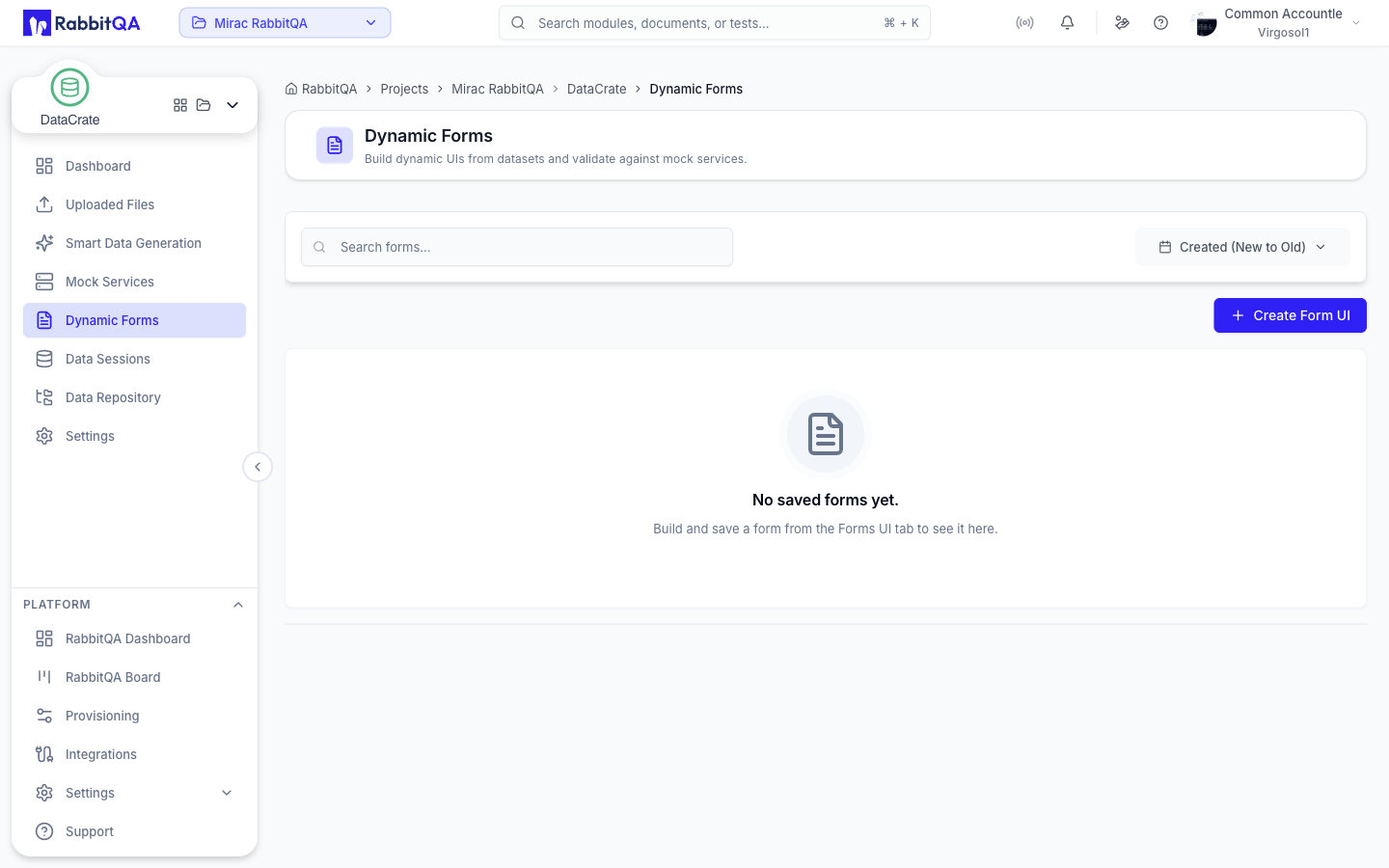
Dynamic Forms turns an API route into a form you can fill in by hand or feed from a dataset. It is the fastest way to exercise a mock service with realistic input.
Creating a Form
Select Create Form UI to open the builder. It has two sections.
Source Configuration
Choose where the form's shape comes from.
Mock Services builds the form from a service you already created in DataCrate. Pick the Mock Service, then the Route you want to target.
Real Services builds the form from an external service description.
| Field | Options |
|---|---|
| Source format | Auto-detect, OpenAPI (REST), WSDL (SOAP), Postman Collection, gRPC |
| Source | URL, or File for OpenAPI and WSDL |
For OpenAPI and WSDL, Discover Routes parses the source and offers a Route picker. For other formats you supply the method, path, and operation yourself.
Form Configuration
Give the form a name, then use Build Form UI to generate the fields and Save Form UI to keep it.
Fields are derived from the route's request schema, falling back to the response schema when no request schema exists. Field types are inferred from the schema — enumerations become choice fields, and email, date, and phone formats are detected automatically.
Saved Forms
The saved forms list supports search and sorting, and each entry offers:
| Action | Description |
|---|---|
| Open | Opens the form runner |
| Edit | Renames the form and edits its fields |
| Delete | Removes the form |
The edit dialog lets you add and remove fields and set each field's name, label, and type — String, Integer, Number, Boolean, Email, Date, or Phone.
Running a Form
Opening a form gives you two modes.
Manual
Fill in the fields yourself and use Submit to Mock Service. The dialog shows the Request Payload that was sent and the Mock Response that came back.
Every field is validated before the request goes out, with messages for required values, wrong types, values outside the allowed range or length, and malformed emails and dates.
Bulk From Dataset
Sends many rows through the same route, one request per row.
The form has to be saved and a mock service selected before bulk mode becomes available.
Dataset — pick the dataset to send. CSV, Excel, JSON, and JSONL datasets are supported, and the panel shows the file type and row count.
Field mapping — map each form field to a dataset column. DataCrate scores the columns against each field and puts its suggestions at the top of every list, with the reason for the suggestion and sample values on hover. Auto-fill suggested applies every suggestion at once without overwriting choices you made yourself. Save mappings stores the mapping so it is prefilled next time.
Job options:
| Option | Effect |
|---|---|
| Limit | Number of rows to send. Leave empty to send all rows |
| Delay (ms) | Pause between requests |
| Method | Overrides the route method |
| Path | Overrides the route path |
Start submit job runs the job in the background.
Submit Job Status
While a job runs, the status panel updates on its own.
| Job status | Meaning |
|---|---|
| QUEUED | Waiting to start |
| RUNNING | Sending rows |
| COMPLETED | Every row succeeded |
| PARTIAL_FAILED | Finished with some failures |
| FAILED | Stopped with an error |
| CANCELLED | Stopped by a user |
A progress bar shows rows submitted against the total, with counts of successes, failures, and skipped rows, plus the delay and the method and path in use.
The row table lists each row with its status, latency, and error, and a Raw view showing the exact payload and response.
| Row status | Meaning |
|---|---|
| OK | Accepted by the service |
| VALIDATION_FAILED | Row failed field validation before sending |
| FAILED | Service returned an error |
| SKIPPED | Row was not sent |
Cancel stops a job that is still running. Once the job reaches a final state, Dismiss clears the panel.
Related Pages
- Mock Services — create the endpoints forms submit to
- Uploaded Files — the datasets bulk submission reads from
