Scenarios
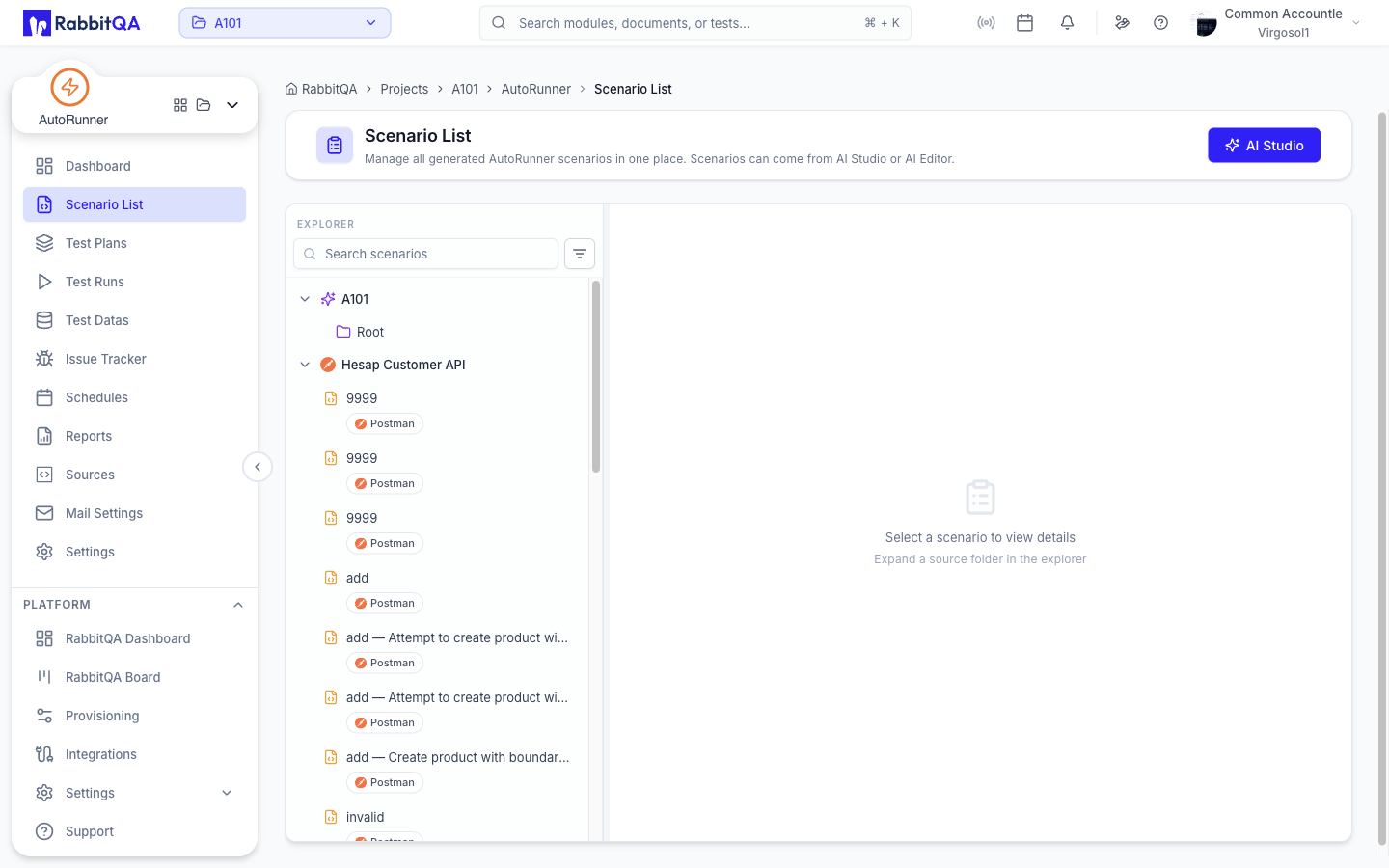
Scenario List is the workspace explorer for every scenario AutoRunner knows about, whatever source it came from.
What This Page Is For
The Scenario List answers "what do we have and where does it live". It is a read-only view. Editing happens in the tool that owns the source — AI Studio or the AI Editor.
Layout
The page is a two-pane, resizable card:
- Left — the Explorer tree, grouped by source and virtualized so large workspaces stay responsive.
- Right — the detail panel for the selected scenario.
Until you select something, the right pane prompts you to expand a source folder in the explorer.
Finding a Scenario
- Search scenarios filters the tree as you type.
- The Filter by platform button opens a Platform menu with Web, Android, iOS, and Desktop, plus Clear platforms.
Selected platforms appear as chips with a match count and a Clear action. Both the search term and the platform selection are applied on the server, so they narrow the whole workspace, not just the loaded page.
The Detail Panel
What the detail panel renders depends on the scenario's framework:
| Scenario type | Detail panel |
|---|---|
| AI-agent | The AI Studio read-only details view |
| Postman | The request detail for that collection entry |
| Gauge / BDD | The reconstructed scenario source text |
Variable tables in this panel are read-only — there are no selection or edit controls.
Opening a Scenario for Editing
Selecting Edit opens a confirmation: Scenarios are edited in <tool>, not on this page.
Confirm to open the scenario in its tool.
| Source tool | Opens |
|---|---|
| AI Studio | The source's AI Studio workspace, deep-linked to the scenario |
| AI Editor | The source's code editor |
Postman scenarios have a read-only detail panel but no editing tool, so no open action is offered for them.
The page header also carries AI Studio and AI Editor buttons. When several sources share the same tool, the button becomes a dropdown listing those sources. Selecting AI Studio for the first time provisions the workspace's AI source automatically.
Case Prioritizer
If the workspace contains at least one RoboClick source, a Case Prioritize button appears in the header.
- Pick the RoboClick scenarios to prioritize. Ticking a folder selects everything beneath it, and Select all / Clear all toggles the whole list.
- Select Prioritize.
- Drag the returned list to fine-tune the execution order.
- Select Apply order to save the order back to each scenario.
Case Prioritize is offered only for sources whose project type is RoboClick.
Next Steps
- AI Studio — Author and generate AI scenarios
- AI Editor — Edit repository-backed test code
- Test Plans — Group scenarios into something you can run
- Sources — Connect another source
