Test Executions
This is where the testing actually happens. Each test case in a run has one execution record that holds its status, assignee, result notes, attachments, and linked issues.
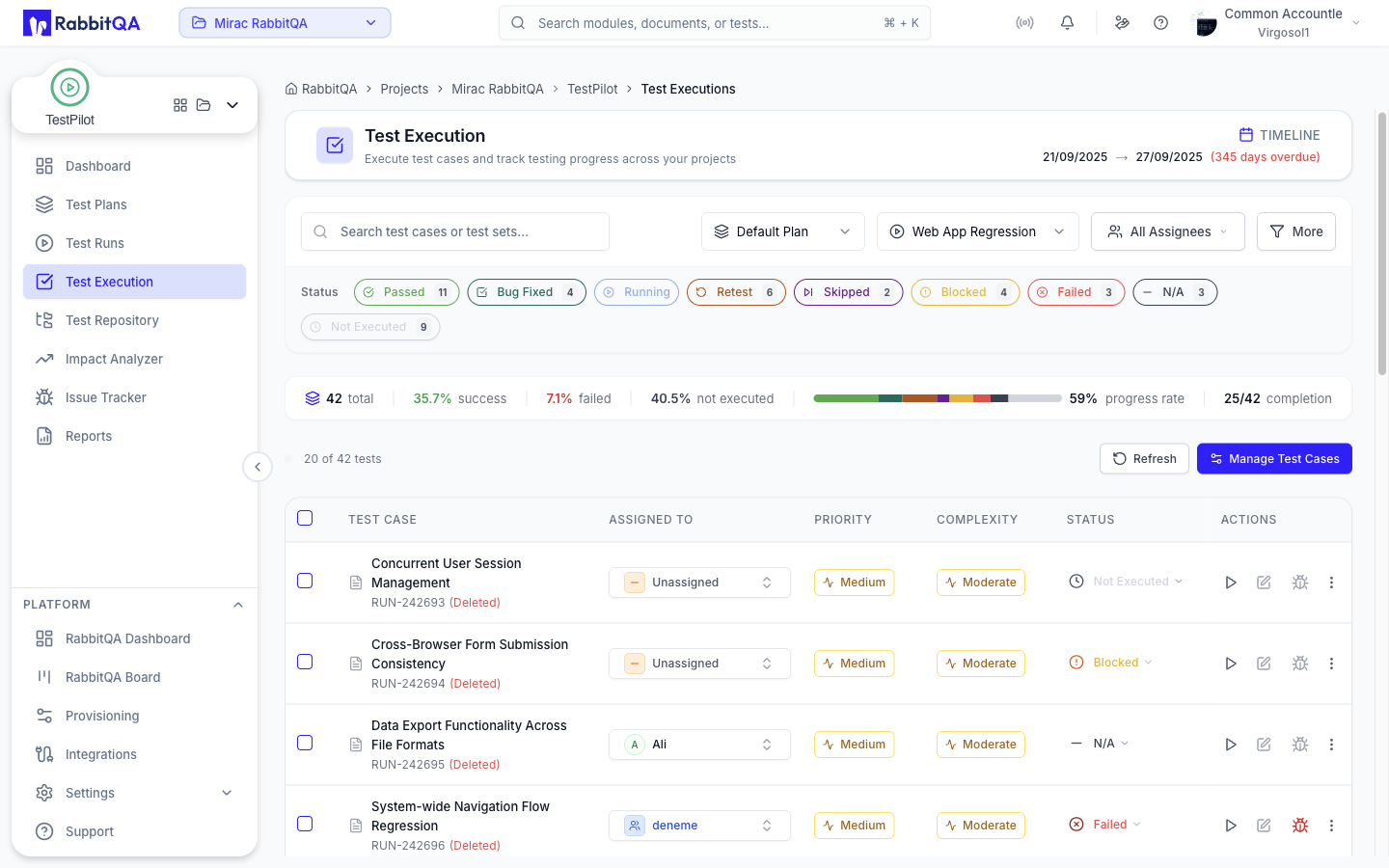
Choosing a run
Two selectors at the top of the page control what you see:
- Plan - All Plans, or a single test plan
- Run - a test run within that scope
Choosing a plan clears the run and narrows the run list. If you arrive with nothing selected, the page opens the most recently created plan and that plan's most recent run.
Deep links
| Parameter | Effect |
|---|---|
planId | Scope to a test plan; projectId still works as a legacy alias |
testRunId | Open a specific test run |
selectedId | Open a specific execution's detail panel |
Copy URL on a row builds exactly this link, so you can point a colleague at one test. A run that does not belong to the current project is cleared rather than shown empty.
Progress bar
Once a run is selected, a summary strip shows six figures:
| Figure | Meaning |
|---|---|
| total | Test cases in the run |
| success | Share that are Passed or Bug Fixed |
| failed | Share that are Failed |
| not executed | Share that are Not Executed, Running, Skipped, or Retest |
| progress rate | Segmented bar over every status, with a percentage |
| completion | Completed count against the total |
Completion counts Passed, Failed, Bug Fixed, N/A, and Blocked as done. Hovering a segment of the bar shows its count, the total, and its percentage.
Statuses
| Status | Meaning |
|---|---|
| Passed | The test behaved as expected |
| Bug Fixed | A previously failing test now passes after a fix |
| Running | Currently being executed |
| Retest | Needs to be run again |
| Skipped | Deliberately not run |
| Blocked | Cannot be run because of a dependency or environment problem |
| Failed | The test did not behave as expected |
| N/A | Not applicable to this run |
| Not Executed | Default state for a new execution |
Any status can be set from any other; there is no enforced transition order. The row dropdown disables the status the execution is already in.
Filtering the list
- Search - matches test cases and test sets, applied as you type
- Status pills - one pill per status with a live count; click to include or exclude that status
- Assignee - filter by users, groups, or Unassigned
- More - a dialog for Priority, Complexity, and a Test Sets & Cases tree
- Clear All - resets every filter and the search box
The assignee filter and the More dialog need a run to be selected first.
The list
| Column | Contents |
|---|---|
| (checkbox) | Row selection |
| Test Case | Test case name and its test set |
| Assigned To | Searchable assignee picker over users and groups |
| Priority | Priority badge |
| Complexity | Complexity badge |
| Status | Status dropdown |
| Actions | Execute, edit, attach, create issue, copy URL |
Click a row to open its detail panel.
The list is paged with a page size of 10, 20, 50, or 100, defaulting to 20.
Executing a test
The play action on a row opens the execution form.
Work through it top to bottom:
- Select Test Result - set the overall status.
- Read the test case description, its attachments, and its Pre-Conditions.
- Work through Test Steps & Expected Results, marking each step Passed, Failed, Skipped, or Not Executed. Clicking the mark again clears it.
- Add notes in Test Result Description.
- Attach evidence.
- Save Result.
Marking any step as failed sets the overall result to Failed. Marking every step as passed sets it to Passed. You can still override the overall status yourself.
Use Previous Test Case and Next Test Case, or the Test i of n dropdown, to move through the run without closing the form.
Closing with unsaved edits prompts you first.
Attachments
Execution attachments accept images, PDFs, and office documents, up to 10 MB per file. Each attached file can be previewed in place, downloaded, or deleted.
The detail panel
Opening an execution from the list gives you four tabs:
| Tab | Contents |
|---|---|
| Details | The test case, its steps, priority, complexity, assignee, and status |
| Comments | The test result description, plus the execution's attachments |
| History | An audit trail of what changed on this execution, and when |
| Issues | Tracker issues linked to this execution |
The Comments tab holds a single result description that is overwritten each time it is saved, not a threaded discussion. Use the Issue Tracker when you need a conversation on a defect.
Raising an issue from a failure
Issue creation is offered once a test is marked Failed. On the list, the bug action is disabled until then and explains why.
From a failed test you can:
- Create an issue in RabbitQA - the form is prefilled with a
[Bug] <test case>summary, the priority mapped from the test case, a status ofTo Do, and a description built from the preconditions and the steps up to and including the failing one, with the failed step marked. Attachments already on the test result are carried across. - Send it on to Jira or Azure DevOps - hand the prefilled content to the external tracker's own form.
- Link an existing issue - attach a Jira, Azure DevOps, or ClickUp issue that already exists.
If no tracker connection is configured, TestPilot says so rather than failing silently.
See Issue Tracker for the full issue workflow.
Working in bulk
Select rows with their checkboxes, then use the bar that appears:
- Select All - extends the selection to every execution matching the current filters, across all pages
- Update Status - set one status on the whole selection
- Assign To - assign the whole selection to a user or group, or clear the assignee
- Apply Changes
Changing the status or assignee on one row while several rows are selected applies the change to the whole selection.
The bulk bar requires the testpilot:testresult:update permission.
Other actions
| Action | Notes |
|---|---|
| Refresh | Re-fetches the list; the page does not poll on a timer |
| Manage Test Cases | Add or remove test cases on the run; needs testpilot:testset:update and a selected run |
| Push Results | Appears only when the run is mapped to a TestRail project |
Push Results opens a Push Results to TestRail dialog, which creates a new run in TestRail and attaches this run's results to it. You can supply a name, or leave it blank to use the default. Cases that are not mapped yet are synced first.
Permissions
| Action | Permission key |
|---|---|
| Change status, assign, edit results, bulk update | testpilot:testresult:update |
| Manage the run's test cases | testpilot:testset:update |
| Create or link an issue | integration:issue:create |
Without the update permission the status control renders as plain text rather than a dropdown that does nothing.
Next steps
- Test Runs - set up the run being executed
- Issue Tracker - work the defects you raise
- Reports - report on the finished run
- Best Practices - execution strategy
