Integrations
Connect RabbitQA with your existing tools and workflows.
What are Integrations?
Integrations connect RabbitQA with your existing development and project management tools, enabling seamless workflows and data synchronization across your entire ecosystem.
Configure integrations once at the platform level, and they become available across all RabbitQA modules.
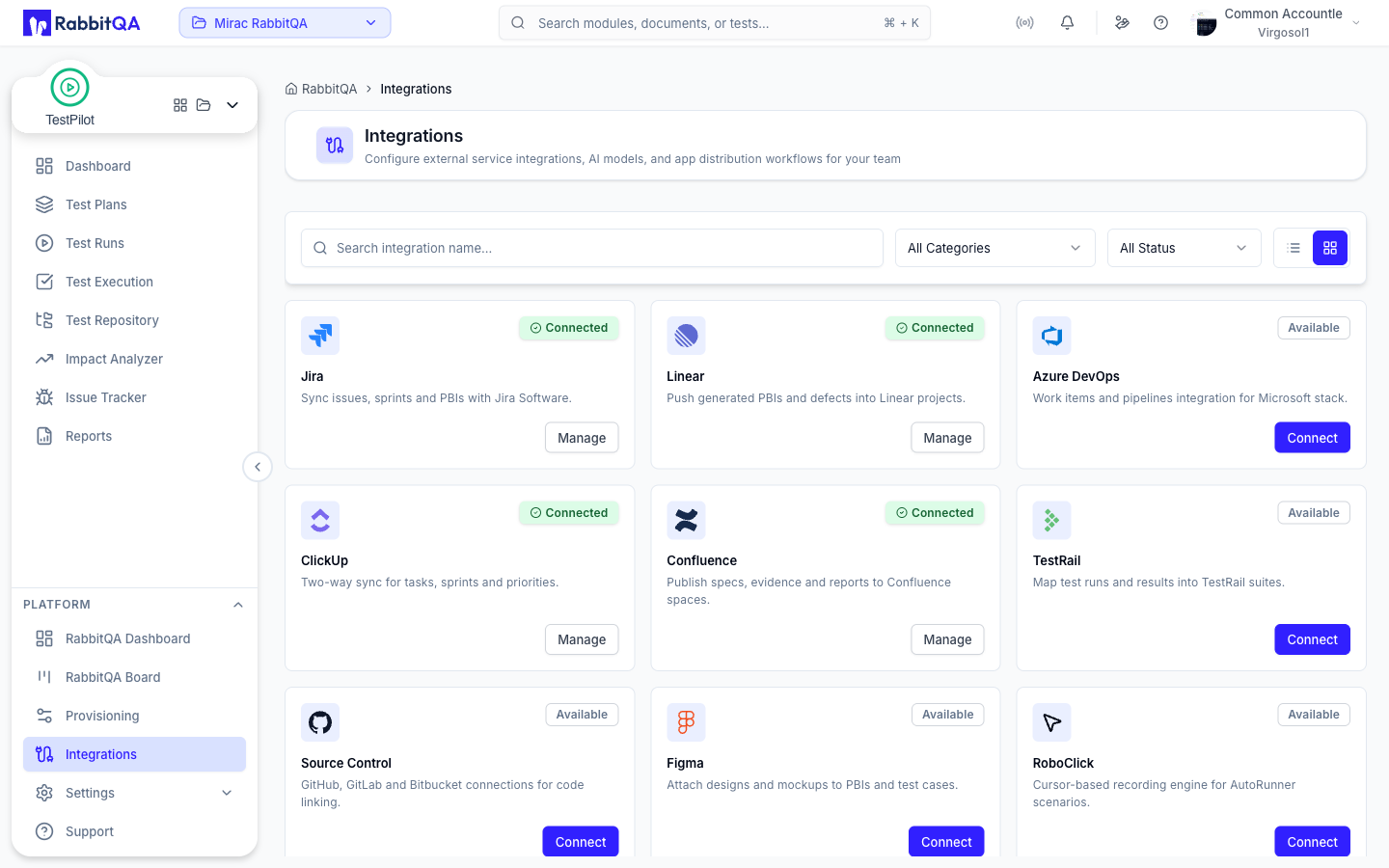
Jira Integration
Connect RabbitQA with your Jira instance to enable bidirectional synchronization of issues, PBIs, and test results.
Configure by entering your Jira instance URL, administrator email, and API token. Once connected, Analyzer can export PBIs to Jira, TestPilot can automatically create issues from test failures, and CaseWriter can link test cases to Jira requirements.
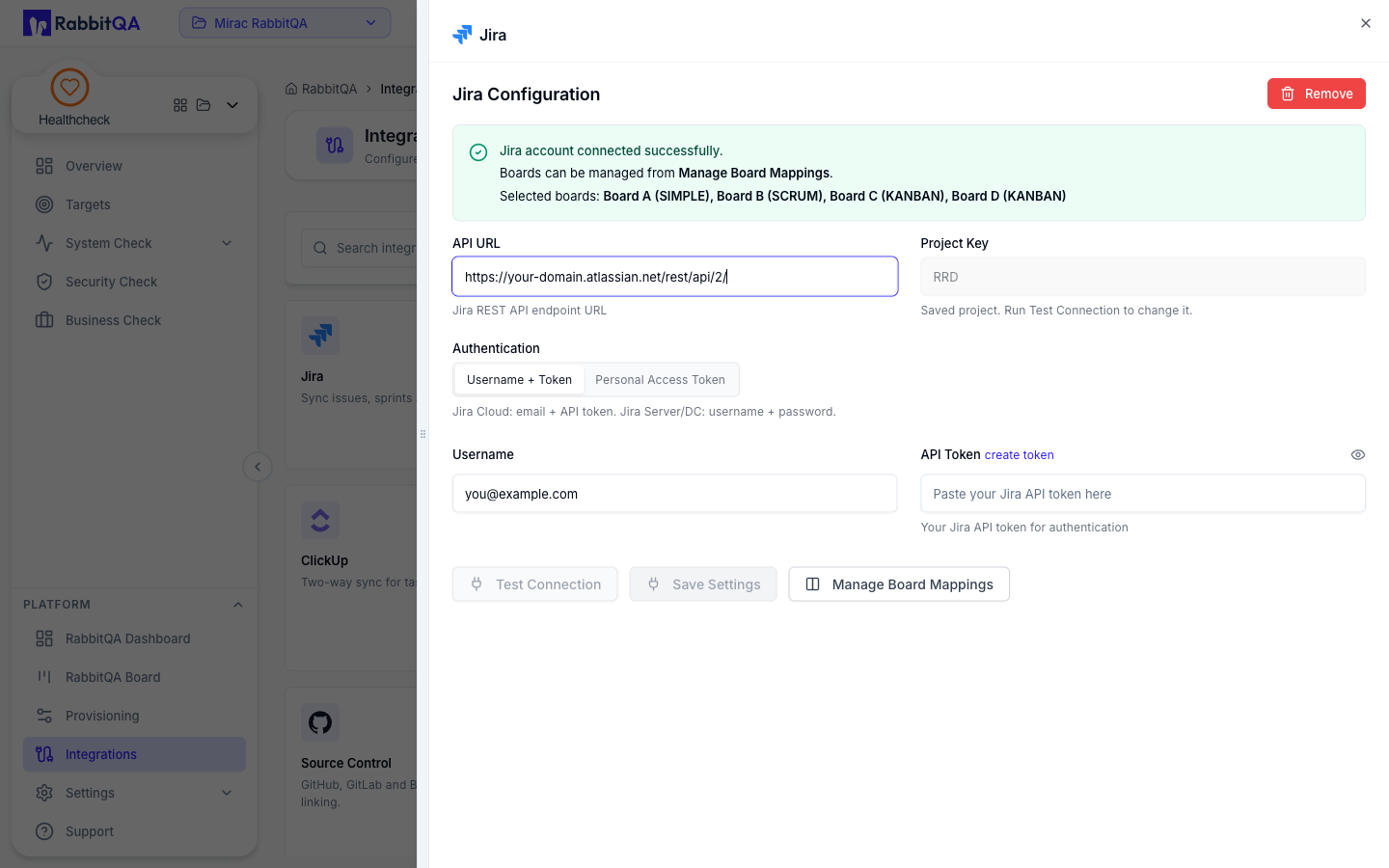
Azure DevOps Integration
Integrate with Azure DevOps to sync work items, test results, and project data between RabbitQA and your Azure DevOps organization.
Set up by providing your Azure DevOps organization URL, administrator email, and Personal Access Token (PAT). This enables Analyzer to export PBIs as work items, TestPilot to create bugs from test failures, and CaseWriter to maintain traceability with Azure DevOps requirements.
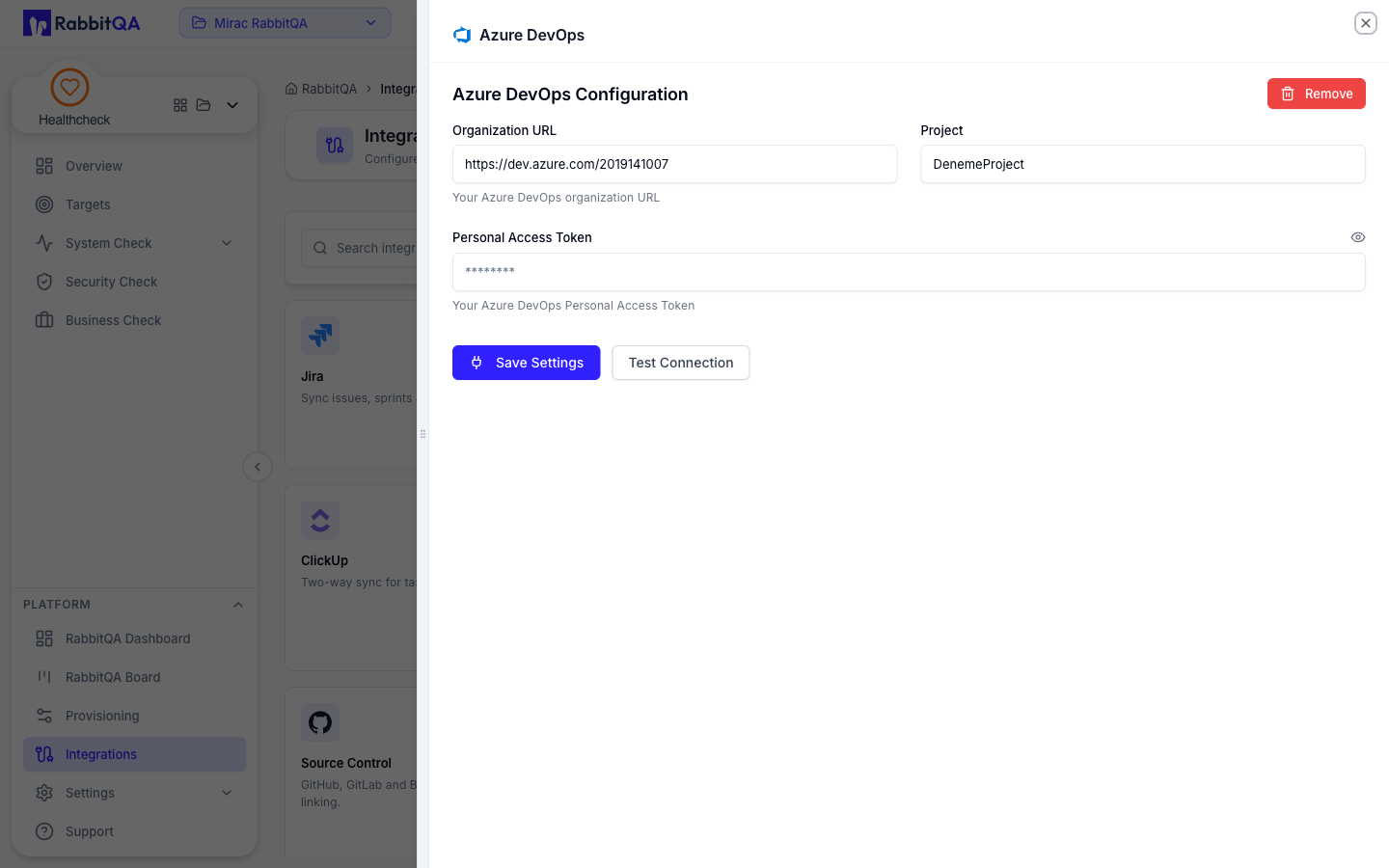
Connection Setup
The Azure DevOps integration form collects three required values:
| Field | Description |
|---|---|
| Organization | Your Azure DevOps organization name — the URL slug that follows dev.azure.com/. Required. |
| Project | The Azure DevOps project that work items, boards, and pipelines belong to. Required. |
| Personal Access Token | A PAT with Work Items (Read & Write) and Project and Team (Read) scopes. Stored encrypted, displayed as a masked password field. Minimum 6 characters. |
Use Test Connection before saving to verify the credentials reach Azure DevOps. Failed connections surface the underlying Azure error so you can correct scope or expiration issues without leaving the page.
The integration is gated behind the azureDevOpsEnabled feature flag, which lets administrators
disable Azure DevOps per deployment without removing the credentials.
Creating Work Items from Test Failures
When TestPilot promotes a failed step to a bug, RabbitQA opens a multi-step Azure DevOps issue modal that walks through:
- Project selection — Pick any Azure DevOps project the connected PAT can reach.
- Work item type — Choose Bug, Task, Feature, User Story, or any custom type defined in the selected project's process template.
- Dynamic field schema — RabbitQA fetches the full field schema for the chosen work item type, including required, optional, and custom fields. You only see fields that actually exist on that work item type, with their allowed values and defaults pre-populated from Azure DevOps.
The form supports every Azure DevOps field type:
| Field type | Behavior |
|---|---|
| Single-line / multi-line text | Plain text input, length validated against Azure schema. |
| HTML / rich text | Description-style fields accept rich text; plain input is auto-wrapped in HTML. |
| Multi-select (tags, related items) | Array fields render as multi-select with allowed values from the schema. |
| Identity (assignee, reviewer) | Dropdown of project members with an explicit "Unassigned" option. |
| Date / DateTime | Native date picker for due dates, target dates, and scheduling fields. |
| Integer / decimal | Numeric inputs with the precision Azure DevOps expects. |
| Boolean | Checkbox for true/false flags on custom fields. |
When you re-open an existing Azure DevOps issue, the modal pre-fills every field — including the
project and work item type — from the work item's fields payload, so edits are made against the
real current state instead of stale cached values.
Priority Mapping
RabbitQA's four-level severity scale is automatically translated to Azure DevOps' numeric 1–4 priority field, with display labels preserved on both sides:
| RabbitQA priority | Azure DevOps priority | Display label |
|---|---|---|
| Critical | 1 | Critical |
| High | 2 | High |
| Medium | 3 | Medium |
| Low | 4 | Low |
Attachments
Each Azure DevOps work item supports up to 10 attachments of 10 MB each through the RabbitQA modal. The attachment panel handles three operations against the same work item:
- Upload new screenshots, logs, or evidence captured during test execution.
- Preview existing attachments — images and PDFs stream inline; Office documents open through Azure's tokenized download URL.
- Remove attachments that are no longer relevant; deletions are pushed to Azure immediately.
Hierarchical PBI Export
Smart PBI exports preserve the Epic → Feature → User Story hierarchy when targeting Azure DevOps. The export drawer renders the generated backlog as a parent-child tree with indeterminate checkbox state for partial selections, and creates the matching parent/child links in Azure so boards and queries reflect the same hierarchy as the RabbitQA Smart PBI view.
Custom AI Agent Integration
Integrate your custom AI agents to extend RabbitQA's capabilities with your organization's specific AI models and workflows.
Configure API endpoints, authentication credentials, and model parameters. Use custom AI models for document analysis, test case generation, or other specialized workflows within Analyzer, CaseWriter, and TestPilot modules.
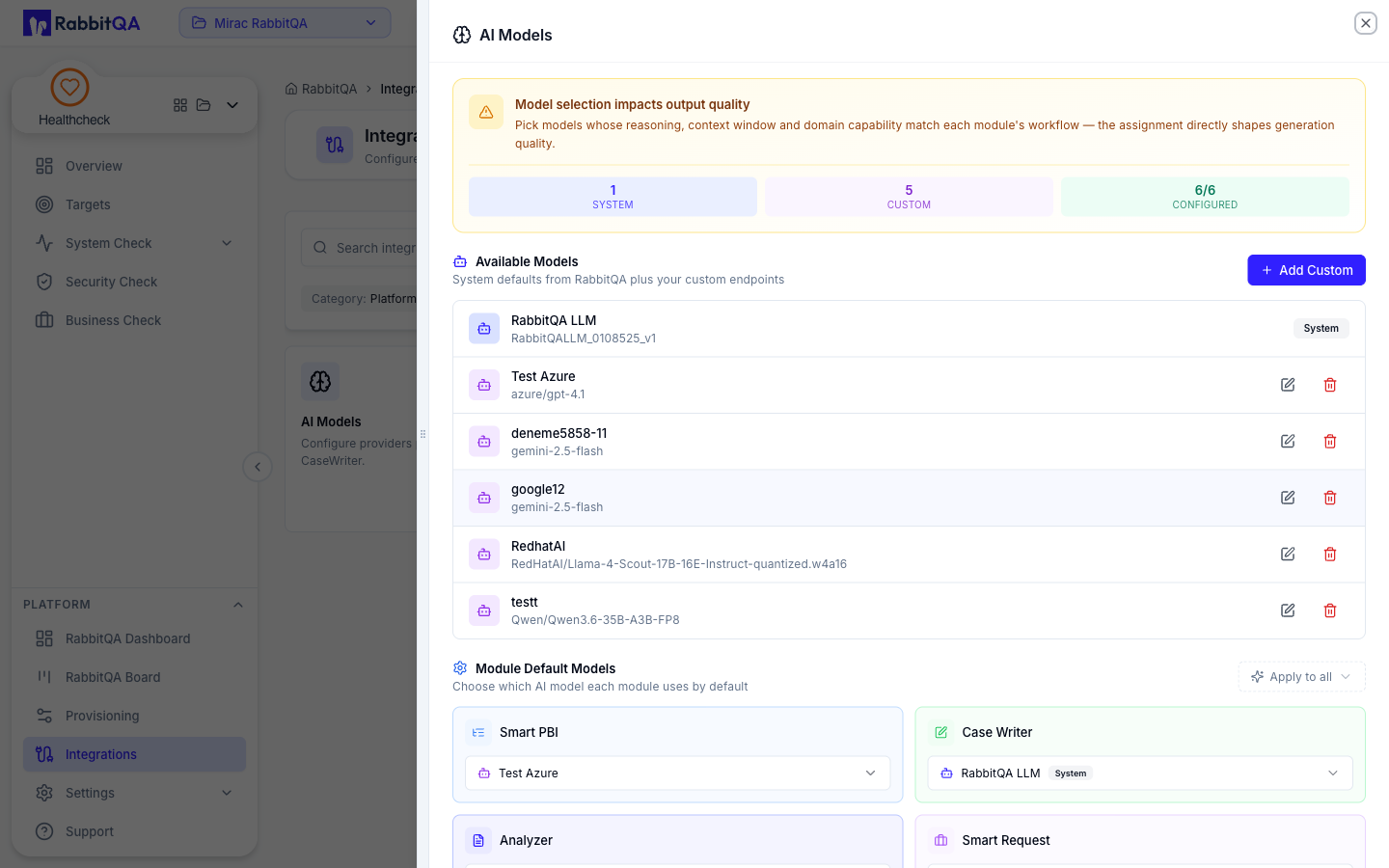
Managing Integrations
View all configured integrations on the Integrations page. Test connections to verify credentials, edit integration settings, enable or disable integrations, and monitor integration status and health.
Integration logs help troubleshoot connection issues and track synchronization activities.
