Exclusion Rules
Define time windows during which alert notifications are suppressed, preventing false alarms during planned maintenance or deployments.
What are Exclusion Rules?
Exclusion rules let you schedule periods when a monitor's failures will not trigger alerts or count against uptime KPIs. Checks continue to run during exclusion windows — data is still collected — but the alerting engine treats failures as expected and suppresses notifications.
Creating an Exclusion Rule
- Navigate to HealthCheck → Dashboard.
- Click a monitor to open its report page.
- Select the Exclusion tab.
- Click Add Exclusion.
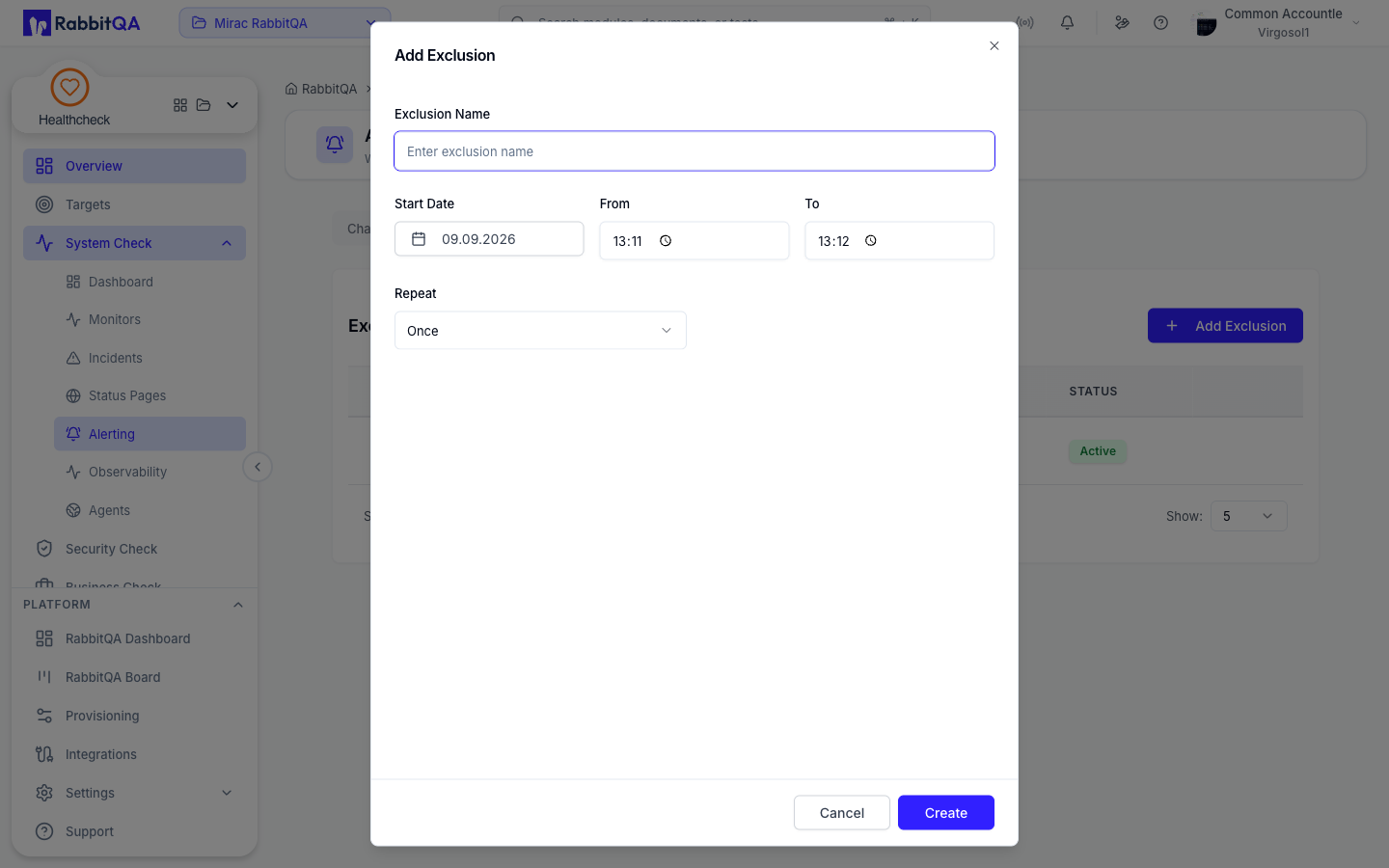
Exclusion Fields
| Field | Description |
|---|---|
| Name | A descriptive label (e.g., "Weekly Deployment Window") |
| Start Date/Time | When the exclusion begins |
| End Date/Time | When the exclusion ends |
| Recurrence | One-time, Daily, Weekly, or Monthly |
| Description | Optional notes about the maintenance activity |
- Select start and end times using the calendar picker.
- Choose a Recurrence pattern if the maintenance repeats on a schedule.
- Click Save to create the exclusion.
Recurrence Patterns
| Pattern | Behavior |
|---|---|
| One-Time | Applies once at the scheduled date/time, then expires |
| Daily | Repeats every day at the same time window |
| Weekly | Repeats on the same day of the week |
| Monthly | Repeats on the same day of the month |
Recurring exclusions continue indefinitely until you delete or modify them. Review recurring rules periodically to remove exclusions that are no longer needed.
Managing Exclusion Rules
Viewing Exclusions
All exclusion rules for a monitor are listed in the Exclusion tab on the monitor report page. Each entry shows the name, time window, recurrence pattern, and status (upcoming, active, expired).
Editing an Exclusion
- Click the Edit icon next to the exclusion rule.
- Modify the time window, recurrence, or description.
- Click Save to apply changes.
Deleting an Exclusion
- Click the Delete icon next to the exclusion rule.
- Confirm the deletion in the dialog.
Deleting an active exclusion immediately re-enables alerting. If the monitor is currently failing, alerts will be sent as soon as the exclusion is removed.
Best Practices
- Name exclusions descriptively — Use names like "Bi-weekly DB migration" instead of "Maintenance" so the team understands the context.
- Keep windows tight — Only cover the actual maintenance duration. Overly broad windows hide real issues that occur outside the planned work.
- Use recurring rules for regular maintenance — If your team deploys every Tuesday at 2 AM, create a weekly recurring exclusion instead of adding a new one-time rule each week.
- Review expired exclusions — Clean up one-time exclusions after they expire to keep the list manageable.
- Coordinate with your team — Notify stakeholders when exclusion windows are active so they know that alerts are suppressed and monitoring data may show expected failures.
Next Steps
- Configure alert channels that will be suppressed during exclusion windows.
- Review incident history to verify that maintenance periods are not generating false incidents.
- Connect integrations to automate exclusion creation from deployment pipelines.
