Test Scheduling
Automate test execution by creating schedules that run your test suites at defined intervals, with full control over timing, exclusion windows, and quality gates.
Overview
The Scheduling module lets you define recurring test runs so your suites execute automatically without manual intervention. Schedules are built around cron expressions, support pause/resume controls, and integrate with quality gates to enforce pass rate thresholds on every run.
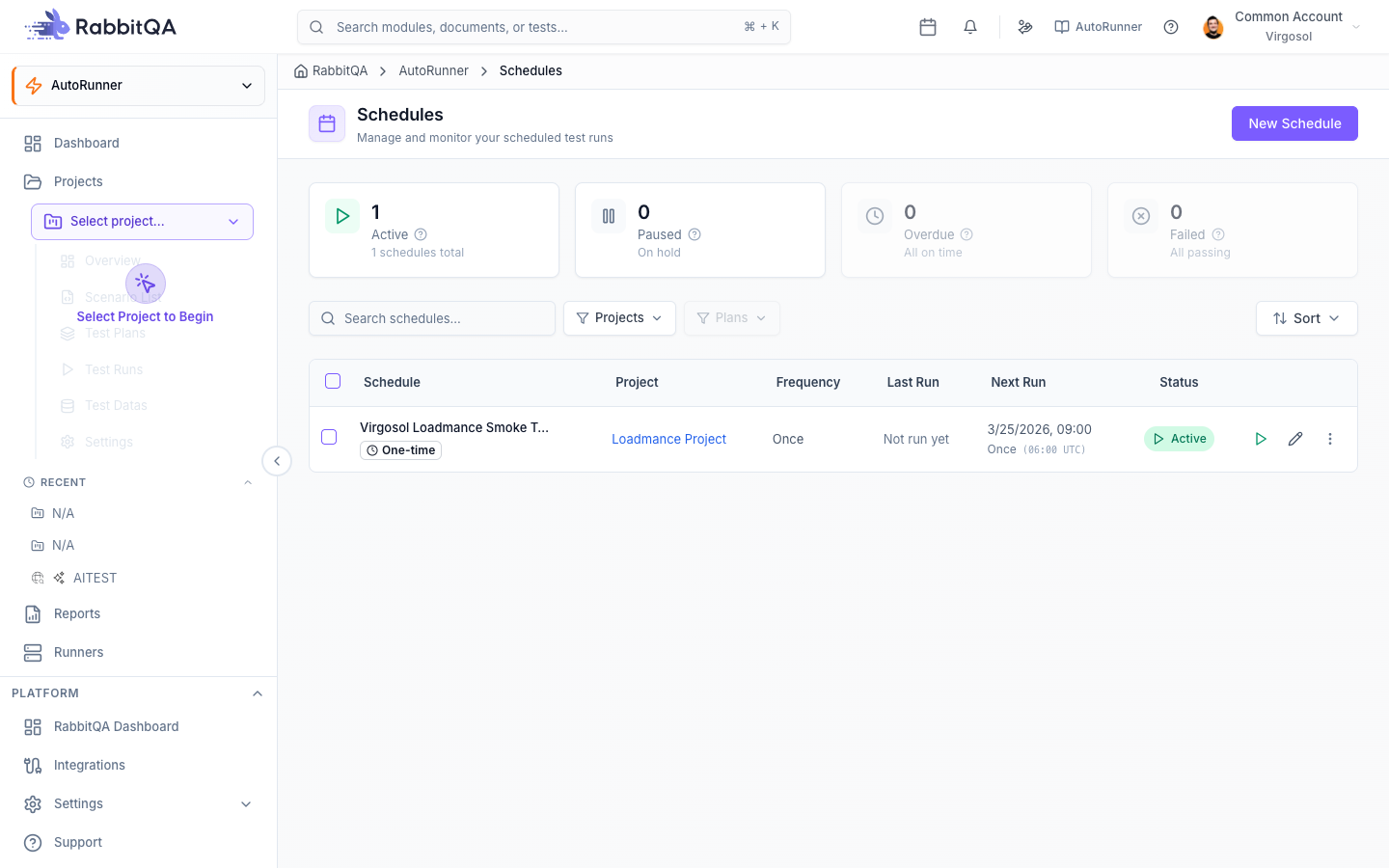
Creating a Schedule
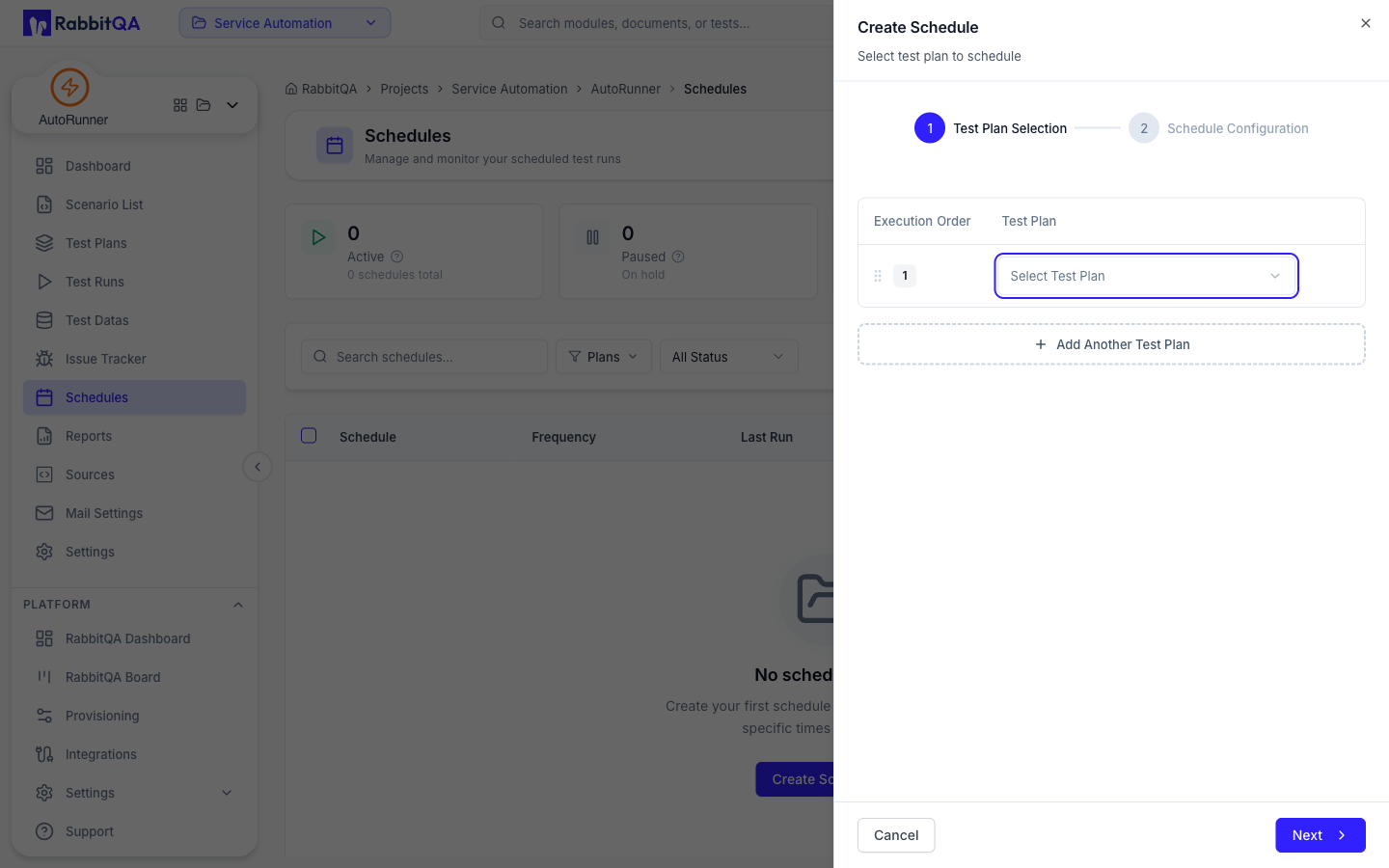
- Navigate to AutoRunner > Schedules.
- Click the Create Schedule button.
- Fill in the schedule configuration:
| Field | Required | Description |
|---|---|---|
| Name | Yes | Descriptive name for the schedule (e.g., "Nightly Regression") |
| Project | Yes | The project containing the suite to run |
| Suite | Yes | The test suite to execute on each trigger |
| Run Profile | No | Environment and driver configuration for the run |
| Frequency | Yes | Cron expression defining the execution cadence |
| Quality Gate | No | Pass rate threshold to enforce on each scheduled run |
| Notifications | No | Email recipients and trigger rules for run results |
- Click Save to activate the schedule.
Cron Builder
AutoRunner provides a visual CronBuilder that generates cron expressions without requiring you to write them manually. Select from frequency presets or build a custom expression.
Frequency Presets
| Preset | Cron Expression | Description |
|---|---|---|
| Hourly | 0 * * * * | Runs at the top of every hour |
| Daily | 0 9 * * * | Runs every day at 9:00 AM UTC |
| Weekly | 0 9 * * 1 | Runs every Monday at 9:00 AM UTC |
| Monthly | 0 9 1 * * | Runs on the 1st of each month at 9:00 AM UTC |
| Custom | User-defined | Full control over the cron expression |
Custom Cron Builder
When you select Custom, the CronBuilder displays individual pickers for each cron field:
| Field | Range | Description |
|---|---|---|
| Minute | 0 -- 59 | The minute of the hour to trigger |
| Hour | 0 -- 23 | The hour of the day (UTC) |
| Day of Month | 1 -- 31 | The day of the month |
| Month | 1 -- 12 | The month of the year |
| Day of Week | 0 -- 6 | The day of the week (0 = Sunday, 6 = Saturday) |
Each picker supports selecting individual values, ranges, and intervals. As you adjust the pickers, the cron expression updates in real time.
Below the cron expression, AutoRunner displays a plain-language description of the schedule. For example, 0 9 * * 1-5 displays as "At 09:00 AM, Monday through Friday."
Cron Expression Validation
The CronBuilder validates your expression before saving:
- Invalid syntax is highlighted with an error message.
- Expressions that would trigger more frequently than once per minute are rejected.
- The next 5 projected execution times are displayed as a preview so you can verify the schedule behaves as expected.
Schedule Statuses
Each schedule has a status that reflects its current operational state:
| Status | Description |
|---|---|
| ACTIVE | The schedule is enabled and will trigger at the next cron interval |
| INACTIVE | The schedule is disabled and will not trigger |
| PAUSED | The schedule is temporarily suspended (can be resumed) |
| COMPLETED | The schedule has reached its end condition and will not trigger again |
Schedule Actions
Manage schedules from the schedule list or detail view:
- Pause — Temporarily stop a schedule without deleting it. The schedule retains its configuration and can be resumed at any time.
- Resume — Reactivate a paused schedule. The next run is calculated from the current time.
- Execute Now — Trigger an immediate run outside the normal cron cadence. The scheduled cadence is not affected.
- Edit — Modify the schedule name, cron expression, suite, or quality gate.
- Delete — Permanently remove the schedule (with confirmation).
Use Execute Now to verify a newly created schedule works correctly before waiting for its first cron trigger.
Schedule Statistics
The Schedules page displays a statistics row summarizing your scheduling health:
| Metric | Description |
|---|---|
| Total | Total number of schedules across all projects |
| Active | Schedules currently enabled and triggering |
| Paused | Schedules temporarily suspended |
| Completed | Schedules that have finished their lifecycle |
| Failed Last Run | Schedules whose most recent run did not pass the quality gate |
| Blocked | Schedules that cannot run due to a dependency or resource conflict |
| Scheduled Today | Number of runs expected to trigger within the current day |
Exclusion Rules
The ExclusionRulesEditor lets you define windows during which a schedule should not trigger, even if the cron expression matches.
- Date exclusions — Skip specific calendar dates (e.g., holidays, maintenance windows).
- Time exclusions — Block execution during specific hours (e.g., avoid peak traffic between 12:00 and 13:00).
- Recurring exclusions — Define weekly patterns (e.g., never run on weekends).
When a cron trigger falls within an exclusion window, the run is silently skipped and the schedule resumes at the next valid interval.
If your exclusion rules overlap with every possible trigger in the cron expression, the schedule will never execute. AutoRunner warns you during configuration if this condition is detected.
Calendar View
The ScheduleCalendarView provides a visual month-by-month view of upcoming scheduled runs.
- Each day cell shows the number of scheduled runs and their status indicators.
- Click a day to expand the list of runs with schedule names, suites, and projected times.
- Color coding distinguishes active schedules (purple), paused (gray), and exclusion windows (striped).
- Use the calendar to identify scheduling gaps or over-concentration on specific days.
Quality Gate Configuration
Attach a quality gate to any schedule to enforce minimum standards on each run:
| Setting | Description |
|---|---|
| Minimum Pass Rate | The percentage of scenarios that must pass (e.g., 95%) |
| Fail Action | What happens when the gate fails: notify only, pause the schedule, or both |
| Consecutive Failures | Number of consecutive gate failures before the schedule auto-pauses |
When a quality gate fails, the schedule's Failed Last Run counter increments and the configured fail action is executed.
Schedule List
The main Schedules page displays all schedules in a searchable, filterable list. The list polls for updates every 60 seconds to reflect status changes in near real time.
Filtering Options
| Filter | Values |
|---|---|
| Status | Active, Inactive, Paused, Completed |
| Project | Filter by associated project |
| Suite | Filter by associated test suite |
| Health | Healthy (last run passed), Failing (last run failed), Unknown (never run) |
Sorting
Sort the schedule list by name, next run time, last run time, status, or pass rate. Default sorting is by next run time (ascending), placing the soonest schedules at the top.
Next Steps
- CI/CD Integration — Trigger runs from your deployment pipeline
- Reports — Analyze results from scheduled runs
- Test Runner — Monitor active runs in real time
- Projects — Configure project settings and run profiles
