Test Runners
Configure and monitor the execution infrastructure that powers your test automation, including runner engines, browser drivers, and capacity management.
What are Test Runners?
Test runners are the execution engines that carry out your test suites. Each runner is a containerized environment equipped with browser drivers and testing frameworks, capable of executing scenarios against your target applications. AutoRunner manages runner allocation automatically, distributing test runs across available runners based on capacity and capability.
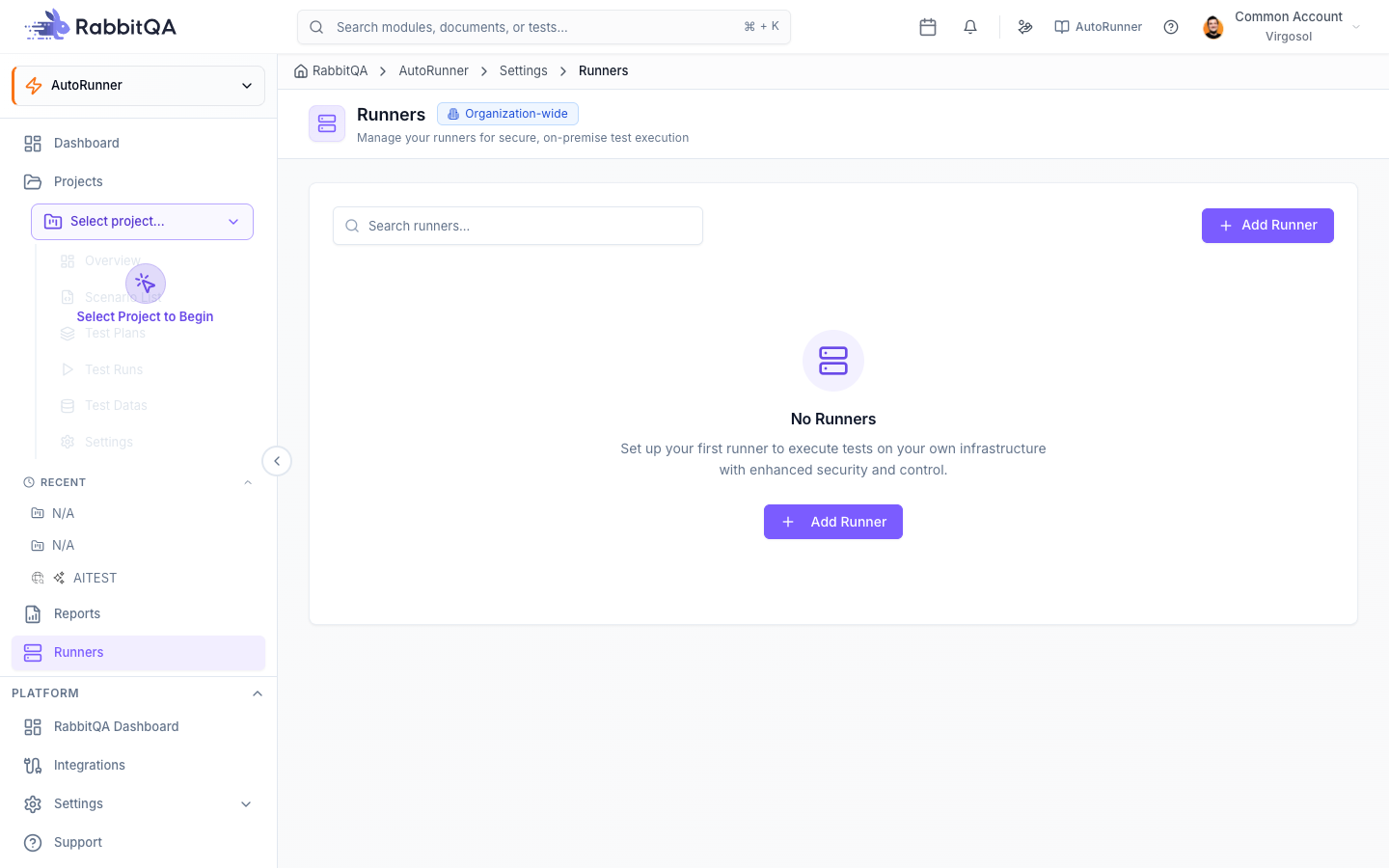
Runner List View
The runners page displays all registered runners with key status information:
| Column | Description |
|---|---|
| Name | Runner display name and identifier |
| Status | Current state: Online (green), Offline (red), or Busy (yellow) |
| Capacity | Number of concurrent executions the runner supports |
| Browser Support | Installed browser drivers (Chrome, Firefox, Edge, Safari, Appium) |
| Health | Overall health indicator based on uptime and error rate |
| Last Active | Timestamp of the most recent test execution |
Adding a New Runner
To register a new runner in AutoRunner:
- Navigate to AutoRunner > Runners.
- Click the Add Runner button.
- Fill in the runner configuration:
| Field | Required | Description |
|---|---|---|
| Runner Name | Yes | A unique, descriptive name for the runner |
| Endpoint URL | Yes | The network address where the runner engine is accessible |
| Capabilities | Yes | Select supported browsers and devices |
| Max Concurrency | No | Maximum number of parallel executions (default: 1) |
| Description | No | Optional notes about the runner's purpose or environment |
- Click Save to register the runner. AutoRunner performs an initial health check to verify connectivity.
AutoRunner runners operate as Docker containers. The endpoint URL typically points to the container's exposed port. Ensure the container is running and accessible from the AutoRunner server before registering.
Runner Configuration
Edit a runner's configuration from the runner detail page:
- General -- Update the runner name, description, and endpoint URL.
- Capabilities -- Add or remove supported browsers and device profiles.
- Concurrency -- Adjust the maximum number of parallel executions.
- Timeout -- Set the maximum allowed execution time before the runner forcibly terminates a run.
Browser Driver Management
Each runner must have the appropriate browser drivers installed to execute tests against target browsers.
| Driver | Browser | Notes |
|---|---|---|
| ChromeDriver | Google Chrome | Auto-updated to match Chrome version |
| GeckoDriver | Mozilla Firefox | Compatible with Firefox ESR and standard releases |
| EdgeDriver | Microsoft Edge | Chromium-based Edge support |
| SafariDriver | Apple Safari | macOS runners only |
| Appium | Mobile devices | Requires device farm integration via Devicer |
Driver status and versions are displayed in the runner detail page. AutoRunner alerts you when a driver version mismatch is detected.
Health Monitoring
AutoRunner polls each runner every 15 seconds to check availability and performance.
The health monitoring system tracks:
- Online/Offline Status -- Whether the runner responds to health check requests.
- Load Metrics -- Current CPU and memory utilization of the runner container.
- Uptime -- Continuous availability since last restart.
- Error Rate -- Percentage of runs that failed due to infrastructure issues (not test failures).
Platform Status Indicators
The Dashboard Platform Status row provides a summary of infrastructure health:
| Indicator | Monitors |
|---|---|
| Engine | Overall test engine container availability across all runners |
| Drivers | Browser and device driver readiness and version compatibility |
| Scheduler | Schedule service operational status |
| Queue | Run queue depth and processing throughput |
Green indicators confirm the system is fully operational. Yellow indicates degraded capacity. Red indicates a service outage requiring immediate attention.
If a runner goes offline, any runs assigned to it will be re-queued automatically and distributed to other available runners. If no runners are available, runs remain in the Queued state until a runner comes back online.
On-Premise vs. Cloud Runners
AutoRunner supports both deployment models:
- On-Premise -- Runners deployed within your own infrastructure. You manage Docker host resources, network access, and driver updates. Best for teams with strict data residency requirements or internal-only applications.
- Cloud -- Runners provisioned in cloud environments. AutoRunner manages scaling and driver updates automatically. Best for teams needing elastic capacity during peak testing periods.
Both models use the same runner registration and configuration workflow. The only difference is the endpoint URL and underlying infrastructure management.
Next Steps
- Dashboard -- Monitor platform health and runner status from a single view
- Test Runner -- Execute tests across your configured runners
- Scheduling -- Schedule runs that leverage available runner capacity
- CI/CD Integration -- Connect runners to your deployment pipeline
