Code Editor
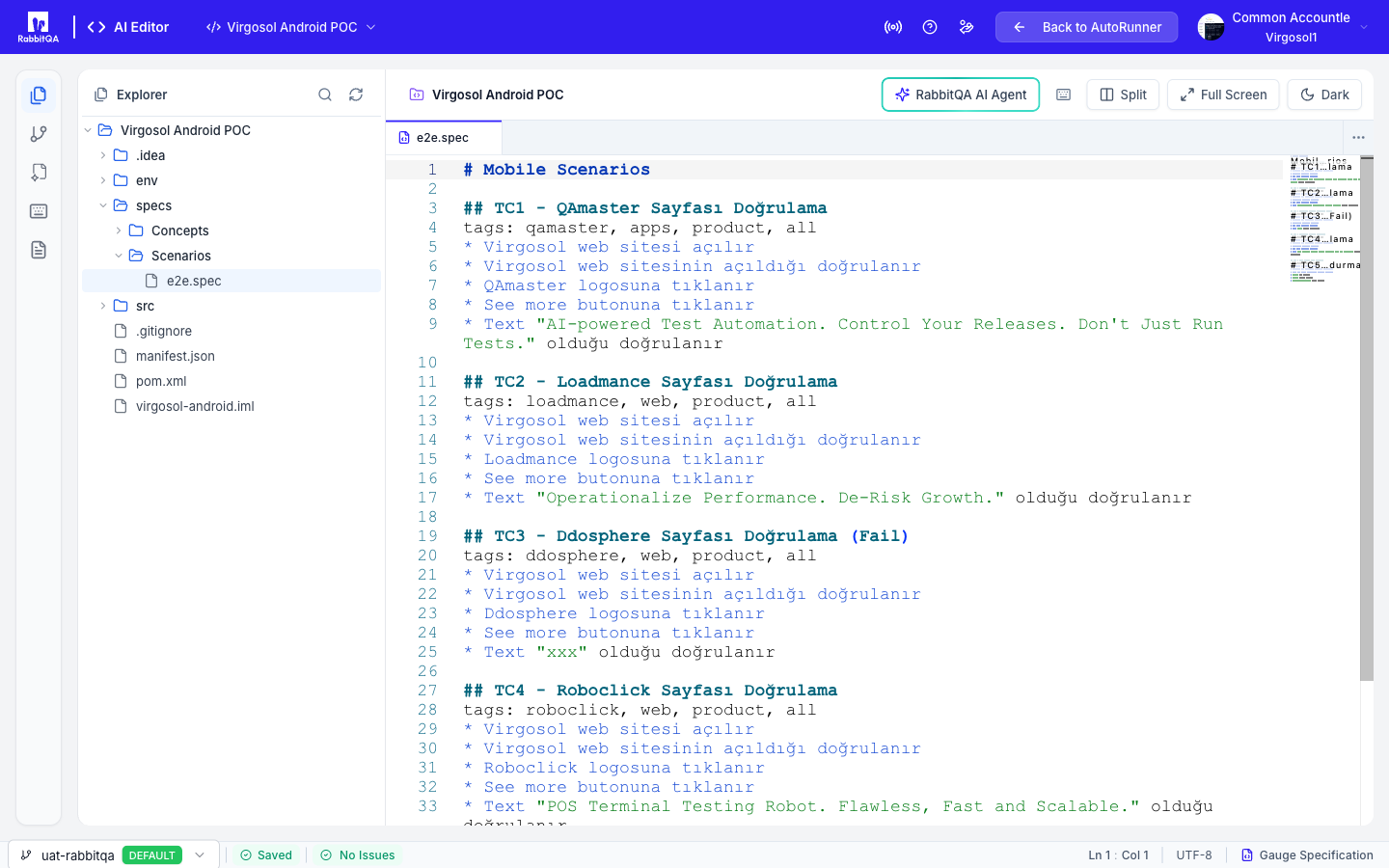
Write and edit test automation code directly within AutoRunner using a full-featured Monaco-based editor with AI assistance, file tree navigation, and source control integration.
Overview
The AutoRunner Code Editor provides an IDE-like experience embedded in the browser. Built on the Monaco editor engine (the same foundation as Visual Studio Code), it supports syntax highlighting for over 20 languages, multi-tab editing, and integrated AI assistance. Access the editor from the main AutoRunner navigation under Editor or by clicking Edit on any scenario.
File Tree Panel
The left panel displays a recursive file tree mirroring your project's repository structure.
- Expand and collapse folders to navigate the project hierarchy.
- Click any file to open it in an editor tab.
- File icons indicate the file type (test file, configuration, utility, data file).
- The tree updates when you switch branches or sync from the repository.
File Management
Right-click within the file tree to access file operations:
- New File -- Create a new file in the selected directory.
- New Folder -- Create a new subdirectory.
- Rename -- Rename the selected file or folder.
- Delete -- Remove a file with confirmation.
The editor supports files up to 10 MB. Files exceeding this limit open in read-only mode to prevent performance degradation. Use an external IDE for editing very large files.
Multi-Tab Editing
Open multiple files simultaneously in separate tabs. Each tab displays:
- File name and extension
- Unsaved changes indicator (dot on the tab)
- Close button
The editor detects the programming language from the file extension and applies the appropriate syntax highlighting automatically. Supported languages include JavaScript, TypeScript, Python, Java, Gherkin (.feature), JSON, YAML, XML, HTML, CSS, and more.
Branch Selector
The Branch Selector in the editor toolbar allows you to switch between Git branches without leaving the editor.
- Click the current branch name displayed in the toolbar.
- Select a branch from the dropdown list.
- The file tree and all open tabs reload to reflect the selected branch content.
Unsaved changes in the current branch are warned about before switching. Save or discard changes to proceed with the branch switch.
Editor Header and Footer
Header
The editor header displays contextual information about the active file:
- Breadcrumbs -- Full file path from the repository root, with clickable segments for quick navigation.
- File info -- File name and language mode indicator.
Footer (Status Bar)
The status bar at the bottom of the editor shows:
| Element | Description |
|---|---|
| Encoding | File encoding (UTF-8 by default) |
| Line/Column | Current cursor position |
| Language | Detected language mode |
| File Size | Size of the active file |
AI Assistant Panel
The right side panel hosts the integrated AI Assistant, providing intelligent code assistance without leaving the editor.
AI Dialog
Open the AI dialog to interact with the assistant through natural language:
- Generate Code -- Describe what you need, and the AI generates the code. For example: "Write a Gauge step implementation for verifying the login page loads within 3 seconds."
- Fix Bugs -- Highlight a code block and ask the AI to identify and fix issues.
- Refactor -- Select code and request refactoring suggestions for improved readability or performance.
- Explain -- Ask the AI to explain what a selected code block does.
AI Response Panel
When the AI generates a suggestion, the response panel displays:
- The generated code with syntax highlighting.
- Accept -- Insert the suggestion into the editor at the current cursor position or replace the selected block.
- Reject -- Dismiss the suggestion and return to the dialog.
- Copy -- Copy the generated code to clipboard without inserting.
Project-Aware Context
The AI Assistant operates with full awareness of your project context:
- Understands the test framework in use (Gauge, Cucumber, Robot, Postman).
- References other files in the project for consistent naming and patterns.
- Respects the project's coding style and conventions.
- Suggests imports and dependencies based on existing project structure.
Configure the AI model used by the assistant in the AI Studio Settings tab. Different models offer varying strengths for code generation tasks.
Source Control Integration
The editor is Git-aware and provides source control context throughout the workflow:
- Branch display -- The current branch is always visible in the toolbar.
- Git status indicators -- Modified files show a change marker in the file tree.
- Conflict detection -- When saving a file that has been modified externally (HTTP 409 conflict), the editor warns you and provides options to overwrite or reload.
Encoding Support
The editor handles multiple file encodings:
- UTF-8 -- Default encoding for all text files.
- Base64 -- Binary files and encoded content are displayed with a Base64 indicator. Use the download action to retrieve the original file.
Split View
Enable split view to display two files side by side:
- Right-click a tab and select Split Right or Split Down.
- The editor divides into two panes, each with independent tab management.
- Both panes share the same file tree and branch context.
Split view is useful for comparing implementations, referencing test data while editing scenarios, or viewing step definitions alongside feature files.
Next Steps
- AI Studio -- Generate scenarios using AI from recordings and API specs
- BDD Scenarios -- Learn the BDD scenario structure supported by AutoRunner
- Test Runner -- Execute the scenarios you have edited
- CI/CD Integration -- Commit and push changes to trigger automated runs
