Accessibility Projects
Projects help you organize and track accessibility testing for different websites or applications.
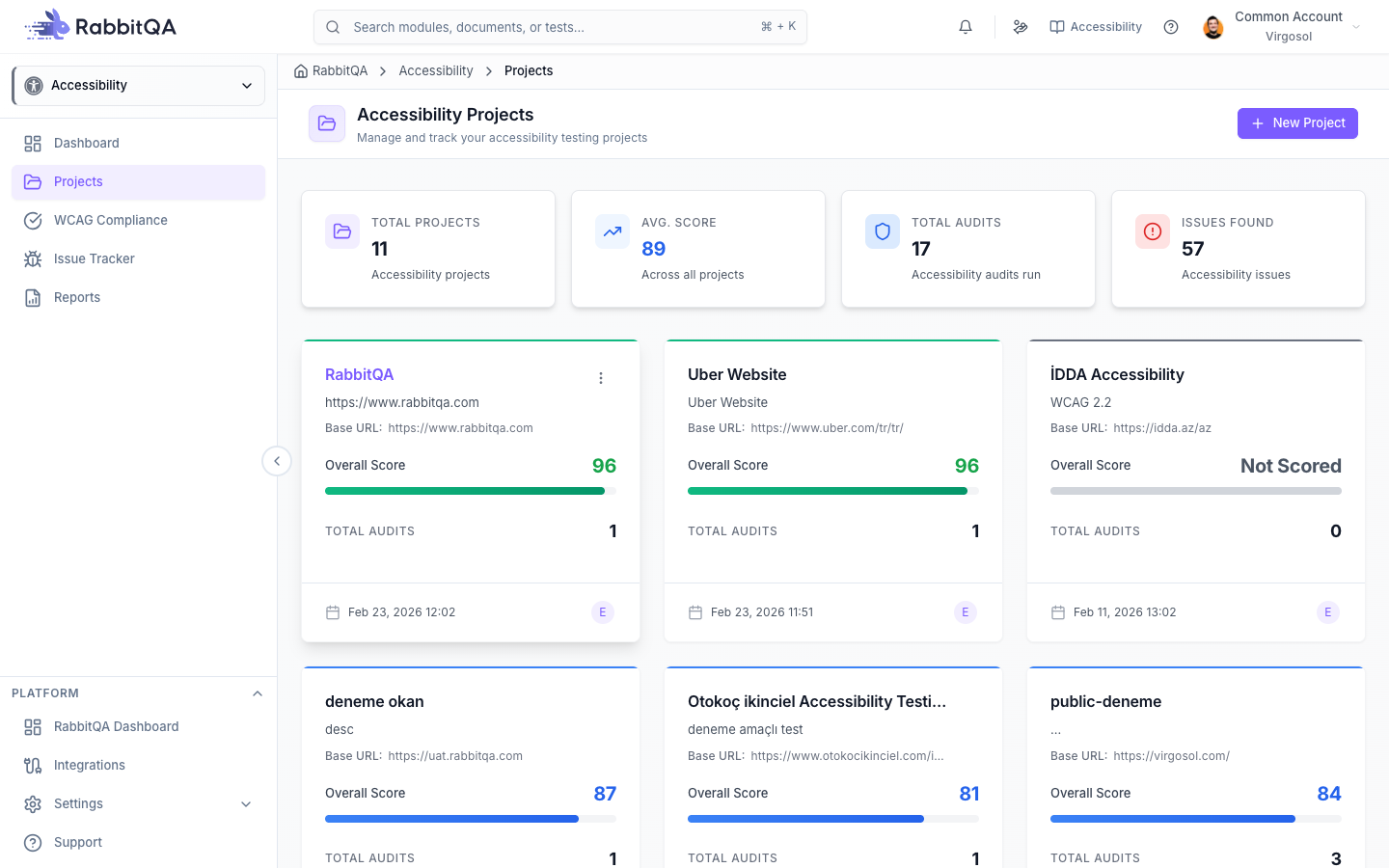
Creating a Project
- Navigate to Accessibility > Projects
- Click Create Project
- Fill in the project details:
- Project Name - A descriptive name for your project
- Base URL - The root URL of the website to test
- Description (optional) - Additional context about the project
Project Dashboard
Each project displays key statistics:
Metrics Cards
| Metric | Description |
|---|---|
| Total Audits | Number of audits run for this project |
| Total Issues | Cumulative accessibility issues found |
| Critical Issues | High-priority issues blocking accessibility |
| Serious Issues | Significant accessibility barriers |
| Moderate Issues | Medium-priority accessibility concerns |
Statistics View
The project statistics section shows:
- Audit history over time
- Score trends for accessibility improvements
- Issue breakdown by category and severity
Managing Projects
Edit Project
- Click the Edit button on a project card
- Update the project name, URL, or description
- Save your changes
Delete Project
- Click the Delete button on a project card
- Confirm the deletion
- All associated audits and reports will be removed
uyarı
Deleting a project is permanent and cannot be undone. All audit history will be lost.
Project Best Practices
Naming Conventions
Use clear, descriptive names that identify:
- The application or website
- The environment (production, staging, etc.)
- The section or feature being tested
Examples:
Main Website - ProductionCustomer Portal - StagingMobile App Landing Pages
URL Configuration
Set the base URL to the root of your application:
- Include the protocol (
https://) - Exclude trailing slashes
- Use the production or staging URL as appropriate
Example: https://app.example.com
Regular Auditing
- Schedule regular audits (weekly or bi-weekly)
- Audit after major releases or feature deployments
- Track trends over time to measure accessibility improvements
