Incidents
An incident is opened when a monitor fails.
The Incidents screen at /healthcheck/incidents holds two tabs: the incident list, and the
runbooks your on-call team follows when one fires.
Incidents
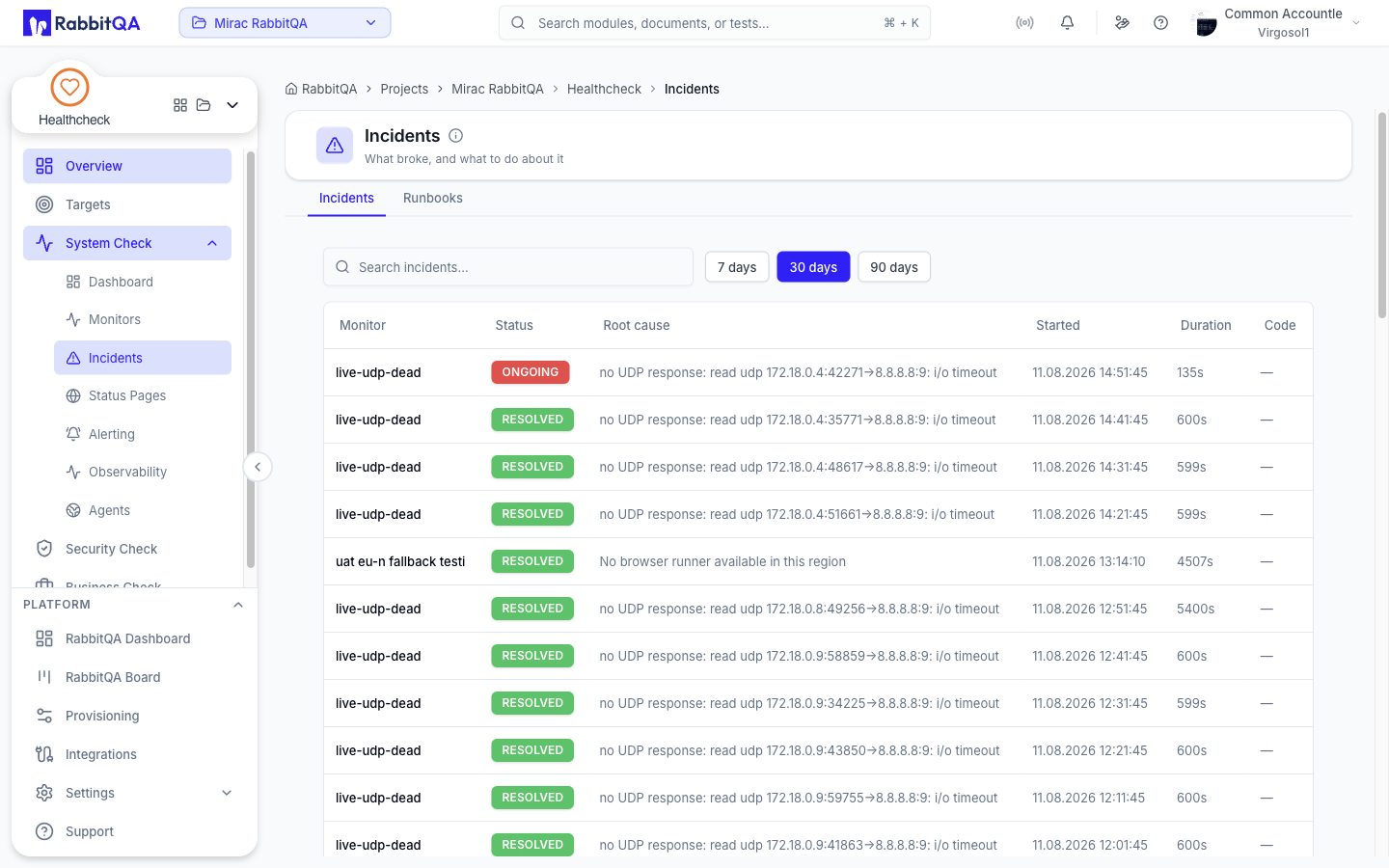
The list is filtered by a range of 7 days, 30 days, or 90 days, defaulting to 30, and by a search box that matches as you type.
| Column | Contents |
|---|---|
| Monitor | The monitor that failed |
| Status | RESOLVED, ACKNOWLEDGED, or ongoing |
| Root cause | The recorded cause |
| Started | When the incident opened |
| Duration | How long it has been open, or how long it lasted |
| Code | The status code recorded for the failure |
Selecting a row opens the incident.
Incident detail
The header carries Acknowledge and Resolve while the incident is open. Acknowledging marks that someone is on it; resolving closes it.
Summary
| Label | Contents |
|---|---|
| Started | When the first failure was recorded |
| Ended | When it recovered, or ongoing |
| Duration | Total time open |
| Status code | The code returned by the failing check |
| Severity | As recorded on the incident |
| Acknowledged by | Who acknowledged it |
| Assigned to | Who owns it |
| Method | The request method, for HTTP-family checks |
Root cause analysis
The Root cause analysis card runs an AI analysis of the incident on demand.
Click Analyze. The result is a probable root cause, a list of suggested fixes, and a confidence percentage. Until you run it the card reads No analysis yet — run it to get a probable cause and suggested fixes.
Session recording
When the incident came from a failed Browser Check, a Session recording card shows what the browser saw when the check failed. It appears only when a recording exists for that run.
Request and response
The captured request headers, request body, response headers, and response body, pretty-printed. Some check types capture nothing, and the card says so.
Activity and comments
Activity lists what happened on the incident. Comments lets your team discuss it — type into the box and click Comment.
Runbooks
A runbook is a written playbook for a common incident, so on-call has the steps ready.
Click New runbook and fill in:
| Field | Notes |
|---|---|
| Name | For example Site Down — Response |
| Description (optional) | A short summary |
| Content (Markdown) | The response steps |
Runbooks can be expanded in place, edited, and deleted.
A runbook is one free-text document. There is no structured step list, no per-step checkoff, and no link between a runbook and a particular monitor or incident. Expanded content is displayed as plain preformatted text rather than rendered Markdown.
