Targets
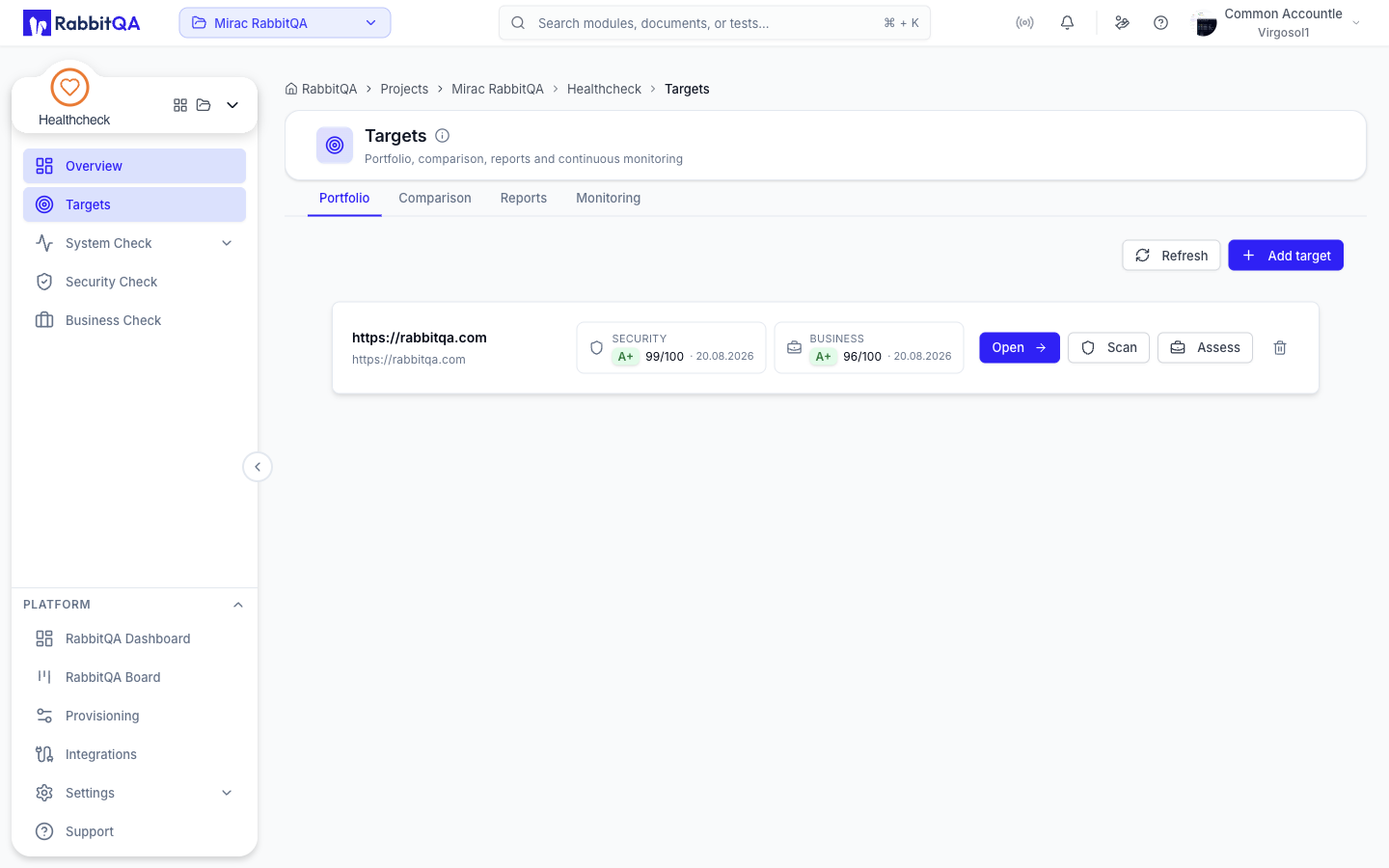
A target is a site you care about. Saving one keeps its Security and Business grades together in one portfolio and makes it available to comparisons, reports, and continuous monitoring.
The Targets entry at /healthcheck/targets holds four tabs.
| Tab | What it is for |
|---|---|
| Portfolio | The list of saved targets and their latest grades |
| Comparison | Audit two sites side by side |
| Reports | Target reports, monitor reports, and scheduled summaries |
| Monitoring | Scheduled re-scans and grade-drop alerts |
Portfolio
The Portfolio tab lists every saved target with its latest completed Security scan and Business assessment.
Adding a target
- Click Add target.
- Fill in the dialog.
| Field | Required | Notes |
|---|---|---|
| URL | Yes | For example https://example.com |
| Label | No | A friendly name, such as Production site |
| Tags | No | Comma separated, such as prod, primary |
- Click Add.
Reading a target row
Each target shows two grade pills, one for Security and one for Business. A pill carries the letter grade, the score out of 100, and the date of the run that produced it. A target that has never been scanned in that pillar reads not scanned.
Acting on a target
| Action | Effect |
|---|---|
| Scan | Starts a Security Check scan for this target |
| Assess | Starts a Business Check assessment for this target |
| Open | Opens the target's own page |
| Delete | Removes the target from the portfolio |
While a run is in flight the pill shows running….
Scan and Assess start new work, so they require the create permission. Reviewing saved grades does not.
The target page
Opening a target gives one page per site that ties the three pillars together:
- its latest Security scan and Business assessment, with a control to run them again,
- the System monitors whose address matches the target's host,
- shortcuts to build a report for the target or jump to the System Check dashboard.
Comparison
The Comparison tab audits two sites at once.
- Enter a URL in each of the two fields.
- Click Compare.
Both sites get a Security scan and a Business assessment, run in parallel. The results appear side by side as a Security grade, a Business grade, and a Combined grade for each site.
This is the tab to use when benchmarking your own site against a competitor.
Reports
The Reports tab holds three report types of its own.
Target Report
Builds a shareable report for one target from its latest Security scan and Business assessment.
- Enter the target URL.
- Click Build report.
- Click Print / Save as PDF.
Export goes through your browser's print dialog — choose Save as PDF there. Only the report itself is printed; the surrounding interface is hidden.
Monitor Report
A deep dive into one System Check monitor.
 Pick a monitor from the selector and choose a window of 24h, 7d, or 30d.
The report shows:
Pick a monitor from the selector and choose a window of 24h, 7d, or 30d.
The report shows:
| Section | Contents |
|---|---|
| Headline metrics | Uptime, incidents in the window, total down time, average response time with its minimum and maximum |
| Uptime history | A per-bucket strip of the monitor's status across the window |
| Response time | A response-time chart for the window |
| Monitor info | Type, method, interval, timeout, expected status codes, tags |
| Schedule & checks | Last check, next check, SSL expiry alerts, domain expiry alerts, active exclusions, monitoring state |
Scheduled
Recurring status summaries emailed to a recipient list, so stakeholders get status without logging in.
Click New report and fill in:
| Field | Notes |
|---|---|
| Name | For example Weekly uptime summary |
| Report type | Uptime, Incident, or SLA |
| Window (days) | How far back the summary looks |
| Schedule (cron) | A Spring cron expression: second, minute, hour, day, month, weekday. The default is Mondays at 08:00 |
| Recipient emails | Comma separated |
| Enabled | Whether it runs on its schedule |
Existing reports can be edited, deleted, or sent immediately with Run now.
Monitoring
Continuous monitoring re-scans your saved targets on a schedule and raises an alert when a target's score drops.
| Control | Notes |
|---|---|
| Scheduled monitoring | On or Off |
| Interval (min) | How often saved targets are re-scanned. Minimum 5 |
| Drop threshold | How many points a score must fall before an alert is raised. Minimum 1 |
Click Save to store the configuration.
Evaluate checks the existing scan history immediately without running new scans — useful for confirming the threshold behaves as you expect.
Alerts are listed below the configuration.
Each one shows the point delta, the pillar it came from, the message, and the grade transition, for
example B → C.
With nothing to report the list reads No alerts. Grade drops on your targets will appear here.
