Data Repository
The Data Repository is where everything DataCrate generates ends up. It is a folder tree of generated artifacts, with a detail panel for whatever you select.
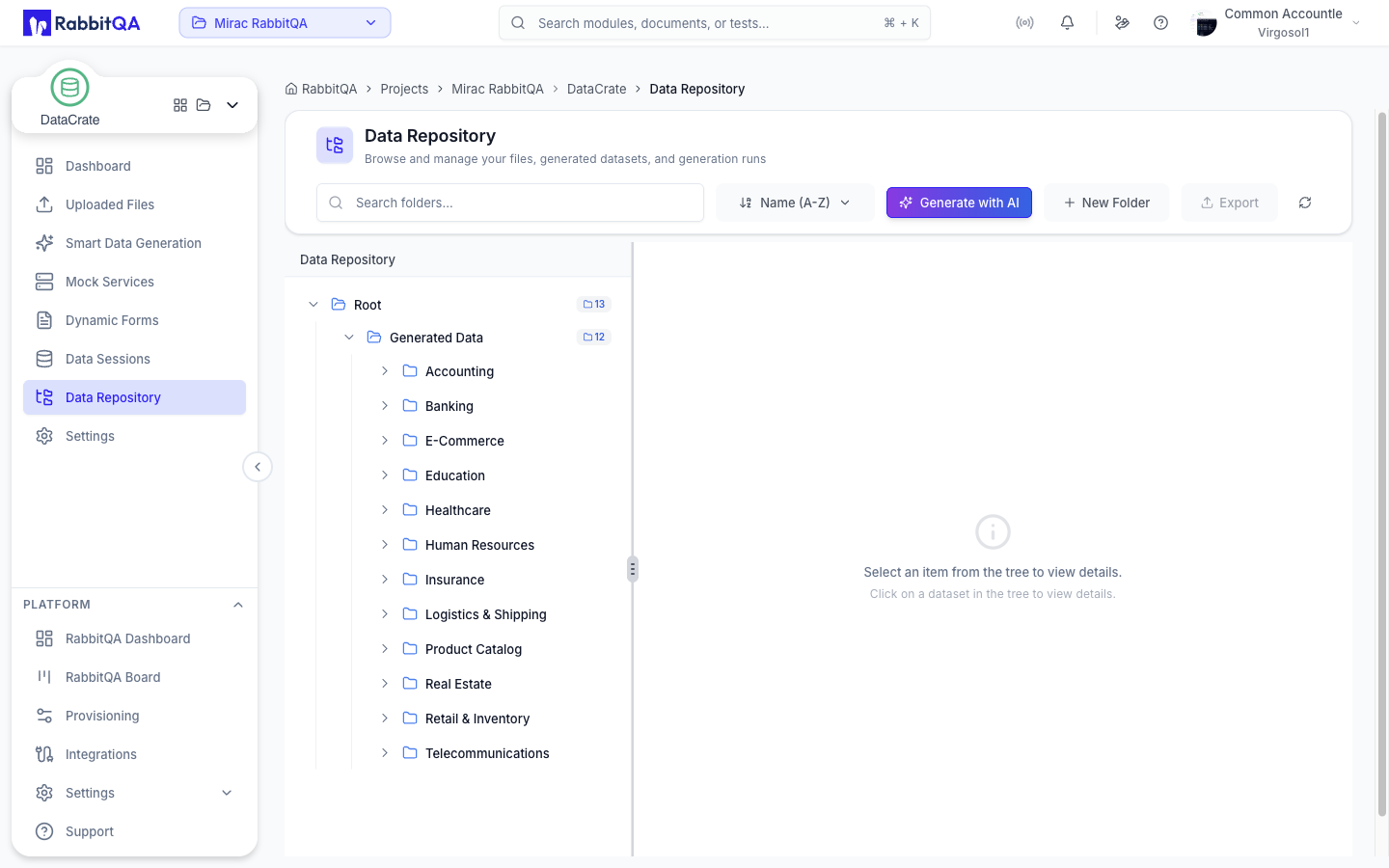
The Tree
The tree has two kinds of node: folders and files. Files are the artifacts written by generation runs.
At the top sits a system folder named Generated Data, which is where new folders are created by default and where generated output is collected.
Folder rows show the number of child folders and the number of files beneath them, counted recursively. File rows show the artifact name and its size.
| Interaction | Result |
|---|---|
| Single click a folder | Selects it, along with everything inside it |
| Double click a folder | Expands or collapses it |
| Click a file | Selects that file on its own |
| Cmd/Ctrl click a file | Adds or removes it from a multi-file selection |
| Drag a folder or file onto a folder | Moves it there |
Hovering a folder while dragging expands it after a moment, so you can drop into a nested folder in one motion.
The selected folder or artifact is recorded in the page URL, and its ancestors are expanded automatically when the page is reopened.
Toolbar
| Control | Description |
|---|---|
| Search folders | Filters the tree by folder, file, and item names |
| Sort | Name, created date, or updated date, ascending or descending |
| Generate with AI | Opens Smart Data Generation |
| New Folder | Creates a folder |
| Export | Downloads the selected files as a ZIP archive |
| Refresh | Reloads the tree |
Folders
Create a folder with New Folder, or manage an existing one from its ... menu or right-click menu.
The folder dialog takes a Folder Name, an optional Description, and a Parent Folder chosen from an indented list of the existing tree.
| Menu action | Description |
|---|---|
| Download Folder | Downloads the folder's contents as a ZIP archive |
| Edit | Renames the folder or moves it to a different parent |
| Delete | Removes the folder |
System folders cannot be renamed, moved, or deleted.
Artifacts
Selecting a file shows its details on the right:
- Name, size, and the folder path it lives in
- File Details — size, artifact ID, run ID, and path
- Checksum, when one is recorded
- Timestamps — created, and updated when it differs
Artifacts produced by a run offer a Preview action that opens the file in place. Preview handles CSV, TSV, Excel, JSON, JSONL, and Parquet output, and opens database artifacts in an editor.
Download saves the single artifact.
Deleting Artifacts
Select one or more files, then use Delete in the selection bar, or the trash action in the detail panel for a single file.
Deleting an artifact removes it from the repository, but the runs that produced it keep their history, so the session record in Data Sessions stays intact.
When a selection mixes folders and files, only the files are deleted. Delete folders separately.
Downloading in Bulk
- Selecting several files and choosing Export produces a ZIP archive named after the folder.
- Choosing Download Folder on a folder produces a ZIP archive of that folder's contents.
Related Pages
- Data Sessions — the runs that produced these artifacts
- Uploaded Files — the source datasets runs are generated from
