Settings
Settings is where scoring templates and custom metrics are maintained.
Opening /analyzer/settings requires analyzer:settings:read.
Changing anything requires analyzer:settings:update.
Without the update permission the whole screen is read-only: a banner explains why, and the create, edit, duplicate, and delete controls are not rendered at all, so you never fill in a form only to be refused on save.
One screen, three tab sets
This screen is shared by three modules, and the tabs you see depend on which module's URL you came in through. That is why the same settings page can look different from one module to the next.
| Route | Page title | Tabs |
|---|---|---|
/analyzer/settings | Analyzer Settings | Templates, Custom Metrics |
/smart-pbi/settings | SmartPBI Settings | Smart PBI |
/casewriter/settings | CaseWriter Settings | AI Tests |
Smart PBI and CaseWriter each have a single tab, so no tab bar is drawn for them — the settings form fills the page directly.
A ?tab= parameter in the URL opens a specific tab, which is how CaseWriter's sidebar entry lands straight on AI Tests.
The rest of this page covers the two Analyzer tabs. For what the other two tabs configure, see Smart PBI and CaseWriter.
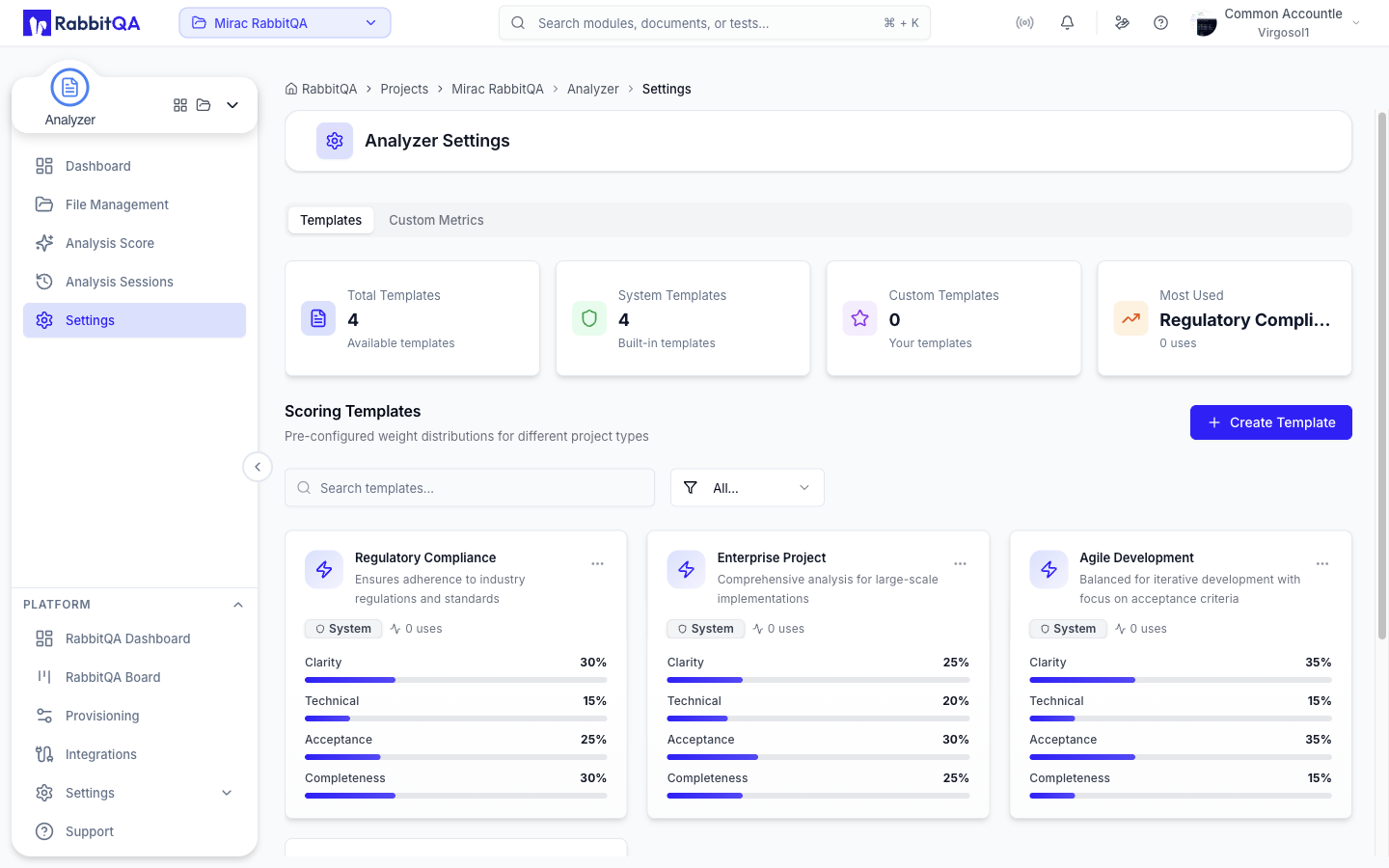
Templates
Scoring templates are the weight distributions Analysis Score offers when you start a run.
Four cards at the top summarize the catalogue: Total Templates, System Templates, Custom Templates, and Most Used with its usage count.
Below them, the template list can be searched by name or description and filtered to All Templates, System Only, or Custom Only.
Each template card shows:
- Its name and description.
- A System or Custom badge, and a Has Custom Metric badge when one of its weights is a custom metric.
- How many times it has been used.
- Every metric in the template with its weight and a proportional bar.
Working with templates
| Action | System template | Custom template |
|---|---|---|
| Duplicate | Yes | Yes |
| Edit | No | Yes |
| Delete | No | Yes |
Duplicating a system template is the way to start from one and adjust it.
Template rules:
- A template may hold at most 5 metrics.
- Weights must total 100%.
Each company is seeded with four system templates the first time templates are read — Security Critical, Agile Development, Enterprise Project, and Regulatory Compliance. Their weights are listed in Analysis Score.
Custom Metrics
Custom metrics are your own evaluation criteria, used alongside the built-in ones.
Three cards summarize them: how many exist, their average weight, and whether any are available.
Creating or editing a metric asks for:
| Field | Notes |
|---|---|
| Name | Required, and must be unique within the company |
| Description | What the metric evaluates and how it contributes to document quality |
| Default weight | A slider, from 1% to 80% |
Existing metrics can be duplicated, edited, or deleted from the card menu, and the list can be searched by name or description.
Deleting a custom metric also removes it from any template that referenced it and normalizes the remaining weights on those templates.
A scoring run may include at most one custom metric, within the overall five-metric limit. Custom metrics can also be created without leaving the analysis wizard, from its Create Custom Metric menu item in advanced mode.
