Uploaded Files
Uploaded Files is the dataset library. Everything DataCrate generates from starts here: a CSV, spreadsheet, JSON file, or database schema that you bring in yourself.
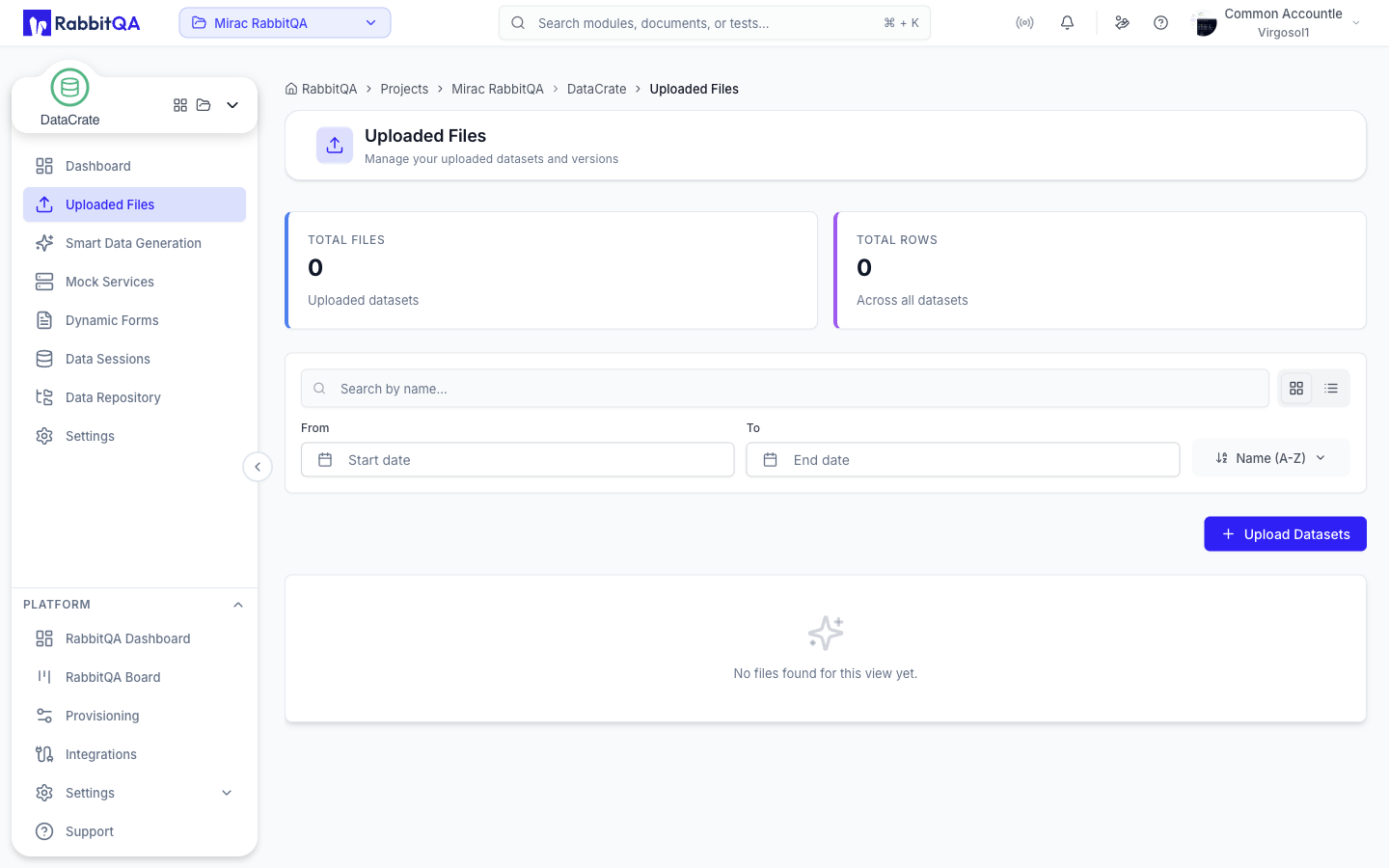 Two counters sit above the list: Total Files and Total Rows across all datasets.
Uploading a Dataset
Select Upload Datasets, then drop a file onto the upload area or browse for it.
The dataset name is filled in from the filename and can be edited, and you can add an optional description.
Supported Formats
| Type | Extensions |
|---|---|
| Delimited text | .csv |
| Spreadsheet | .xlsx, .xls |
| JSON | .json |
| SQLite database | .db, .sqlite, .sqlite3 |
| SQL DDL | .sql |
Anything else is rejected before the upload starts.
CSV, JSON, and Excel files are parsed in the browser so their columns are available immediately in the cleaning and filtering options below.
A SQLite, SQL DDL, or multi-table JSON file is treated as a database structure prepared for linked-table generation. Cleaning and filtering apply only to single-table datasets, so the advanced options are disabled for those files.
Clean and Filter on Import
Turn on Advanced File Options to clean and filter the data before it is saved.
Clean on import deduplicates and normalizes:
| Option | Default |
|---|---|
| Deduplicate rows | On |
| Drop empty rows | On |
| Trim whitespace | On |
| Normalize case (None, Lower, Upper) | Lower |
Filter rows on import builds a list of column / operator / value conditions.
Operators are equals, not equals, contains, >, >=, <, and <=.
Preview Cleaning runs the configuration without saving anything and reports rows before and after, duplicates found, empty rows removed, and rows filtered out, together with a preview table of the result.
Finding a Dataset
| Control | Behavior |
|---|---|
| Search by name | Server-side search, applied as you type |
| Sort | Name, created date, or updated date, ascending or descending |
| From / To | Filters the dates shown on the current page |
| View toggle | Switches between card view and table view |
| Page size | 5, 10, 20, 50, or 100 rows per page |
Search, sort, view mode, dates, and page position are all kept in the page URL, so a filtered view can be bookmarked or shared.
Working With a Dataset
Each card or row offers:
| Action | Description |
|---|---|
| Run Test | Starts a generation run from the dataset and opens its session |
| Download | Downloads the current version of the file |
| Smart Data Generation | Opens the generation wizard with the dataset preselected |
| View details | Opens the dataset detail page |
| Data Modifications | Opens the subset and negative path tools |
| Delete | Removes the dataset |
Bulk Delete
Select the checkbox on any card or row to enter multi-select. The selection bar shows how many files are selected and offers a single Delete action, which asks for confirmation before removing them all.
Dataset Versions
A dataset keeps a version history.
Select the upload icon next to the version number on a card, or New in the versions rail of the detail page, to add a version.
- The dialog shows the current version and row count, and the number the new version will get.
- The new version automatically becomes the current version.
- Version uploads accept
.csv,.xlsx,.xls, and.json. - Version History lists every version with its number, filename, uploader, and upload time.
Dataset Details
Selecting a dataset opens its detail page.
- The Versions rail on the left lists every version. Selecting one switches the whole page to that version and records it in the URL.
- File Information shows file size, total rows, created date, uploader, filename, and description for the selected version.
- Actions offers Run Test, Smart Data Generation, and Download.
- Data Preview renders the selected version as a table. CSV, JSON, and Excel files are parsed and displayed; other formats fall back to a raw text preview.
Data Modifications
Data Modifications opens two tools side by side for the selected dataset.
Subset Filters
Creates a smaller dataset from an existing one.
- Subset name — prefilled from the source dataset name.
- Filters — one or more
column / operator / valueconditions. At least one complete filter is required. - Sample ratio (0-1) — takes a random fraction of the matching rows.
- Limit rows — caps the number of rows kept.
Negative Path
Creates a dataset that deliberately contains invalid data, for testing how a system handles bad input.
Each rule targets a column and a mode:
| Mode | Effect |
|---|---|
null | Replaces values with nulls |
out_of_range | Produces values outside the expected range |
invalid_format | Produces values in the wrong format |
constant | Replaces values with the value you supply |
Request-level options are Default ratio (0-1), Seed, Limit rows, and a list of row filters that restricts which rows the rules apply to.
Turning on Advanced for a rule adds its own Ratio, Count, Seed, and row filters. When both a ratio and a count are set on the same rule, the count takes priority. Setting a seed makes the result reproducible.
Related Pages
- Smart Data Generation — generate new rows from an uploaded dataset
- Data Repository — where generated output is stored
