Analysis Score
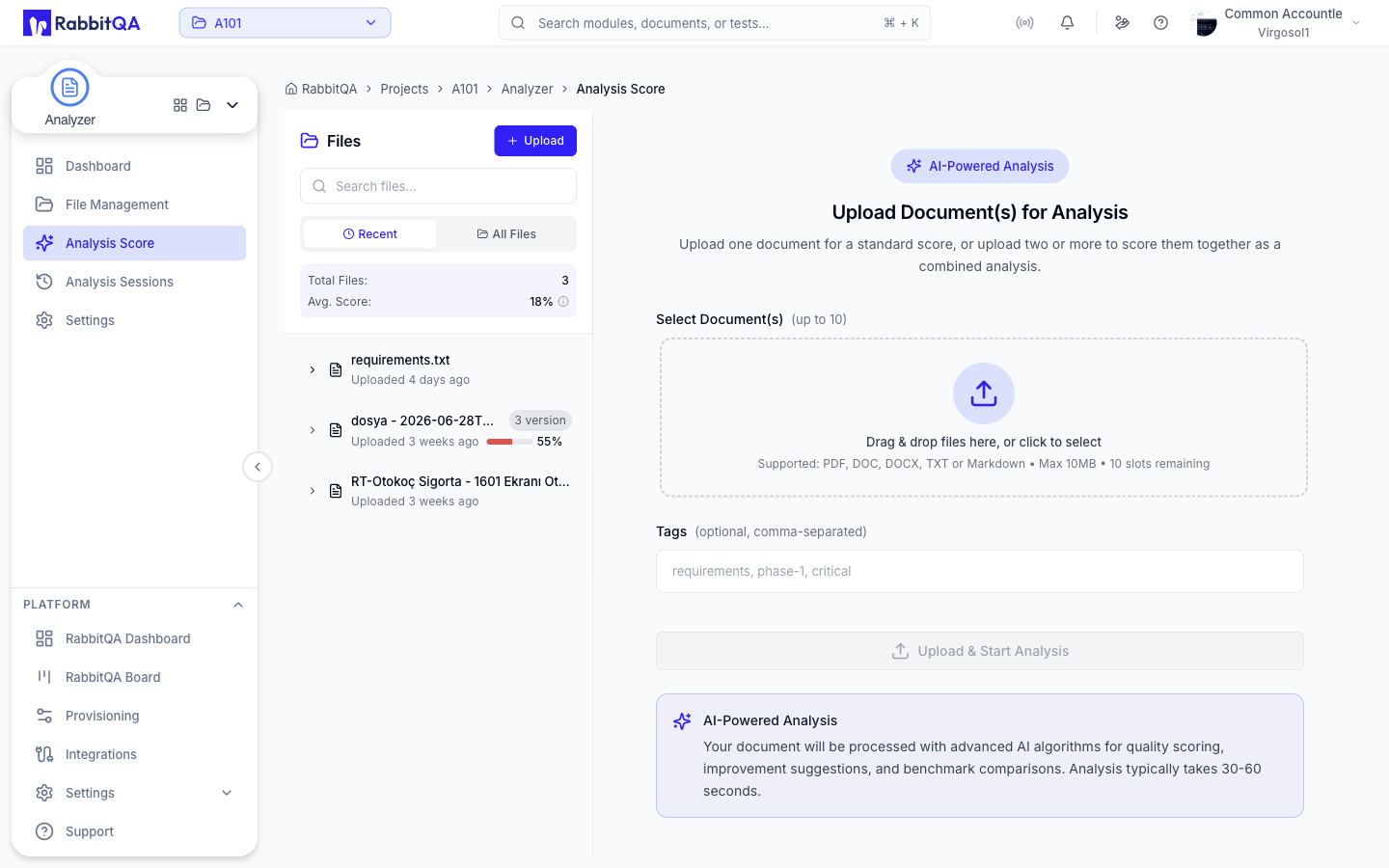
Analysis Score is the wizard that configures and starts a document analysis.
The whole screen is the "start an analysis" flow, so /analyzer/analysis-score is gated on analyzer:analysis:create rather than a read permission.
Every Analyze and Retry action elsewhere in the module lands here.
The four steps
| Step | What happens |
|---|---|
| 1. File Selection | Choose the document and version to score |
| 2. Configure Metrics | Pick a template, weights, language, and AI options |
| 3. Analyze | The AI processes the document |
| 4. View Results | Score, metric breakdown, and insights |
The step you are on is kept in the URL, so a refresh or a browser Back returns you to the same place.
Step 1: File Selection
A sidebar lists your documents, filtered by Recent or All Files, with a search box and running totals.
Choose a document, then a version, or upload a new file from the sidebar. Arriving from an Analyze action preselects the file and version for you, and the step completes on its own.
Scoring inputs
Analysis Score works on a document version. Confluence pages imported through File Management become ordinary documents, so they are selected and scored the same way.
Combined scoring
A single run can score several files together as one body of text.
- At least two distinct versions are required.
- The batch upload path is capped at 10 files.
- Every participating version receives the same score and the same report, and each one shows a Combined scoring banner listing the whole group.
- A version already in a pending, running, or completed combined run cannot join a new one, and neither can a version with a single-version analysis in flight.
While a combined run is active the URL tracks the process rather than a single file, so the run can be reopened from its link.
Step 2: Configure Metrics
Template and language
Pick a scoring template from a searchable list. A template whose recommended industries match your organization is flagged Recommended.
The Language selector controls the language of the report. Leave it on Auto Detect to let the service detect the document's language, or choose one explicitly. The resolved language is used for every metric and every insight in the run.
Quick and advanced mode
Quick mode shows the template's metrics and their weights read-only and starts the analysis with every AI option enabled.
The Advanced Configuration toggle unlocks weight sliders, custom metric selection, and the AI Analysis Options card. You cannot leave advanced mode while the weights total anything other than 100%.
Metrics
Four built-in metrics are available.
| Metric | Evaluates |
|---|---|
| Clarity | How clear and understandable the document content is |
| Acceptance | Quality and completeness of acceptance criteria |
| Completeness | Coverage of all necessary requirements and details |
| Technical | Technical accuracy and consistency of specifications |
A run may use at most 5 metrics, of which at most one may be a custom metric. Weights must total 100%.
Templates
Templates are not a fixed list. Each company starts with four system templates and can add as many custom templates and custom metrics as it needs.
| System template | Clarity | Acceptance | Completeness | Technical |
|---|---|---|---|---|
| Security Critical | 20% | 20% | 20% | 40% |
| Agile Development | 35% | 35% | 15% | 15% |
| Enterprise Project | 25% | 30% | 25% | 20% |
| Regulatory Compliance | 30% | 25% | 30% | 15% |
Custom templates and custom metrics are created and maintained in Settings. The kebab menu on this step also opens Manage Templates, and in advanced mode Create Custom Metric, without leaving the wizard.
When a custom metric is part of the weight set, a Save these weights as default for this template link stores the current weights back onto the selected template.
AI Analysis Options
In advanced mode, five checkboxes decide what the report contains.
| Option | Adds to the report |
|---|---|
| AI Insights | Overall observations, strengths, weaknesses, and risks |
| Coverage Assessment | How well the requirements cover edge cases, error handling, and user scenarios |
| Estimation Summary | Estimated effort and complexity for the document |
| Suggestions | Actionable recommendations per metric |
| Metric Examples | Good and bad examples for each metric criterion |
Metric Examples is nested under Suggestions: turning it on turns Suggestions on, and turning Suggestions off turns it off. A Select All checkbox at the top of the card toggles all five.
Credits
Starting an analysis charges one flat document-analysis operation, whether the run covers one version, several combined versions, or imported Confluence content. The number of selected versions is not a billing multiplier.
The add-ons are charged separately on top of that: suggestions, coverage assessment, AI insights, estimation summary, and custom metrics. Because each part is charged against its own reference, a run that fails or is cancelled is refunded only for the parts it was charged for.
If your workspace is out of credits, the run is refused and a credits dialog explains why.
Step 3: Analyze
The processing view shows a progress animation, elapsed time, and the current stage.
| Stage |
|---|
| Uploading Document |
| Analyzing Structure |
| Evaluating Quality |
| AI Processing |
| Finalizing Report |
The screen notes that analysis typically takes 30-60 seconds depending on document size.
A run reports one of these statuses.
| Status | Meaning |
|---|---|
| Pending | Queued, not started |
| Processing | Running |
| Completed | Finished with a score |
| Failed | Stopped with an error; the reason is shown |
| Cancelled | A cancel request was accepted |
Cancelling
A Need to cancel? Click here control sits under the progress animation. Confirming it sends a cancel request for the run and returns you to file selection.
Step 4: View Results
The results step opens with the overall score as a dial, a star rating, and a quality band.
| Band | Score |
|---|---|
| Excellent | 80 and above |
| Good | 60-79 |
| Needs Improvement | Below 60 |
Two counters sit beside it — PBIs estimated and Test Cases estimated — and clicking either hands the document to the matching generator.
Below that:
- Analysis Metrics — one card per metric with its score, the AI's reasoning, and, when enabled, suggestions and examples.
- AI Insights, Coverage Assessment, and Estimation Summary, shown according to the options selected in step 2.
Actions at the bottom of the step: Analyze Another, View File Details, Share Report, Download PDF, Generate PBIs, and Generate Test Cases.
The same report is reachable later from Analysis Sessions and from the file detail page.
