Request Board
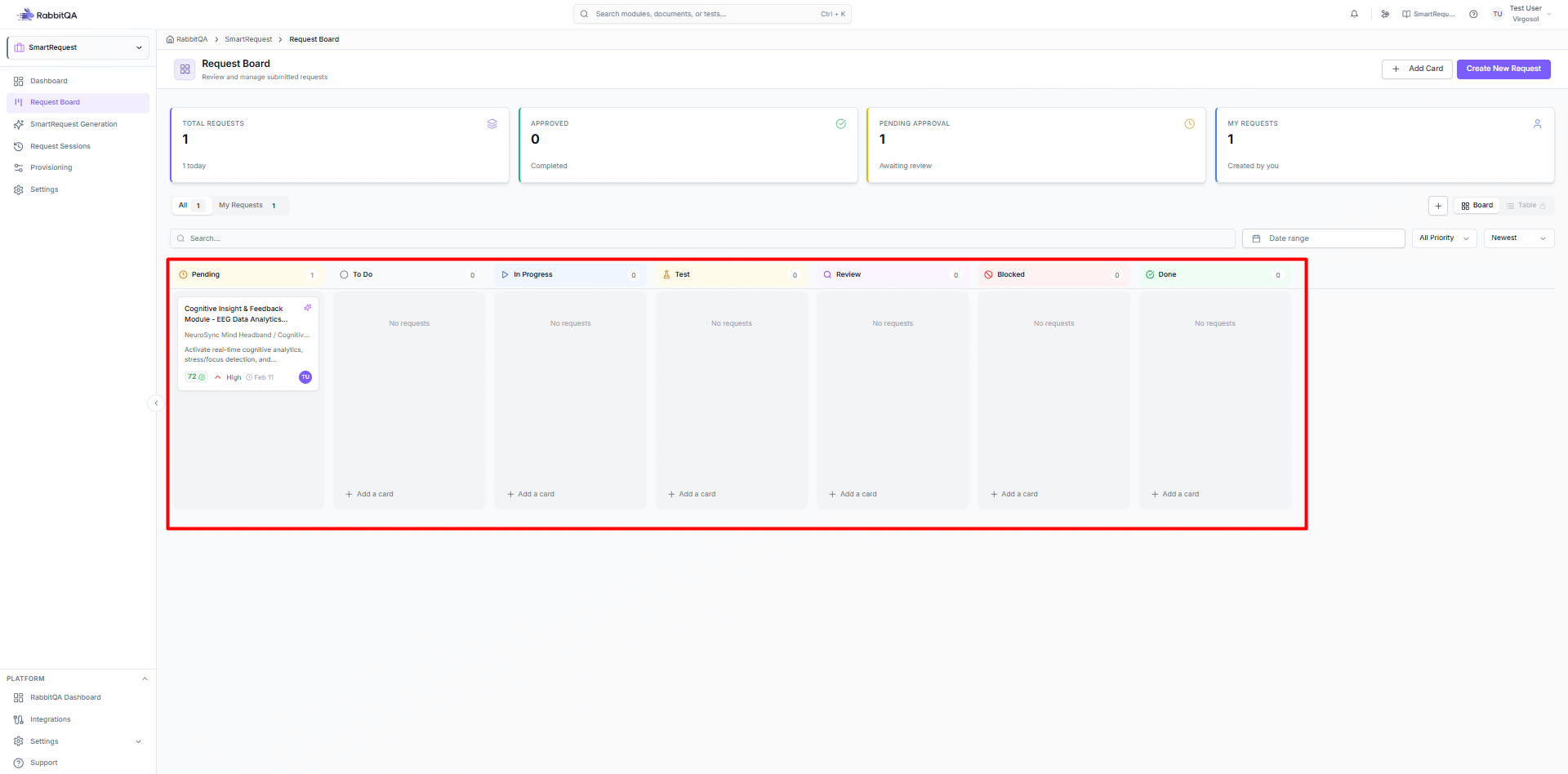
The Request Board provides a visual Kanban-style interface for managing request workflows.
Board Overview
Kanban View
Seven workflow columns:
| Column | Status | Color |
|---|---|---|
| Pending | Awaiting approval | 🟡 Amber |
| To Do | Approved, ready to start | ⚪ Gray |
| In Progress | Currently being worked | 🔵 Blue |
| Test | In testing phase | 🟡 Amber |
| Review | Under review | 🟣 Purple |
| Blocked | Progress blocked | 🔴 Red |
| Done | Completed | 🟢 Green |
List View
Alternative table view with:
- Sortable columns
- Advanced filtering
- Bulk actions
- Quick status updates
Managing Requests
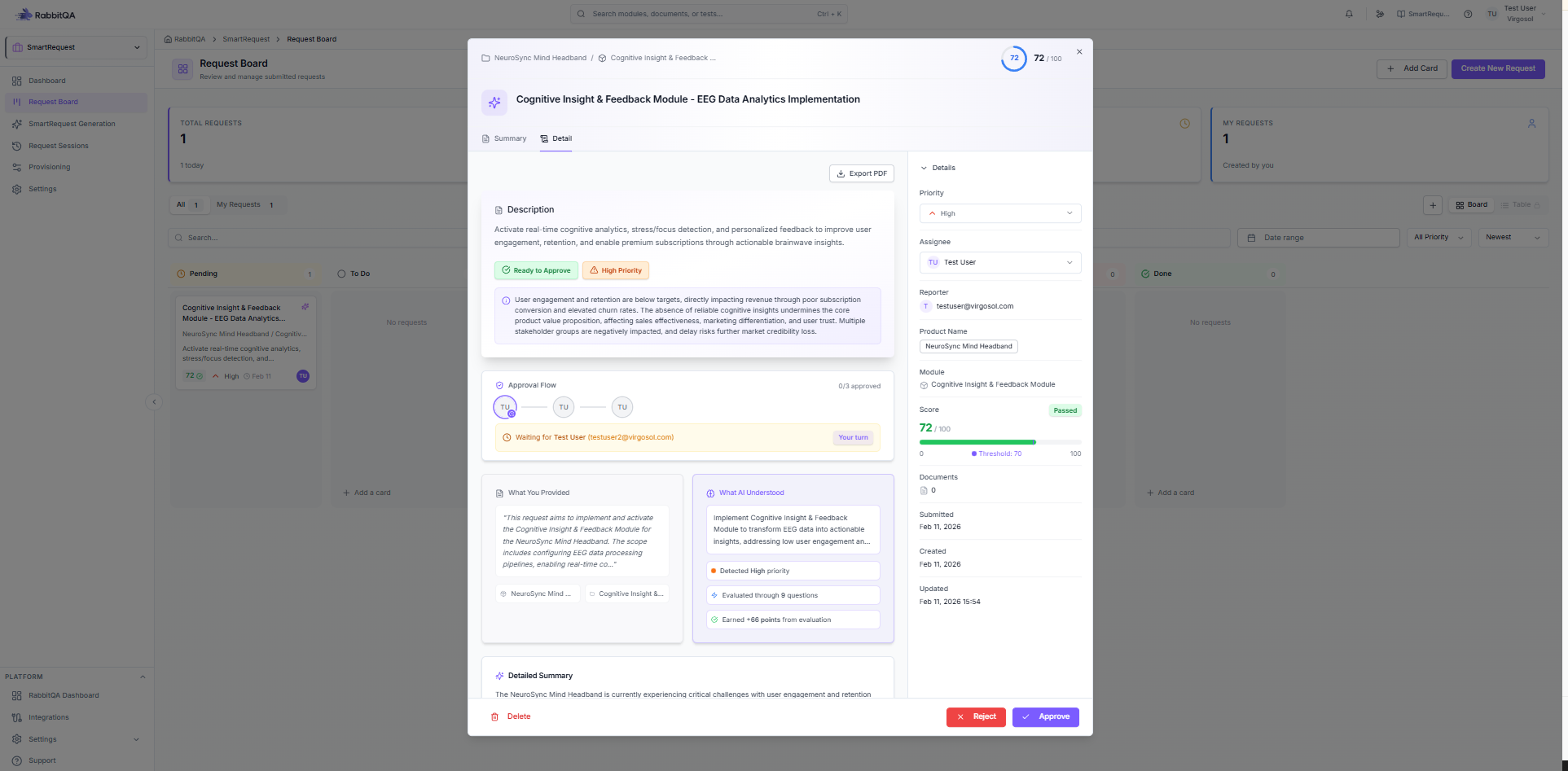
Viewing Request Details
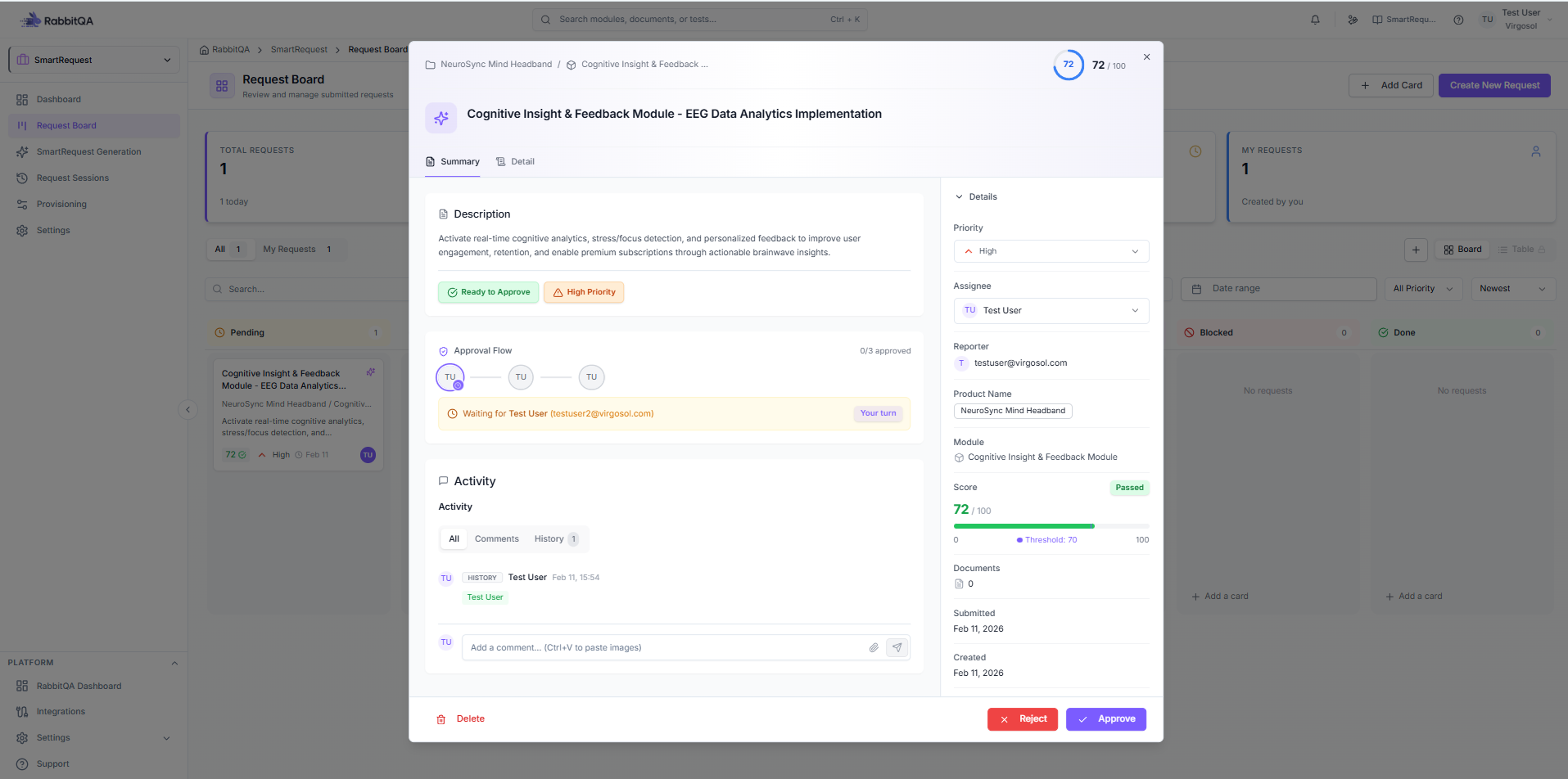
Click any request card to open details:
- Summary - AI-generated overview
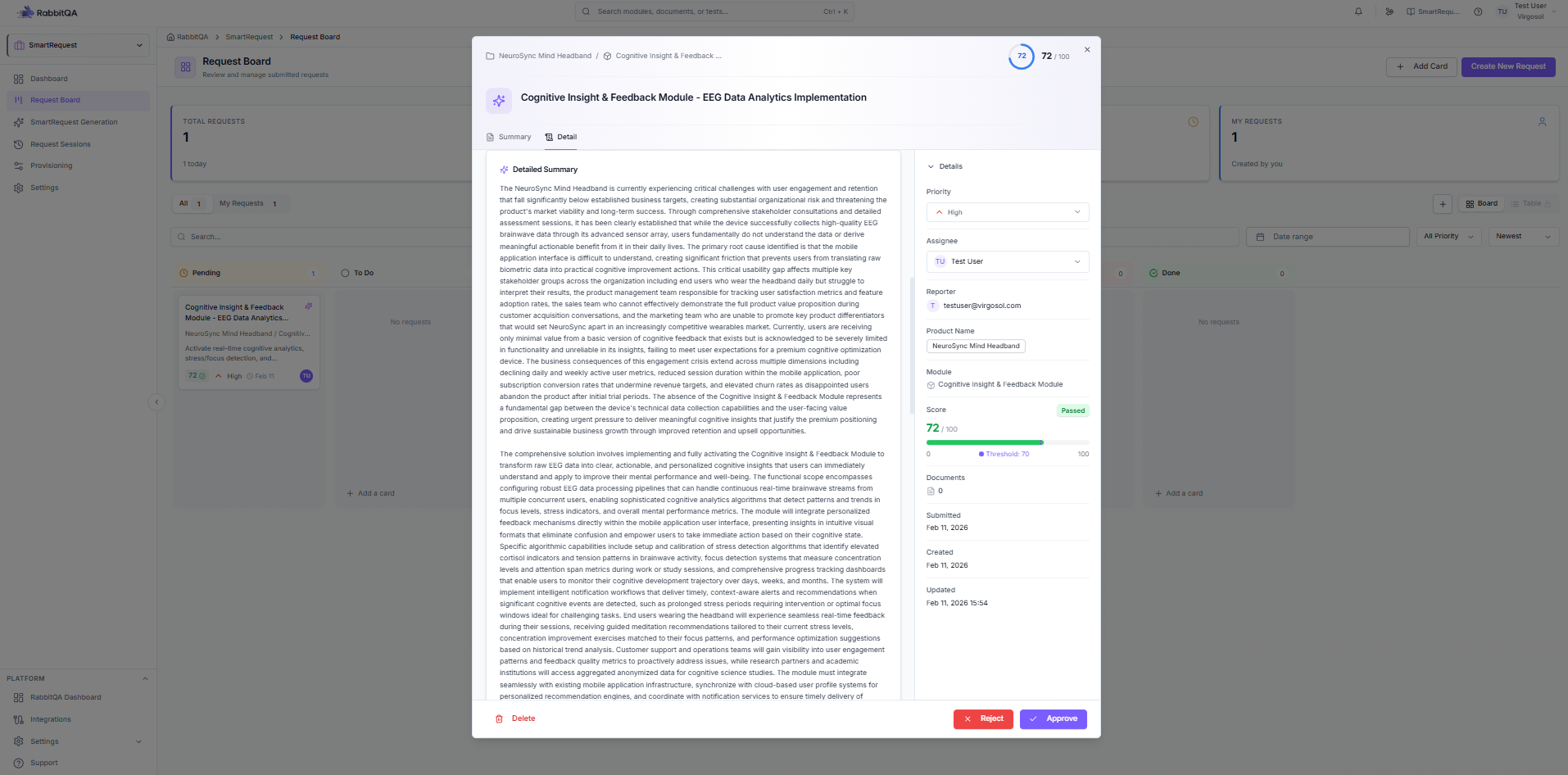
- Description - Full request details
- Approval Status - Current approval state
- Activity - Comments and history
- Priority – Indicates the importance level of the request (e.g., Low, Medium, High).
- Assignee – The user assigned as responsible for the request.
Moving Requests
Drag and Drop
- Click and hold a request card
- Drag to the target column
- Release to update status
Quick Actions
- Click the request card
- Use status dropdown
- Select new status
Request Card Information
Each card displays:
- Title - Request name
- Priority - Priority badge
- Type - Business or Technical
- Assignee - Assigned person
- Date - Creation/update date
Creating Requests
AI-Generated Request
- Click New Request
- Follow the Generation Wizard
- Complete AI evaluation
- Submit for approval
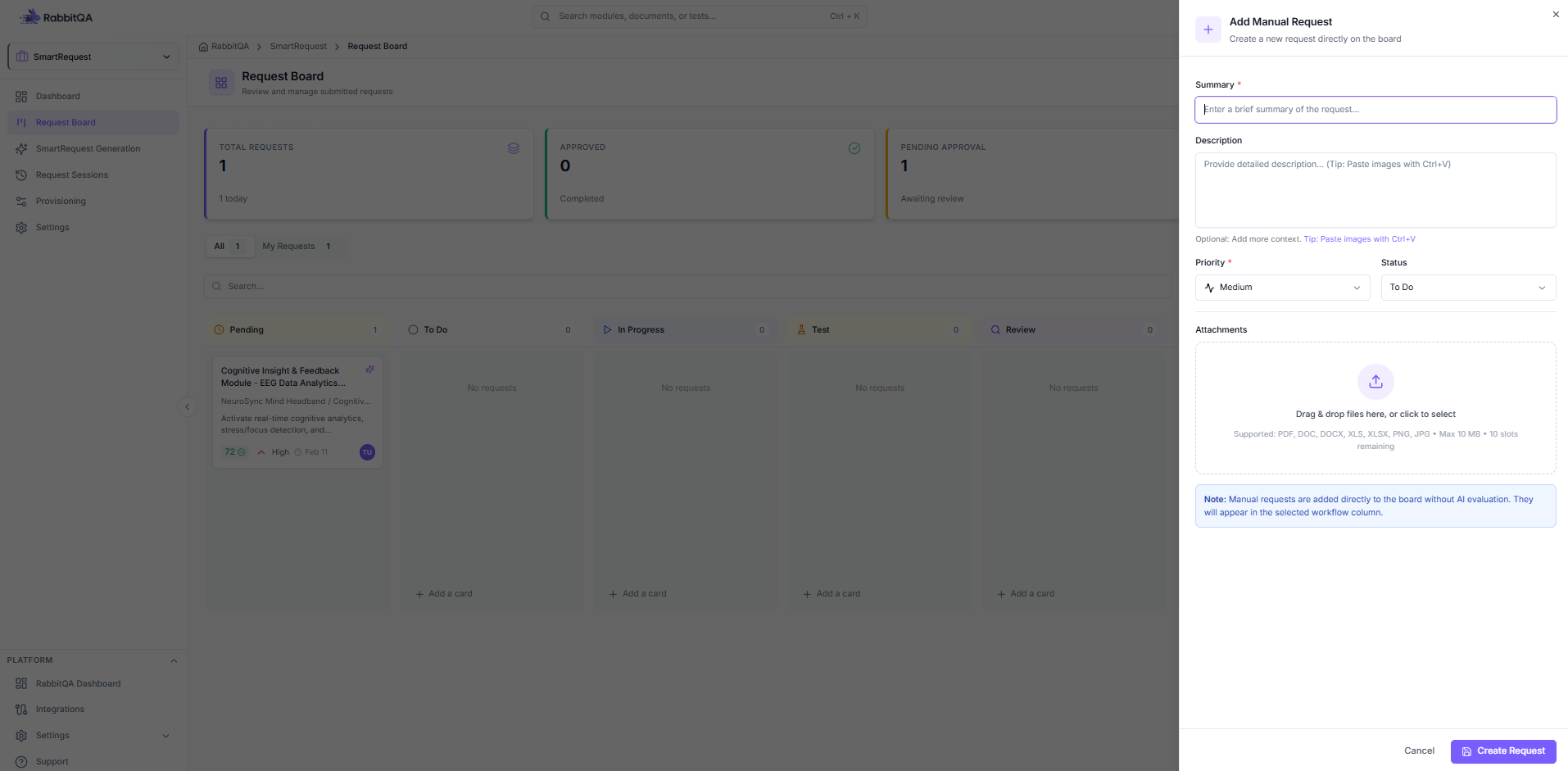
Manual Request
For quick entries without AI:
- Click Add Manual Request
- Fill in the form:
- Title
- Description
- Type (Business/Technical)
- Priority
- Product/Module
- The manual request starts in the TO DO status.
Approval Workflow
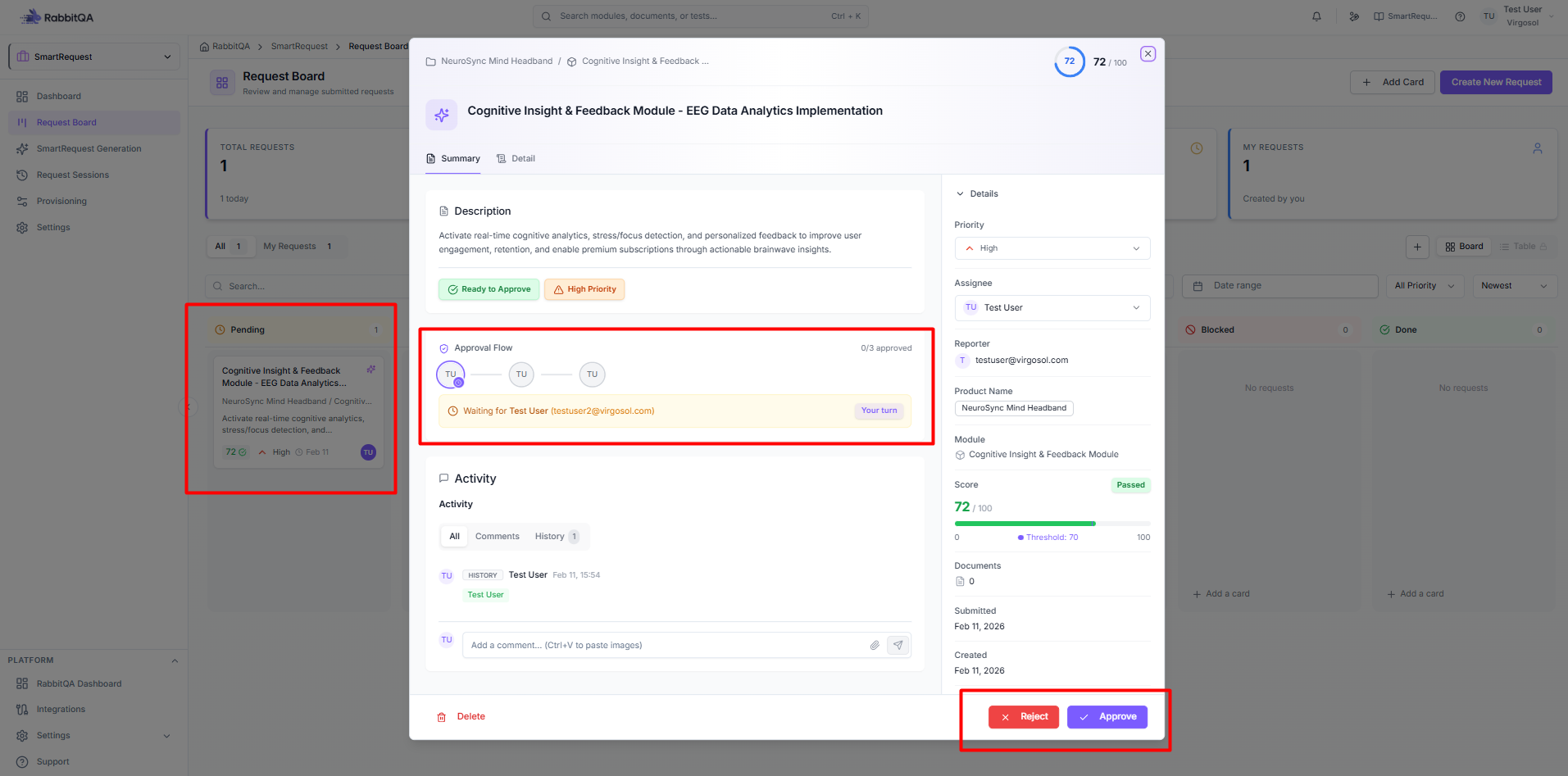
Pending Requests
Requests awaiting approval show:
- Submitted status (yellow indicator)
- Approve/Reject buttons visible to approvers
Approving a Request
- Open the request details
- Review all information
- Click Approve or Reject
- Add optional comment
- Confirm action
Rejection Handling
Rejected requests:
- Move back to Pending with amber indicator
- Submitter notified
- Can be revised and resubmitted
Request Details Modal
Overview Tab
- AI-generated summary
- Full description
- Attached documents
- Priority and scoring
Approval Tab
- Current approval status
- Approver information
- Approval history
- Approve/Reject actions
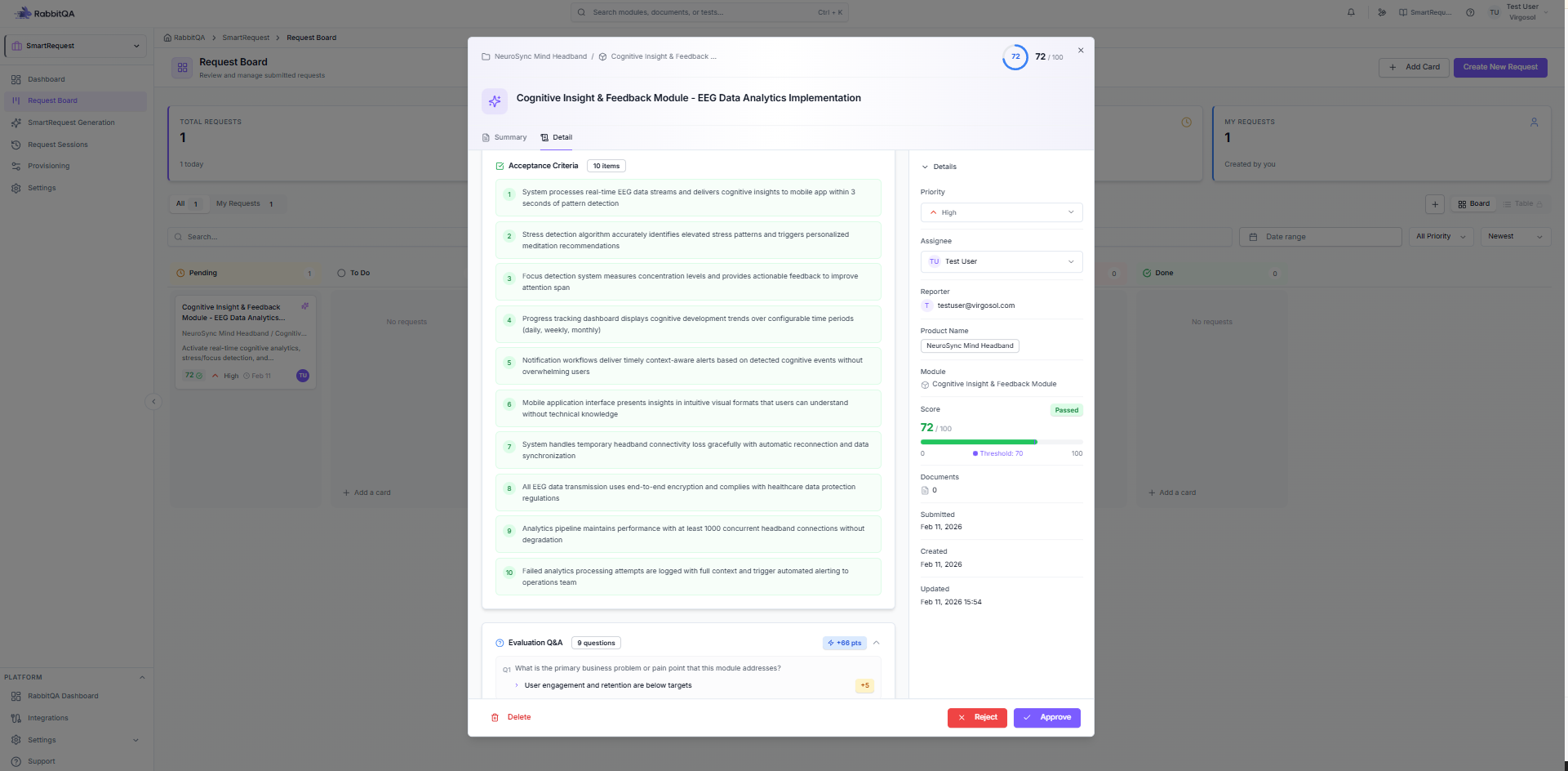
AI Preview Tab
- AI evaluation results
- Q&A transcript
- Recommendations
- Score breakdown
- Acceptance Criteria
Activity Tab
- Comments thread
- Status change history
- Action log
- Timestamps
Filtering and Search
Quick Filters
| Filter | Options |
|---|---|
| Status | Any column status |
| Priority | Critical, High, Medium, Low |
| Type | Business, Technical |
| Assignee | Team members |
| Product | Configured products |
Search
- Search by title
- Search by description
- Search by ID
Saved Filters
Save frequently used filter combinations:
- Apply desired filters
- Click Save Filter
- Name the filter
- Access from dropdown
Summary Cards
Top of board shows metrics:
| Card | Description |
|---|---|
| Total Requests | All requests count |
| Pending Approval | Awaiting approval |
| In Progress | Currently active |
| Completed | Done this period |
Actions Menu
Request Actions
| Action | Description |
|---|---|
| View Details | Open full details |
| Edit | Modify request |
| Generate PBIs | Create PBIs (if approved) |
| Generate Tests | Create test cases (if approved) |
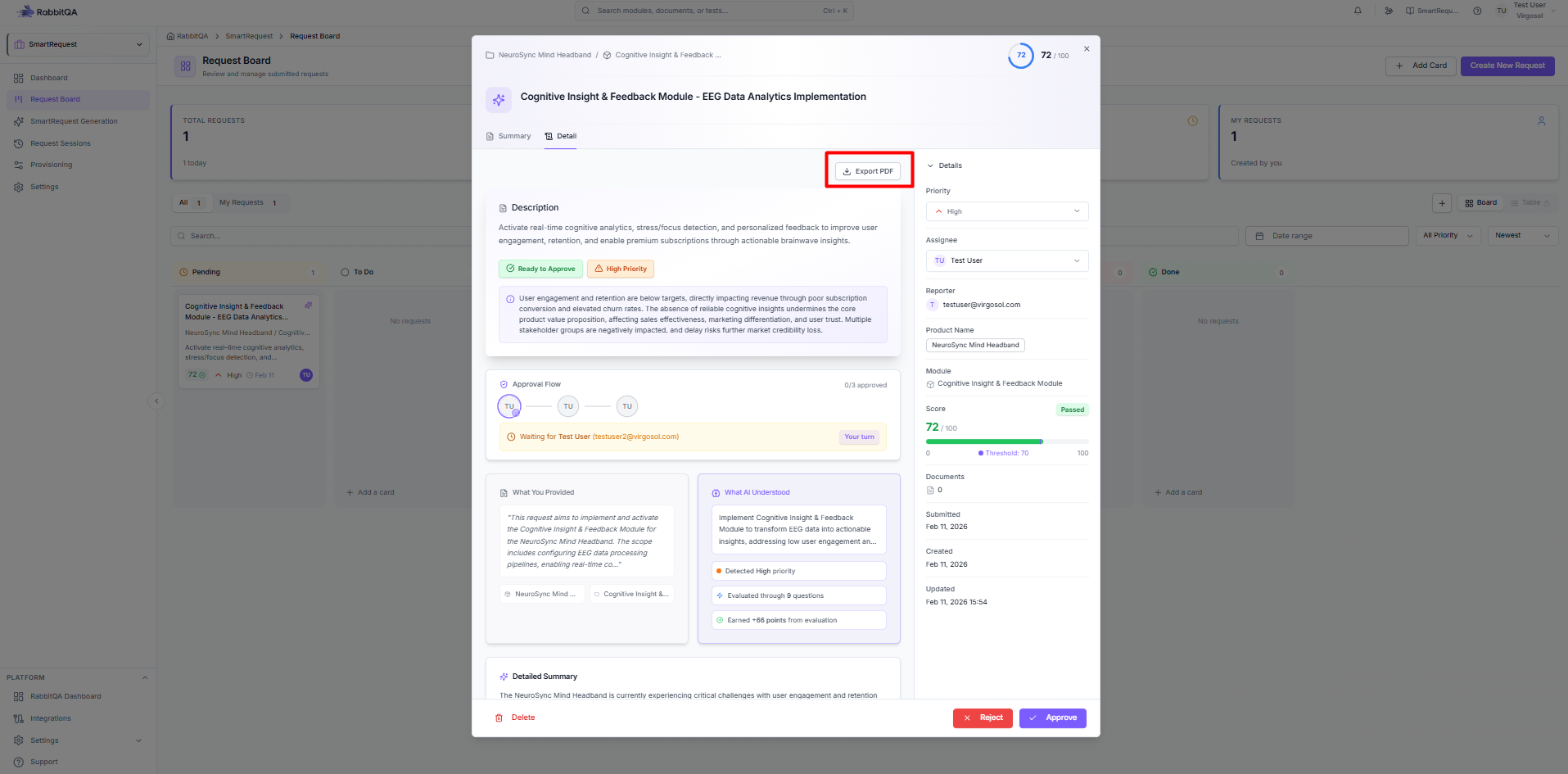
| Export PDF | Download as PDF |
| Delete | Remove request |
Bulk Actions
Select multiple requests:
- Check request boxes
- Choose bulk action:
- Change status
- Change priority
- Assign to user
- Export selected
PDF Export
Generate PDF report:
- Open request details
- Click Export PDF
- Report includes:
- Request summary
- AI evaluation
- Approval status
- Activity history
Best Practices
Board Management
- Review pending requests daily
- Clear blocked items promptly
- Keep cards moving through workflow
- Archive completed requests
Using Columns Effectively
- Pending - Triage and prioritize
- To Do - Sprint planning ready
- In Progress - Limit WIP
- Test – Monitor items currently in the testing phase
- Review - Quick feedback cycles
- Blocked – Flag items with impediments requiring resolution
- Done - Celebrate completions!