Issue Tracker
Centralized view of all Jira issues linked to test executions.
What is Issue Tracker?
Issue Tracker provides a centralized view of all Jira issues linked to your test executions, enabling efficient bug management and traceability from test failures to issue resolution.
It automatically aggregates all Jira issues linked to test executions, providing centralized view, test context (which tests failed and created each issue), project tracking, status monitoring (track issue progress from Open to Resolved), and quick navigation to related test executions.
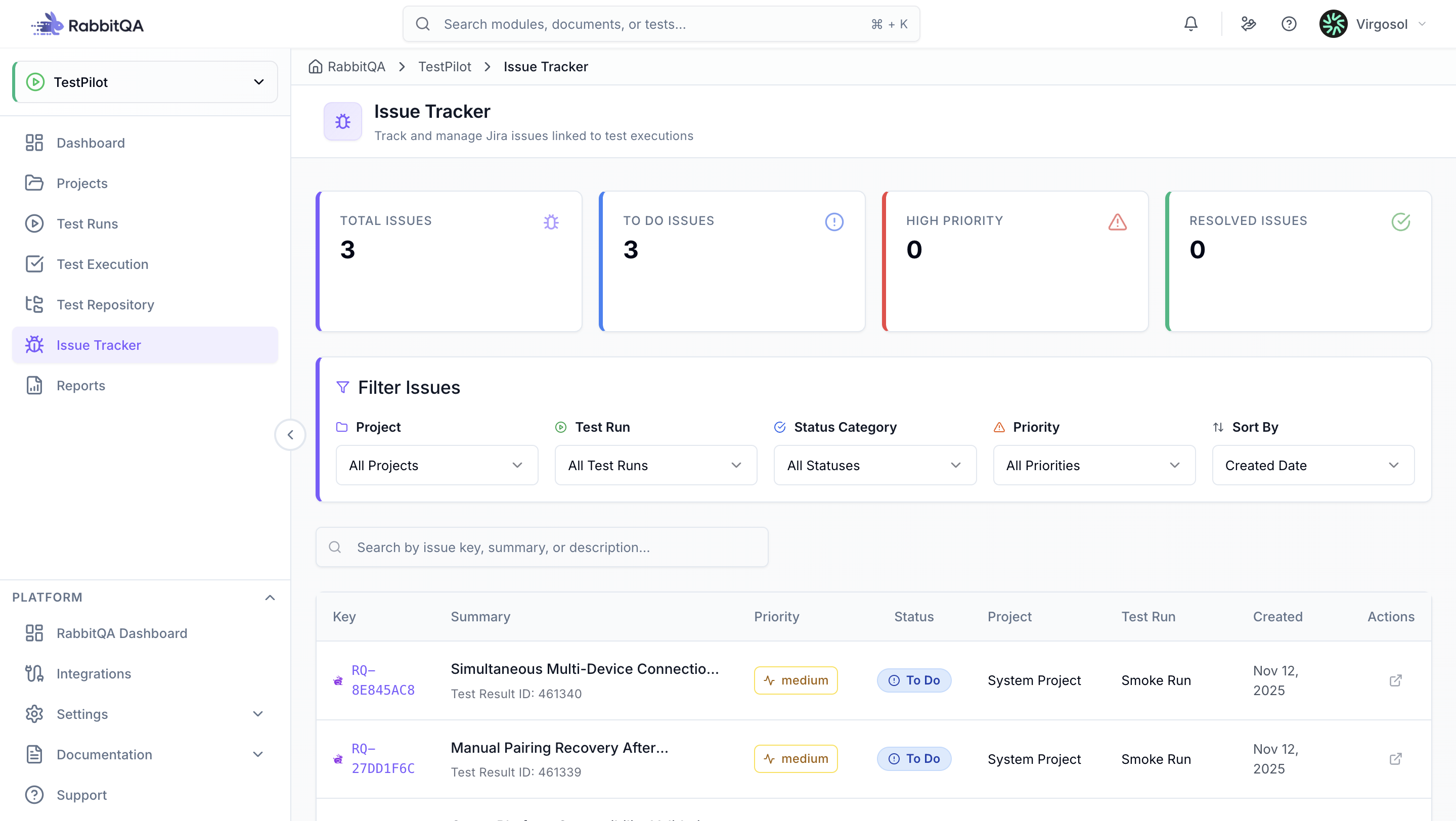
Dashboard Metrics
Get instant visibility into your issue landscape:
- Total Issues: Overall count with trend indicators
- Open Issues: Currently unresolved issues
- In Progress: Issues being actively worked on
- Resolved: Successfully fixed issues
These metrics help you understand the current state of your bug tracking and prioritize work.
Issue Table
View all critical information at a glance:
- Issue Key: Direct link to Jira (e.g., PROJ-123)
- Type: Bug, Task, Story, Epic
- Summary: Issue title and description
- Priority: Visual badges from Highest to Lowest
- Status: Color-coded badges
- Project: Associated Jira project
- Test Run: Linked TestPilot test run
- Created Date: When the issue was reported
- Quick Actions: Open in Jira with one click
Filtering & Search
Search by issue key, summary, or description. Filter by Jira Project to focus on specific projects.
Filter by Status
- Open: New issues requiring attention
- In Progress: Currently being worked on
- Resolved: Fixed and awaiting verification
- Closed: Verified and closed
- Reopened: Issues that have resurfaced
Filter by Priority
- Highest: Critical bugs blocking progress
- High: Important issues requiring quick resolution
- Medium: Standard priority
- Low: Minor issues
- Lowest: Cosmetic or trivial issues
Combine multiple filters for precise results. Sort by created date, updated date, priority, status, or issue key.
Issue Detail Panel
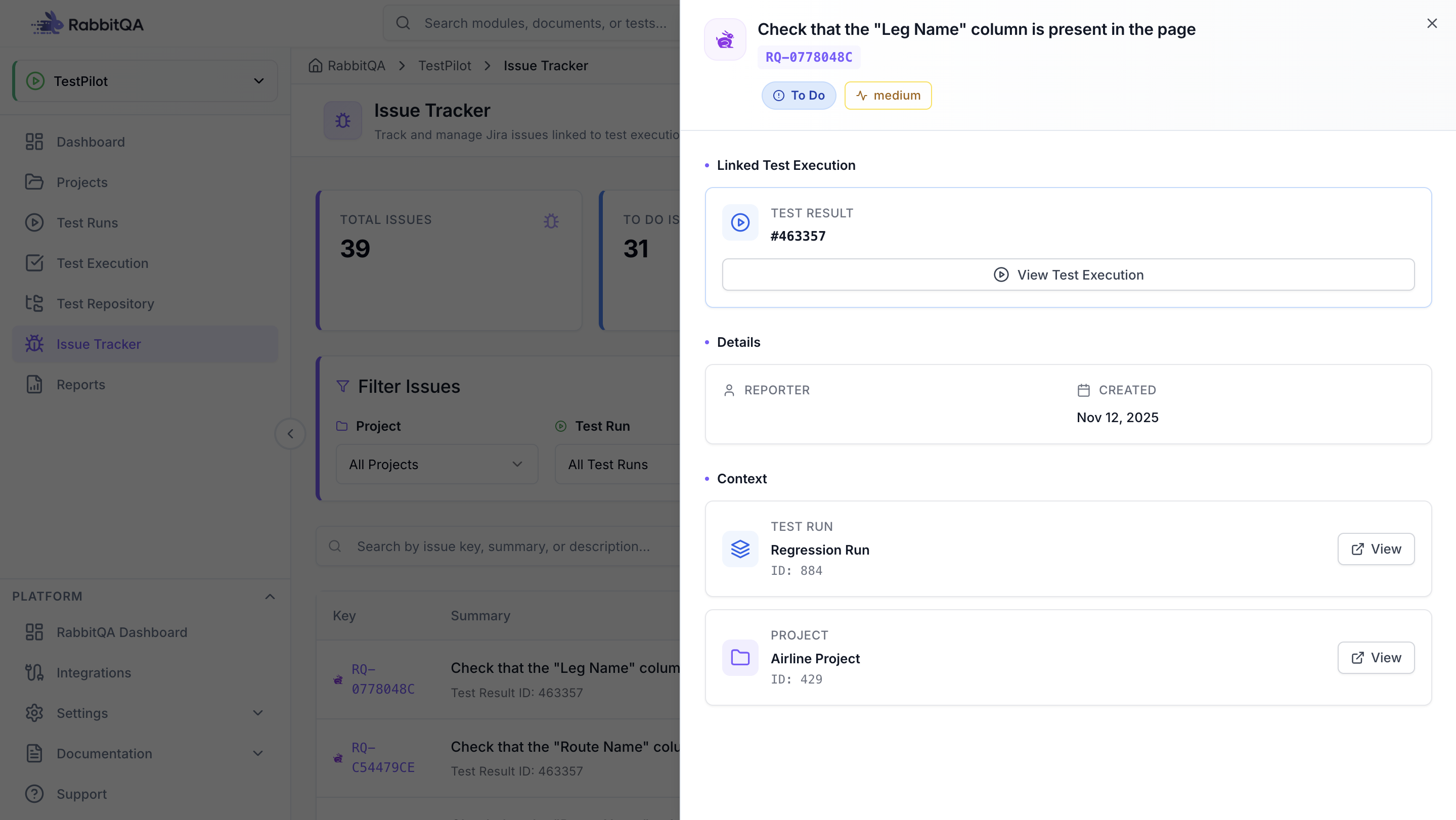
Get comprehensive issue information in a slide-out panel:
Issue Information
- Full summary and description
- Status and priority badges
- Issue type, labels and tags
Test Context
- Linked test execution details
- Test case information
- Execution status and date
- Quick navigation to test details
Project Context
- Jira project name
- TestPilot project
- Test run information
- Direct navigation links
Metadata
- Reporter and assignee
- Created and updated dates
- Complete change history
Navigation
From Issue to Test Execution
- Click issue in table
- Detail panel opens
- Find "Linked Test Execution" section
- Click "View Test Execution" button to navigate to Test Executions page with selected test
From Issue to Test Run
- Open issue detail panel
- Find "TestPilot Project" in Context section
- Click "View" button to navigate to test run details
From Issue to Jira
- Click external link icon in Actions column, or
- Click "Open in Jira" button at top to open issue in new Jira tab
