Reservations
Device scheduling at /devicer/reservations.
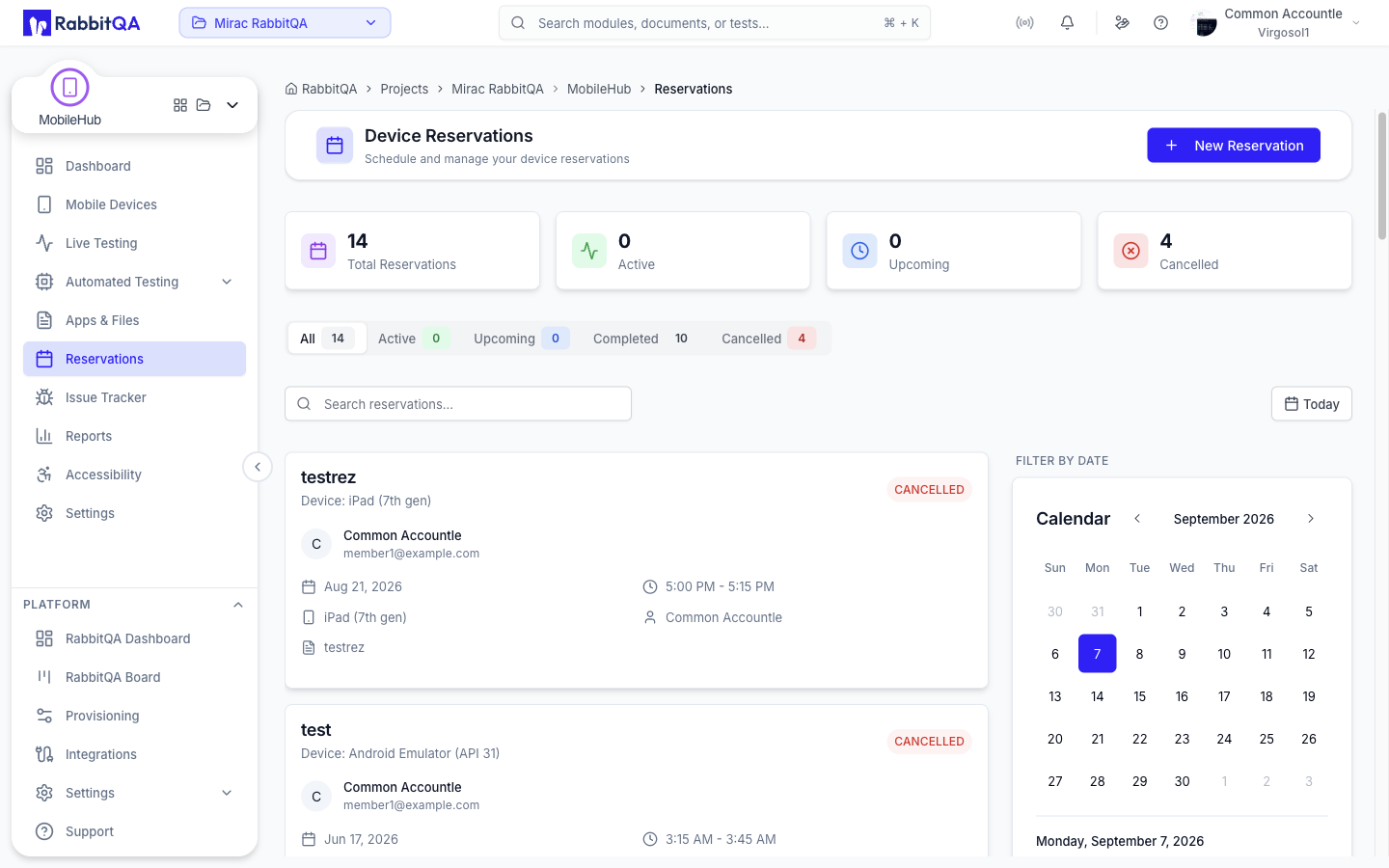
Overview
A reservation holds a device for you at a chosen time, so a planned test is not blocked by someone else picking up the device first.
Four cards summarize your reservations: Total Reservations, Active, Upcoming, and Cancelled.
Status
| Status | Meaning |
|---|---|
| Upcoming | Scheduled for a future time |
| Active | In progress now; the device is held for you |
| Completed | The reservation window has ended |
| Cancelled | Cancelled before it started |
Creating a Reservation
New Reservation opens a five-step form. You can also start it from the Reserve control on a device card.
| Step | What you choose |
|---|---|
| 1 | The device |
| 2 | The date |
| 3 | The duration |
| 4 | The start time, from the slots still free for that duration |
| 5 | Confirmation of the whole booking |
Durations
| Options |
|---|
| 15 minutes, 30 minutes, 45 minutes, 1 hour, 1.5 hours, 2 hours, 3 hours, 4 hours |
The default is one hour.
Duration is chosen before the time, because the available start times depend on it: the form only offers slots long enough to fit the duration you picked without colliding with an existing reservation.
The date picker allows bookings up to one month ahead. How many reservations you can make in a day comes from your plan; see the Quotas & Limits tab on the Settings page.
Managing Reservations
| Action | Available on | Description |
|---|---|---|
| Edit | Upcoming, if you own it or are an admin | Change the booking |
| Cancel | Upcoming, if you own it or are an admin | Cancel it entirely |
| Join | Active, if you own it or are an admin | Open the session on the reserved device |
| End Early | Active, if you own it or are an admin | Release the device before the scheduled end |
| View History | Completed | Open the session that ran during the reservation |
Filtering
| Tab | Shows |
|---|---|
| All | Every reservation |
| Active | In progress now |
| Upcoming | Scheduled |
| Completed | Finished |
| Cancelled | Cancelled |
Search matches the device name and the reservation text. The calendar marks days that have reservations; selecting a day filters the list to it.
Good Practice
- End a reservation early when you finish, so the device returns to the pool.
- Cancel bookings you no longer need rather than letting them lapse.
- Check the calendar before booking to find a free slot instead of colliding with an existing reservation.
Without the "Start Sessions" permission you can view reservations but not create, edit, or cancel them.
