Issue Tracker
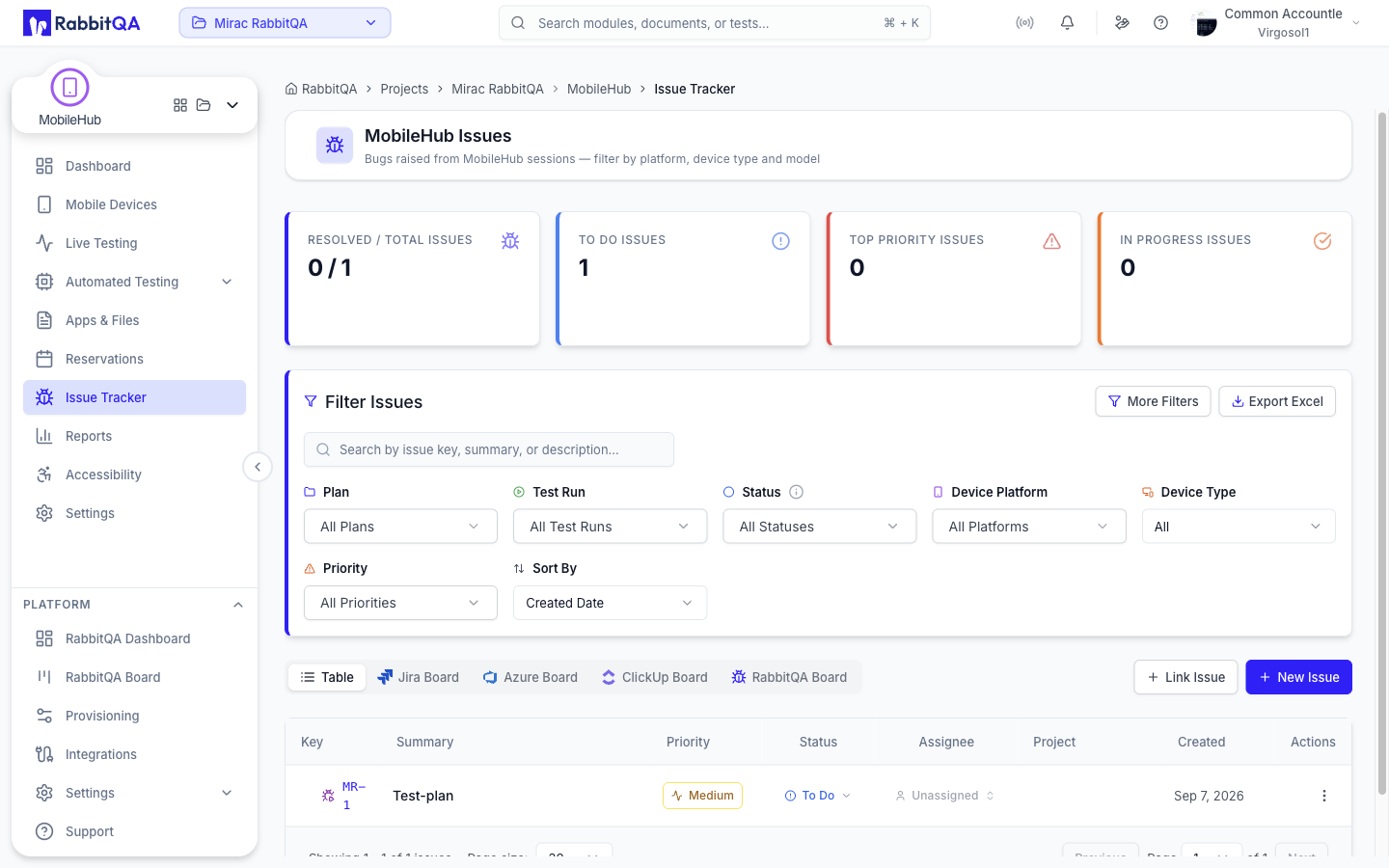
Bugs found while testing a device, at /devicer/issues.
The Issue Tracker entry in the MobileHub navigation opens the same issue tracker used by TestPilot, so a bug raised on a device sits alongside every other issue your team is working. See TestPilot Issue Tracker for the list itself: the summary cards, tabs, filters, and how issues are worked after they are filed.
Reporting a Bug from a Session
There are two ways in.
- Report Bug in the session toolbar, at any time during a session.
- End & Report Bug in the End Test dialog, which ends the session and opens the same form.
The form starts by asking how you want to report the issue.
| Choice | Result |
|---|---|
| New Issue | Creates a new bug report |
| Link Issue | Links this session to an issue that already exists |
Attaching Session Evidence
For a new issue, MobileHub loads the screenshots and recordings already captured in the session and offers them for attachment before the form opens. Pick the ones that show the problem, or skip the step. You can preview an artifact before deciding, and take a fresh capture from the live device.
Selected artifacts are attached to the issue along with anything you add by hand.
Trackers
The form checks which trackers your company has connected and offers the ones that are available.
| Tracker | Available when |
|---|---|
| RabbitQA | Always |
| Jira | A Jira connection is configured |
| Azure DevOps | An Azure DevOps project is configured |
Recording a Session Verdict
Ending a session asks how the test went before the device is released: Passed, Failed, or No Result, with an optional note. That verdict is stored on the session and is what the Live Testing list, the reports, and the build summaries count.
Recording Failed and filing a bug are separate steps; End & Report Bug does both in one pass.
Permissions
The Report Bug and End & Report Bug controls appear only when you hold the issue tracker's create permission. Without it, ending a session still records a verdict, but the bug report path is withheld.
