RabbitQA Board
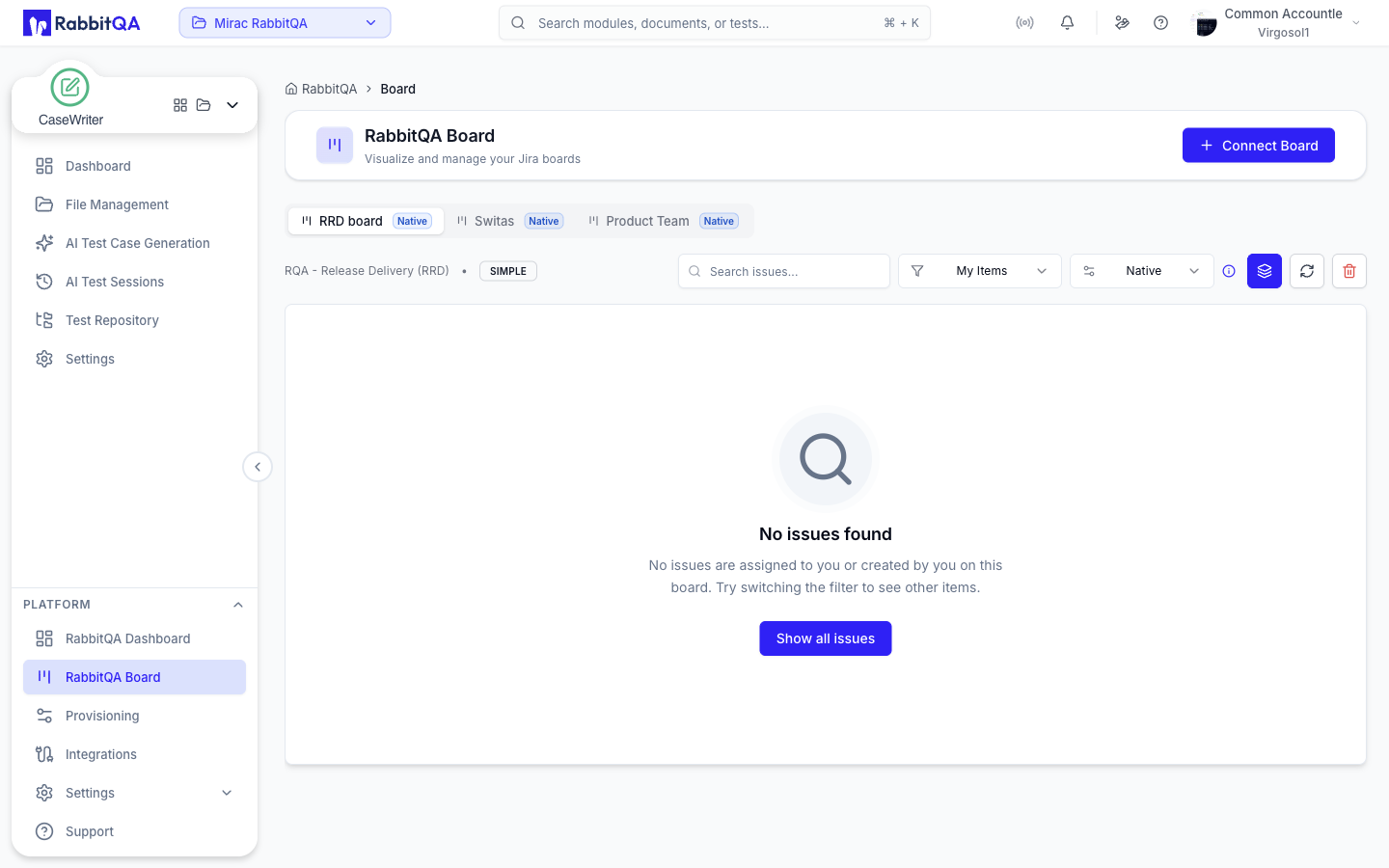
RabbitQA Board renders your Jira boards inside the platform, so a tester can see and move work without switching to Jira.
Open it from Platform › RabbitQA Board in the sidebar.
Before you start
The board reads from Jira, so Jira must be connected first. If it is not, the page shows a "Jira is not connected" state with a Connect Jira button, and the Connect Board action in the header stays disabled — see Integrations.
Once Jira is connected, use Connect Board to attach a Jira board. Until you do, the page shows "No boards connected". Each connected board becomes a tab, badged Native or PBI for its viewing mode, with the Jira project name, key and board type shown underneath.
Viewing modes
The board offers two ways of arranging cards:
| Mode | How columns are decided |
|---|---|
| Native | Columns follow your Jira workflow, matched by the Jira status name. What you see mirrors the board in Jira. |
| PBI Mapped | Columns follow RabbitQA's own backlog item statuses, so Jira issues are grouped the way Smart PBI sees them. |
Use Native when you want parity with Jira, and PBI Mapped when you are working across generated backlog items and want a consistent shape regardless of how each Jira project is configured.
Columns
In PBI Mapped mode the columns are:
| Column | Meaning |
|---|---|
| Pending | Not yet started |
| To Do | Ready to be picked up |
| Blocked | Cannot proceed |
| In Progress | Being worked on |
| Ready to Check | Development complete, awaiting test |
| Test Blocked | Testing cannot proceed |
| Testing | Under test |
| Done | Complete |
In Native mode the columns are whatever your Jira workflow defines, matched to a colour by the normalized Jira status name.
Working with an issue
Cards are draggable. Dropping one into another column transitions the issue in Jira, so the move is real work rather than a local rearrangement.
Selecting a card opens a read-only issue detail instead: the summary and description, plus Status, Priority, Assignee, Type, Created and Updated. It closes with Close, or Open in Jira to edit the issue in Jira itself.
Related
- Integrations — connecting Jira
- Smart PBI — generating the backlog items the mapped view groups by
- TestPilot — the module-level issue tracker, which also offers a Jira board view
