Issue Tracker
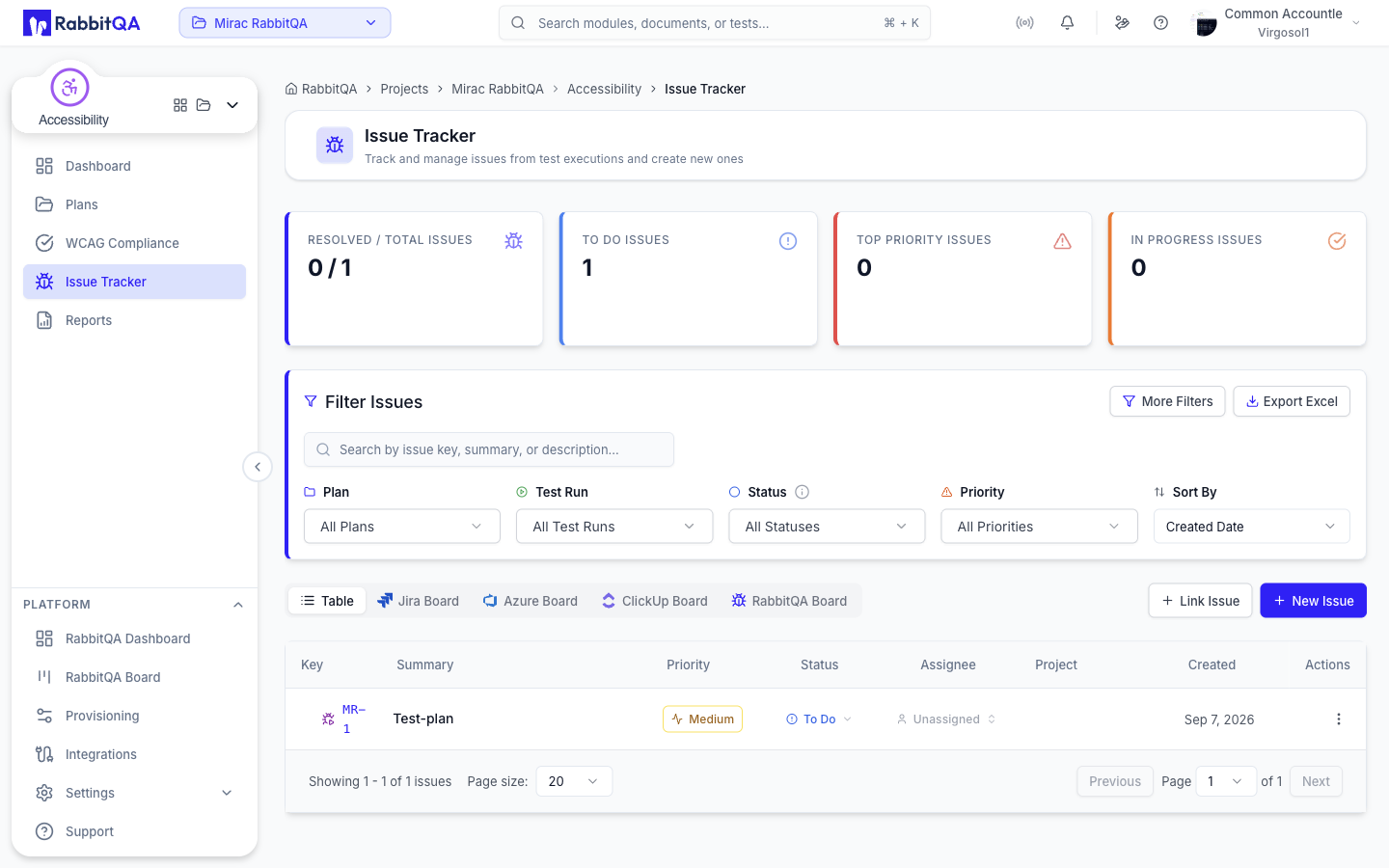
Accessibility › Issue Tracker (/accessibility/issue-tracker) opens RabbitQA's shared issue tracker.
It is the same tracker as the one in TestPilot, mounted here for convenience. There is no separate accessibility issue list: issues you raise from an audit report appear alongside every other issue in the workspace.
For how the tracker itself works — the board and table views, filters, statuses, priorities, and the Jira and Azure DevOps connections — see TestPilot.
Creating an issue from a finding
Accessibility findings become issues from the audit report rather than from this page.
- Open an audit report and expand a failed check.
- On the offending element, select Create Issue.
- Review the pre-filled form and adjust the summary, description, priority, and status.
- Save the issue, or send it to an external tracker.
The form arrives pre-filled from the finding, so the check title, its description, the element's CSS selector, its HTML snippet, and the explanation of the failure are all carried into the issue.
Sending to Jira or Azure DevOps
The issue form offers two hand-offs in addition to saving in RabbitQA.
| Destination | Notes |
|---|---|
| Jira | Needs a connected Jira account. |
| Azure DevOps | Offered only when Azure DevOps is enabled for the workspace, and needs a connected Azure DevOps account. |
Choosing one opens that tracker's own issue form, pre-filled with the same content, so you can pick the target project, issue type, and remaining fields before creating the item. That form also offers a way back to the RabbitQA form if you change your mind.
If the tracker you pick is not connected, the hand-off is refused with a message pointing at Integrations Settings, and the issue can still be saved in RabbitQA instead.
