Live Testing
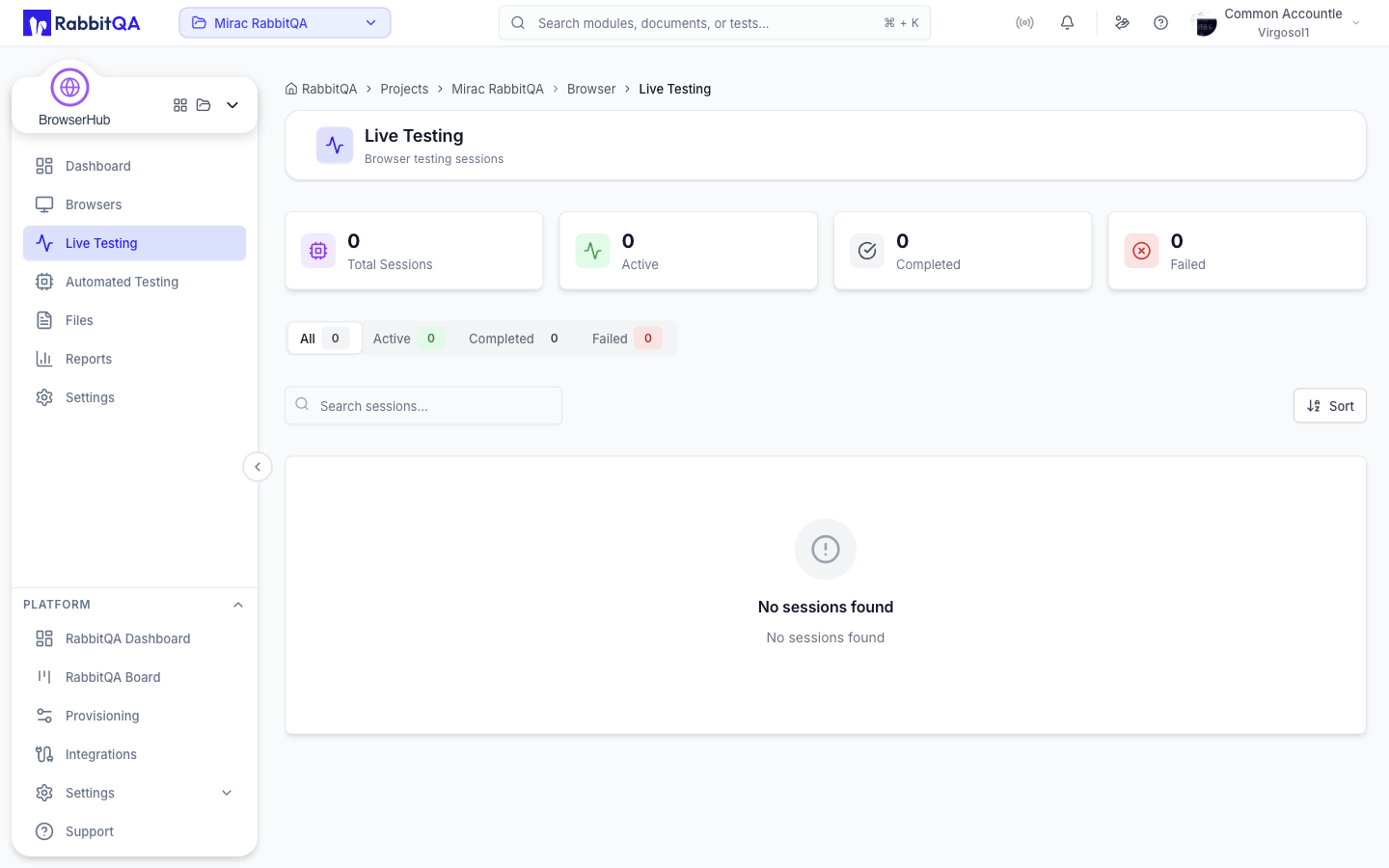
Live Testing at /browser/live-testing lists the interactive browser sessions in your organization and opens the workspace where you drive a browser yourself.
Sessions are started from the Browsers page, not from this list.
The Session List
Statistics
Four cards summarize the sessions the service reports: Total Sessions, Active, Completed, and Failed.
When sessions are running and you are not on the Active tab, a banner at the top of the page reports the count and offers View Active.
Tabs
| Tab | Shows |
|---|---|
| All | Every browser session |
| Active | Sessions with status ACTIVE |
| Completed | Sessions with status TERMINATED |
| Failed | Sessions with status FAILED |
Each tab carries a count badge. Filtering happens on the server, so switching tabs reloads the list from the first page.
Search and sort
The search box filters the loaded page by session name, browser instance name, and session ID.
The Sort menu offers:
- Newest First (the default)
- Oldest First
- Name (A-Z) and Name (Z-A)
- Longest Duration
- Recently Started
Cards and pagination
Each card shows the browser, its status, and the session's timing. Status appears as Active, Running, Starting, Completed, Failed, or Timeout.
The list is paged at twenty sessions per page and refreshes every five seconds. Polling pauses while the browser tab is hidden or unfocused, and resumes when you come back.
Ending a session
End Session on a card asks for confirmation before disconnecting the browser.
The Session Workspace
Selecting a session opens /browser/live-testing/<session id>.
This workspace is the MobileHub session detail workspace with browser-specific panels substituted for the mobile ones. The sidebar, header, tabs, parallel session handling, and keyboard shortcuts behave the same way. See MobileHub for the shared behavior.
BrowserHub omits the panels that only apply to phones: there is no Appium inspector, no CPU and battery metrics, and no on-device file browser.
Controlling the browser
The workspace streams the browser over WebRTC and sends your input back to it.
| Input | Sent as |
|---|---|
| Mouse move, click, press, and release | Pointer events at the corresponding position, including double-click and the middle and right buttons |
| Scroll wheel | Scroll deltas |
| Printable characters | Typed text |
| Enter, Tab, Backspace, arrows, Escape, and other special keys | Named key events |
A few shortcuts are deliberately left to your own browser rather than forwarded: F12, reload, and the clipboard shortcuts.
Above the video, a status strip shows the connection state, the stream statistics, and how long the session has been running.
Session toolbar
Beneath the video:
| Control | Does |
|---|---|
| Reconnect | Re-establishes the stream |
| Screenshot | Captures a screenshot into the session's artifacts |
| Start Recording / Stop Recording | Starts or stops a video recording of the session |
| Mute / Unmute | Toggles session audio, which starts muted |
| Focus keyboard input | Moves keyboard focus to the video so typing reaches the remote browser |
| Fullscreen | Expands the video to the full screen |
| End Session | Asks for confirmation, then disconnects the browser |
Side panels
The toolbar above the video toggles four panels, each with a keyboard shortcut.
| Panel | Shortcut | Shows |
|---|---|---|
| Logs | ⌥L | Browser logs for the session |
| Screenshots | ⌥S | Captured screenshots, with a count badge |
| Recordings | ⌥R | Video recordings, with a live indicator while recording |
| Network | ⌥N | The network capture described below |
Network capture
The Network panel is a request waterfall in the style of a browser's own developer tools.
- Record starts capture and Stop ends it. Requests stream in live while recording.
- The table lists status, method, URL, resource type, size, and time, and selecting a row opens its detail.
- Filter by text across URL, method, and status code, and by resource type: XHR, Script, Stylesheet, Document, Image, Font, Media, or Other.
- The toolbar reports the request count and the total transferred size.
- A trash button empties the current view.
- HAR downloads the capture once it is available.
Stopping a capture writes a HAR file, which becomes downloadable a moment later. On a session that has already ended, the panel loads the stored HAR instead of recording, so Record is not offered.
The live view retains the most recent 2000 requests.
Idle timeout
If nothing happens in the session for a while, a banner warns that the session will end and counts down the remaining seconds. Stay Connected dismisses the warning and keeps the session alive.
Running several browsers at once
The Add Device button in the session header opens the Add Browser dialog, which adds a second session alongside the current one. It offers Quick Start shortcuts for the latest version of each browser on each operating system, or a three-step operating system, browser, and version selection ending in Start Session. Sessions you have opened stay connected in the background while you switch between them.
View-only sessions
When the service reports that a browser is already being driven by someone else, the workspace shows View Only Mode instead of the control surface.
Ended sessions
Once a session ends, the workspace switches to a tabbed record.
| Tab | Shows |
|---|---|
| Overview | Session and browser details |
| Logs | Browser logs |
| Screenshots | Captured screenshots |
| Recordings | Video recordings |
| Network | The stored HAR capture |
| Test Results | Automation results, on automated sessions only |
Alternative Routes
/browser/sessions shows the same list as /browser/live-testing.
/browser/sessions/<session id> opens a lighter standalone player: the video with the browser toolbar and a connection indicator, without the sidebar and panels.
Ending the session there returns you to /browser/sessions.
