File Management
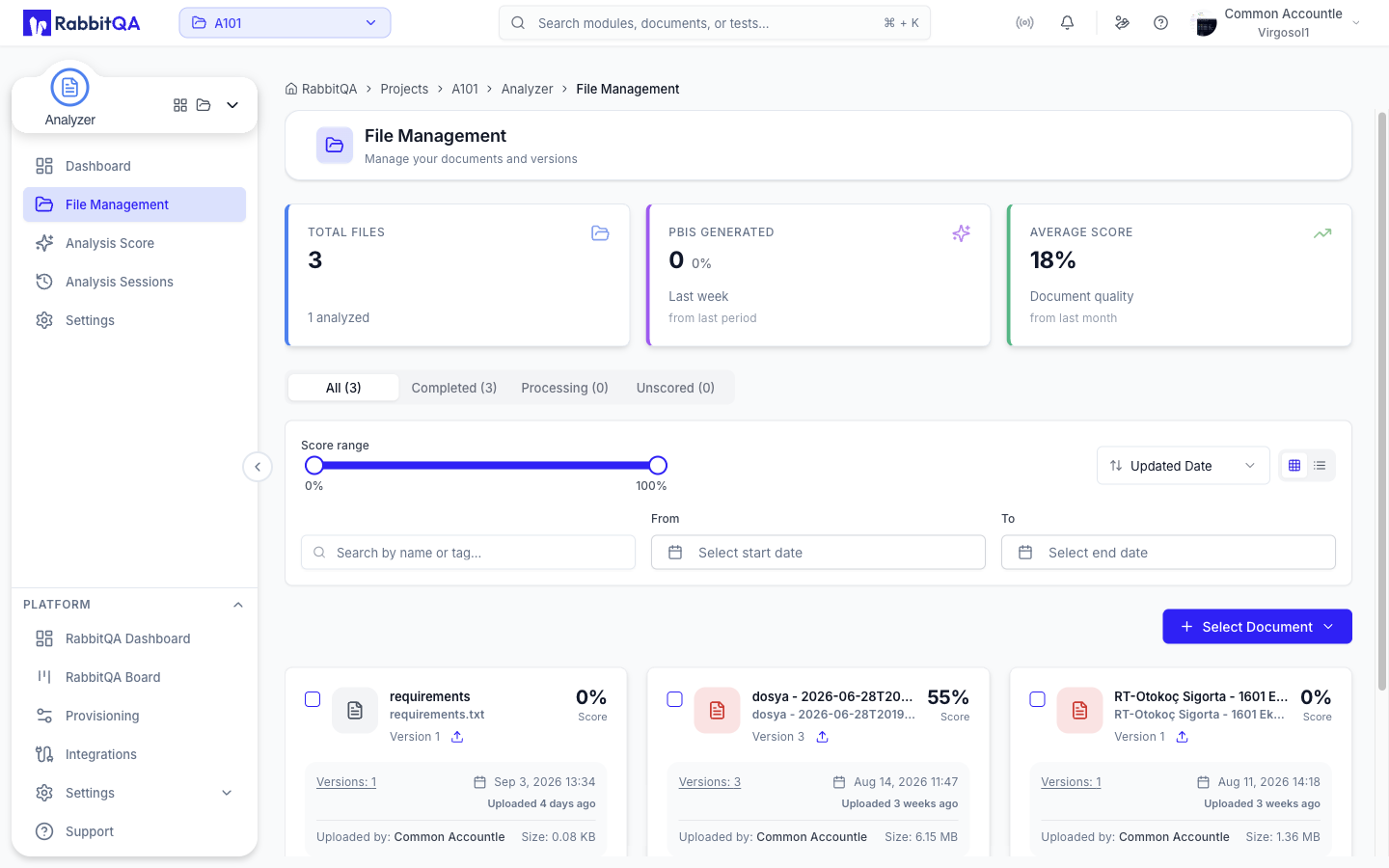
File Management is the document store the AI modules work from.
The screen lives at /analyzer/files and is mounted unchanged by two other modules.
| Route | Module |
|---|---|
/analyzer/files | Analyzer |
/smart-pbi/files | Smart PBI |
/casewriter/files | CaseWriter |
Each screen lists the documents shared into that module and owns the ones uploaded from it. A document that belongs to no module stays visible everywhere.
Header metrics
| Card | Value |
|---|---|
| Total Files | Documents on this screen, with how many are analyzed |
| PBIs Generated | Product backlog items generated in the last week |
| Average Score | Average document quality score |
The counts are scoped to the module whose URL you are on, so they match the list below them.
Finding a document
Four status tabs split the list, each with its own count.
| Tab | Shows |
|---|---|
| All | Every document |
| Completed | Documents whose latest analysis finished |
| Processing | Documents with an analysis running |
| Unscored | Documents that have never been analyzed |
Below the tabs:
- Score range — a 0-100 slider.
- Search — by file name or tag.
- From / To — upload date range. Reversed dates are swapped rather than rejected.
- Sort — Updated Date, Created Date, Highest Score, or Lowest Score.
- View mode — grid cards or a list with selection checkboxes.
Results are paginated, 20 per page by default.
Adding documents
The Select Document button opens a menu with two options.
Upload Document
The upload dialog handles both new documents and new versions of an existing one.
| Upload type | Files per upload |
|---|---|
| New Document | Up to 10 at once |
| New Version of Existing Document | One, because a version targets a single document |
Accepted formats: PDF, DOC, DOCX, TXT, MD, JSON, JPEG, JPG, and PNG.
Tags are optional and comma-separated.
Version numbers are semantic and increment automatically — uploading a version onto 1.0.0 produces 1.0.1.
The dialog shows the current version and the number the new one will get.
A new version becomes the current version and is queued for analysis.
In a batch, each file is uploaded in turn, so one failure does not lose the rest. The result toast names any files that failed. Empty (0-byte) files are rejected.
Upload from Confluence
Imports Confluence pages as documents.
This requires a configured Confluence integration; without one, the dialog points you at integration settings instead of a page list.
The picker has two modes:
- Browse — a lazily loaded tree that preserves Confluence's space, page, and sub-page hierarchy. Each level is fetched when you expand it, and pages with no children hide their expand arrow.
- Search — type a query and the picker switches to a flat, server-side search where each result shows its ancestor breadcrumb.
Selecting a page cascades to its entire sub-page subtree, and deselecting it removes that subtree again. A spinner marks a page whose subtree is still being fetched.
Imported pages become documents in the list and can be analyzed like any other.
Document actions
A grid card carries two buttons and an overflow menu.
| Control | Effect |
|---|---|
| Analyze button | Opens Analysis Score with the document preselected |
| PBI Generation / Test Case Generation button | On /analyzer/files the button reads PBI Generation; on the Smart PBI and CaseWriter routes it reads Test Case Generation. The menu carries whichever of the two the button does not |
| Download | Downloads the latest version's original file |
| Copy Info | Copies name, version, score, and creation date to the clipboard |
| Copy URL | Copies a link that opens the file detail page |
| Delete | Removes the document after confirmation |
The Versions: n link on the card opens the version history dialog; there is no menu item for it.
A list row's menu is worded differently and carries one entry the card does not: Analysis Score, Generate PBIs, Generate Test Cases, Download, Copy Info, Copy URL, New Version, and Delete.
Selecting rows in list view enables a bulk Delete.
Analyze and upload actions require the create permission for the module you are in; delete requires its delete permission. When you lack the upload permission, the button stays visible but disabled with an explanation, rather than disappearing.
File detail page
Clicking a document opens /analyzer/files/file-detail, a full page that replaced the earlier detail modal.
The URL carries fileId and fileName, and optionally version to open a specific version and tab to open a specific tab.
Under Smart PBI or CaseWriter the same page opens under that module's path.
Version panel
A panel down the left lists every version, newest first, with its number, status, score, and score trend, and marks the current one.
Selecting a version switches the whole page to it — the statistics, the analysis report, and the download all follow the selection. Version selection is blocked while an analysis is running.
Overview tab
- Analysis & Generation — Analyze Document, Generate PBIs, Generate Test Cases.
- Report Operations — Share Report (copies a link to this version's report), Download Report as PDF, View History.
- File Management — Upload New Version, Download File, Delete File.
- Statistics — Overall Score, Estimated PBIs, Generated PBIs, and version count, shown once the version has a score.
- File Information — name, version, tags, and upload details.
When the version was scored together with other files, a Combined scoring banner sits above everything and lists the files in the group, highlighting the current one.
Analysis Results tab
For a scored version this tab shows:
- A metric card per metric, with its score, the AI's reasoning, suggestions, and good and bad examples.
- AI Insights — Prioritized Actions, Weaknesses, Risk Areas, Missing Sections, Incomplete Areas, and Strengths.
- Coverage Assessment — coverage percentages per area.
- Estimation Summary — estimated Epics, Features, Stories, and Test Cases.
Which of these appear depends on the options chosen when the analysis was run.
A version that has never been analyzed shows a No Analysis Results state with an Analyze Now button.
While an analysis is running the page polls for status and refreshes itself when the run completes or fails.
History tab
Lists every version newest first with its upload date and uploader, status badge, score, estimated PBI count, and any notes.
For scored versions it also shows the template used and the per-metric results, so you can compare how a document changed between versions.
