Accessibility Plans
A plan groups everything you audit for one site: a base URL, an optional authentication configuration, and all of the audits run against it.
Plans live at Accessibility › Plans (/accessibility/projects).
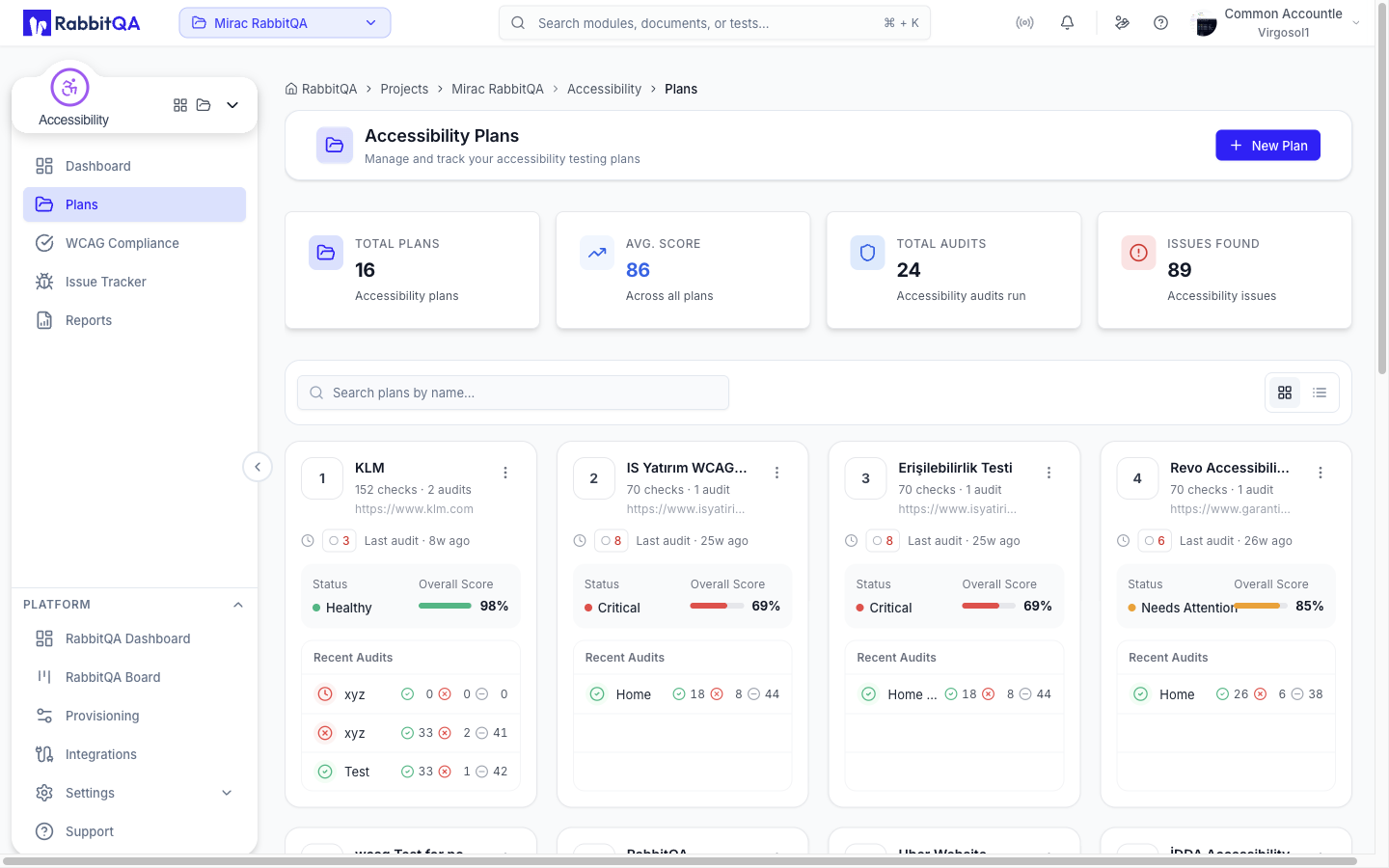
Statistics
Four cards at the top of the page repeat the module totals: Total Plans, Avg. Score, Total Audits, and Issues Found.
Creating a plan
- Select New Plan.
- Fill in the plan details.
- Configure authentication if the pages you want to audit require a login.
- Select Create Plan.
| Field | Required | Notes |
|---|---|---|
| Plan Name | Yes | For example, E-commerce Website Accessibility. |
| Plan Description | Yes | Up to 255 characters, with a live character counter. |
| Base URL | Yes | The root URL audits are built from, for example https://example.com. |
Audits are created as a base URL plus a path, so set the base URL to the root of the site rather than to a specific page.
Some deployments allow more than one base URL per plan. When that is enabled, an Add URL button appears under the Base URL field, which is relabeled Base URLs once a second URL is added.
The New Plan button requires accessibility:plan:create.
Authentication for pages behind a login
Enable Authentication Enabled in the plan's Authentication Config section to audit pages that require a sign-in.
When a plan has authentication enabled, any audit URL you mark as non-public is analyzed through the audit runner, which signs in first and then runs the accessibility analysis on the authenticated page.
Two modes are available as tabs.
Basic
Use Basic for a straightforward form login.
| Field | Description |
|---|---|
| Login URL | The page holding the login form, for example https://example.com/login. |
| Username | The account used for the audit. |
| Username Selector | CSS selector for the username field, for example #email. |
| Password | The account password. |
| Password Selector | CSS selector for the password field, for example #password. |
| Submit Selector | CSS selector for the submit control, for example button[type=submit]. |
| Wait After Login (ms) | Time in milliseconds to wait after login before analysis starts. |
All of these fields are required once authentication is enabled.
Script Builder
Use Script Builder when the login needs more than one form submission, such as a multi-step flow, a dropdown, or an interstitial.
Enter the Login URL, Username, and Password at the top of the tab.
Those three values become the variables ${loginUrl}, ${username}, and ${password}, so credentials never have to be typed into a step directly.
Then add up to 10 steps.
The builder starts with a single step that navigates to ${loginUrl}.
| Step | What it does |
|---|---|
| Navigate to URL | Goes to a URL, with a selectable wait condition. |
| Type Text | Types into an input field. |
| Click Element | Clicks a button or link. |
| Wait for Element | Waits for a selector to appear, with an optional timeout. |
| Wait (Delay) | Waits a fixed number of milliseconds. |
| Wait for Page Load | Waits for navigation to complete, with an optional timeout. |
| Press Key | Presses Enter, Tab, Escape, Space, Backspace, ArrowDown, or ArrowUp. |
| Select Dropdown | Selects an option from a dropdown. |
| Hover Element | Hovers over an element. |
Navigation steps offer four wait conditions: Network Idle (0 connections), Network Idle (2 connections), Load Event, and DOM Content Loaded.
The builder compiles the steps into a Puppeteer authenticate(page, variables) function, which is stored encrypted with the plan.
Scripts are checked before they run. Forbidden browser and frame methods, Node.js modules, code execution, network APIs, obfuscation, timer APIs, unbounded loops, and requests to local, private, or metadata addresses are all rejected. Keep steps to what the login flow actually needs.
Editing a plan re-saves the authentication configuration immediately, and it applies to every later analysis for that plan. If the stored steps cannot be loaded back into the builder, the tab warns you and the credentials have to be re-entered.
Finding a plan
- Search — the search box filters plans by name on the server, so it covers every page, not just the one on screen.
- View toggle — switch between the card grid and the list view.
- Pagination — page through plans with a page size of 1, 10, 20, or 50.
The list refreshes every six seconds, so audits that finish elsewhere appear without a manual reload.
Reading a plan card
Each card shows the plan name, base URL, status, and overall score, plus a count of checks and audits, the time since the last audit, and the most recent audits.
| Status | When it applies |
|---|---|
| No Audits | The plan has no audits or no score. |
| Healthy | Overall score of 90 or above. |
| Needs Attention | Overall score from 70 to 89. |
| Critical | Overall score below 70. |
A plan with an analysis in progress shows a pulsing Running badge and a highlighted border.
Selecting a card opens the plan's audits.
Editing and deleting
Use the menu on a card or row to edit or delete a plan.
Editing requires accessibility:plan:update, and deleting requires accessibility:plan:delete.
Deleting a plan also deletes every audit that belongs to it. The confirmation dialog states that the action cannot be undone.
