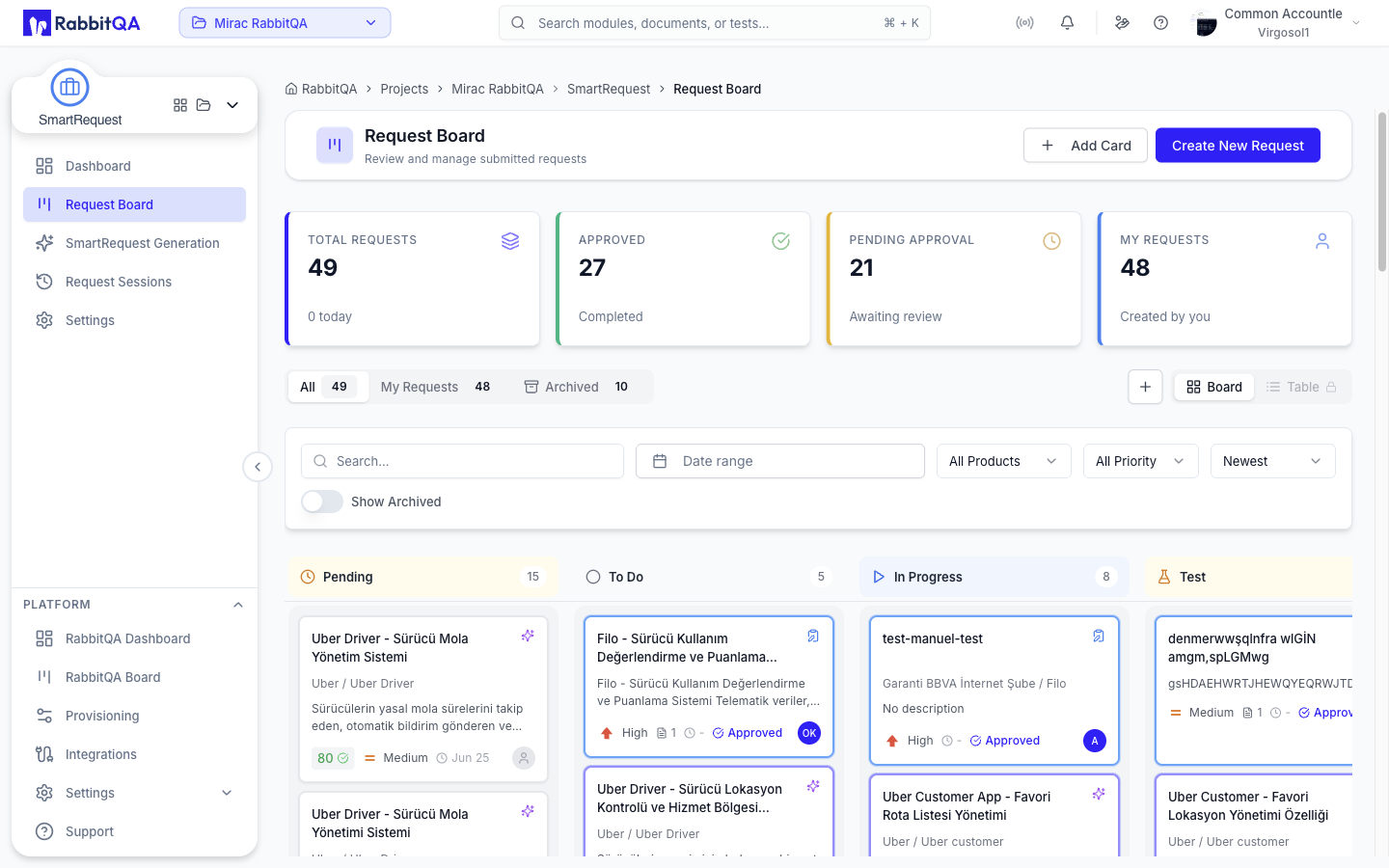
Request Board
The board at /smartrequest/request-board is where submitted requests are reviewed, decided, and worked.
A request reaches the board when it is submitted from SmartRequest Generation or a session, or when someone adds a manual card directly. The board refreshes on its own every ten seconds.
Summary Cards
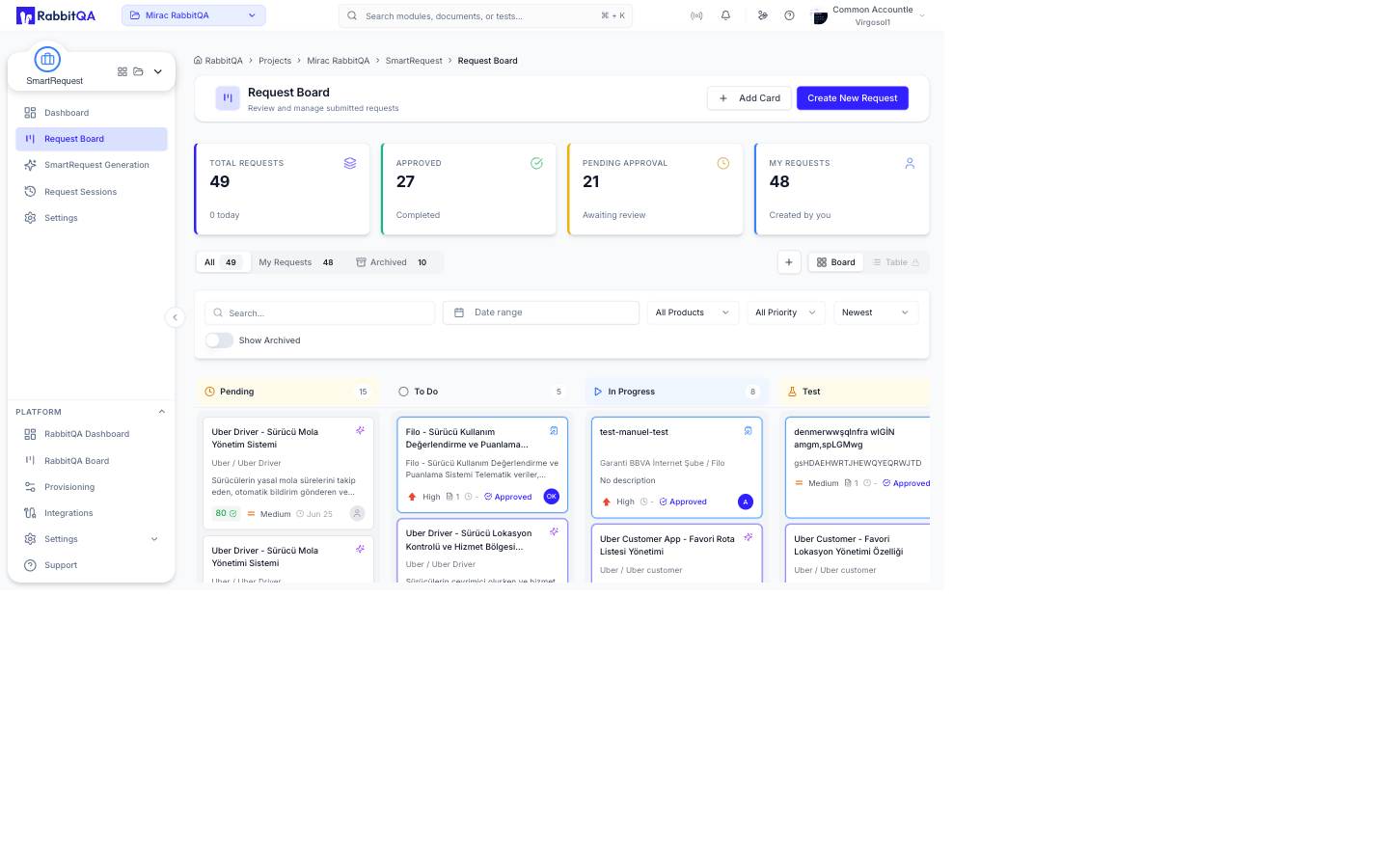
| Card | Shows | Subtitle |
|---|---|---|
| Total Requests | All requests on the board | How many arrived today |
| Approved | Approved requests | Completed |
| Pending Approval | Requests awaiting a decision | Awaiting review |
| My Requests | Requests you created | Created by you |
Views
Three tabs narrow what the board shows.
| Tab | Shows |
|---|---|
| All | Every request |
| My Requests | Requests you created |
| Archived | Archived requests only |
Outside the Archived tab, a Show Archived switch merges archived requests back into the current view without leaving it.
A Board / Table toggle sits beside the tabs. Board is the kanban view described below. The Table option is present but locked.
Columns
The kanban has seven columns. The first is the approval gate; the remaining six are the workflow statuses an approved request moves through.
| Column | Meaning | Color |
|---|---|---|
| Pending | Submitted, awaiting approval | Amber |
| To Do | Approved, not started | Gray |
| In Progress | Being worked | Blue |
| Test | Being tested | Amber |
| Review | Under review | Purple |
| Blocked | Blocked by an issue | Red |
| Done | Completed | Green |
Only the Pending column offers Add a card, because a new card always starts there awaiting approval.
Cards
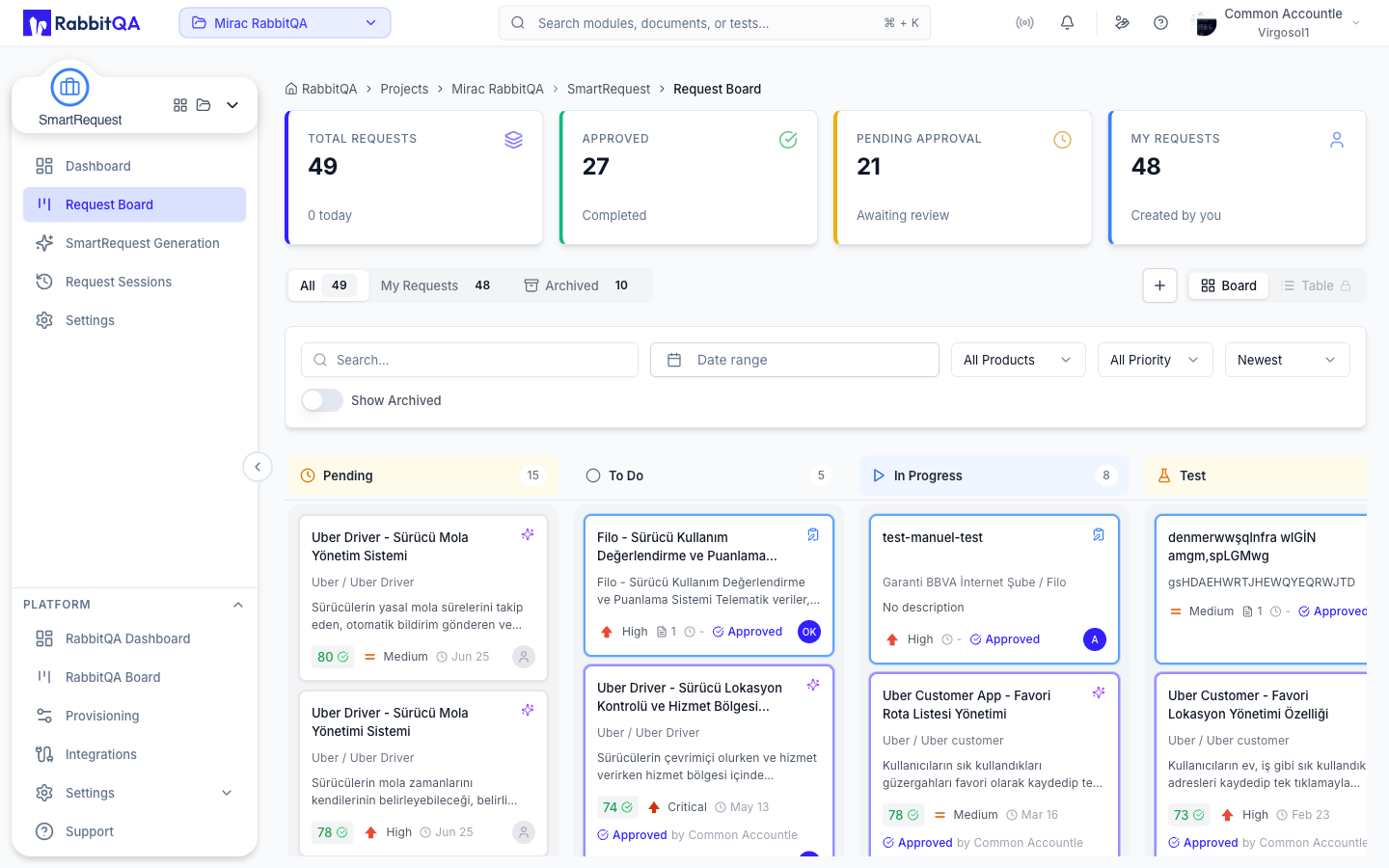
Each card shows the AI title, the product and module, a short description, the score against the request's threshold, the priority, the attached document count, the submission date, and the assignee's initials.
A small icon in the corner distinguishes an AI-generated request from a manual card. Rejected cards are outlined in red and carry the rejection reason inline. Archived cards are dimmed and labeled.
Moving a card
Only an approved card can be dragged, and only by someone who can update requests. Dragging it to another column writes its workflow status. A card still pending approval cannot be moved — it has to be approved first.
The workflow status can also be changed from the Status dropdown in the request detail sidebar.
Card menu
| Action | Available when |
|---|---|
| View Details | Always |
| Approve / Reject | The request is pending and you are in its approval flow |
| Reopen Request | The request was rejected |
| Archive / Unarchive | You can update requests |
| Delete | You can delete requests |
Assignment
The avatar at the end of the card row opens an assignee picker listing Unassigned plus the eligible users. The initials are shown to everyone; only users who can update a request get the picker.
Filtering
| Control | Filters by |
|---|---|
| Search | Free text, applied after a short pause |
| Date range | Submission date |
| Product | A configured product, when more than one exists |
| Priority | Critical, High, Medium, Low |
| Sort | Newest, Oldest, or Priority |
Active filters appear as removable chips under the toolbar, with Clear Filters to drop them all at once. Filters reset when you navigate away from the board and come back.
Approval and Rejection
Approval runs through the sequential flow configured in Settings, or the flow set on the product in Provisioning.
Approving
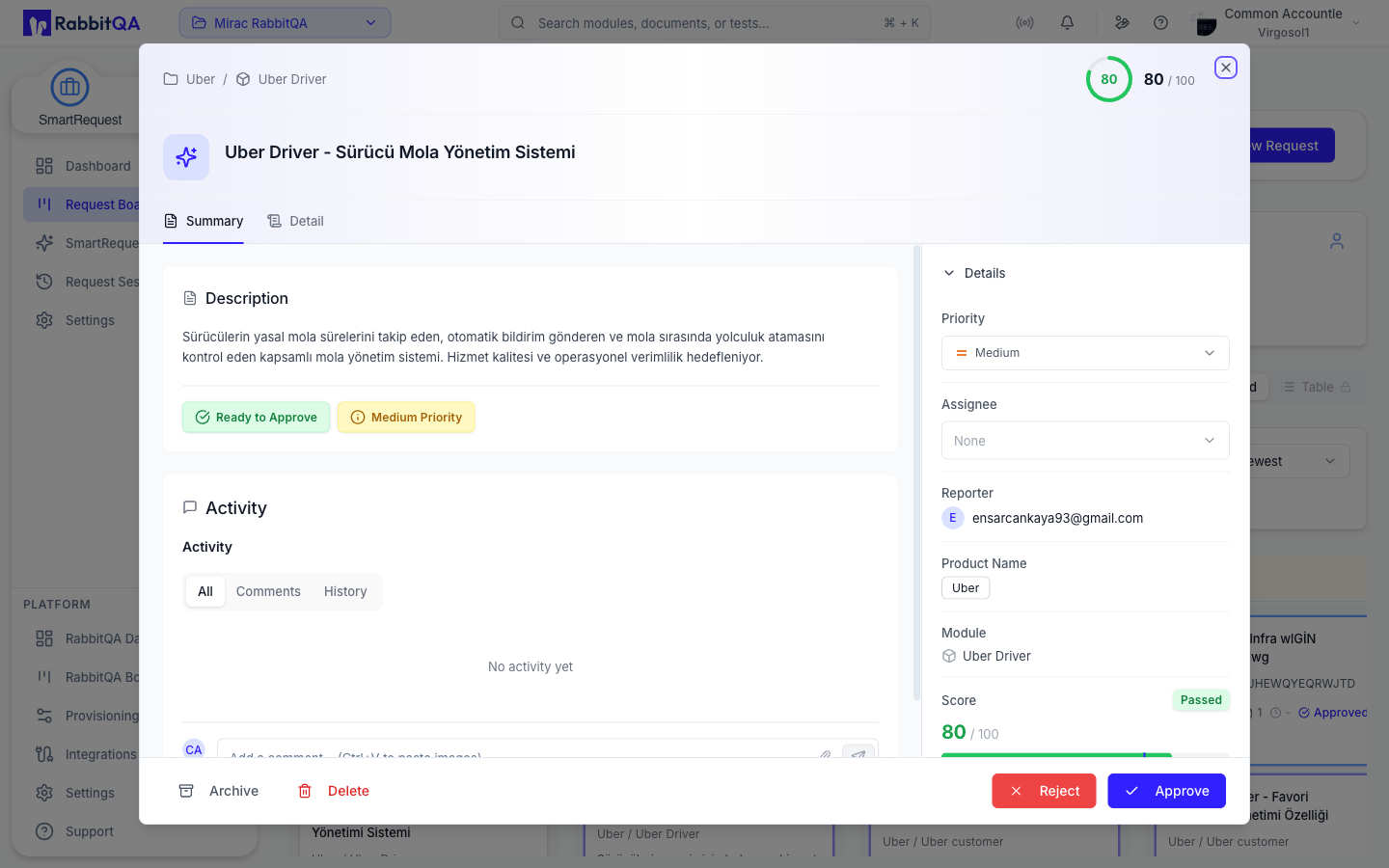
- Open the request, or use Approve on the card menu.
- Add an optional comment.
- Confirm.
The Approve and Reject buttons are only enabled for the person the flow is currently waiting on. When they are disabled, a tooltip explains why.
Rejecting
A rejection reason is required. The rejected request keeps its reason, who rejected it, and when, and shows them on the card and in the detail view.
Reopening
A rejection is not final. Reopen Request puts the request back into the approval flow: the approval steps are reset to pending and the submission timestamp is cleared.
Where the backend restarts AI evaluation from the rejection feedback instead, you are taken to the generation flow to answer the new questions.
Request Detail
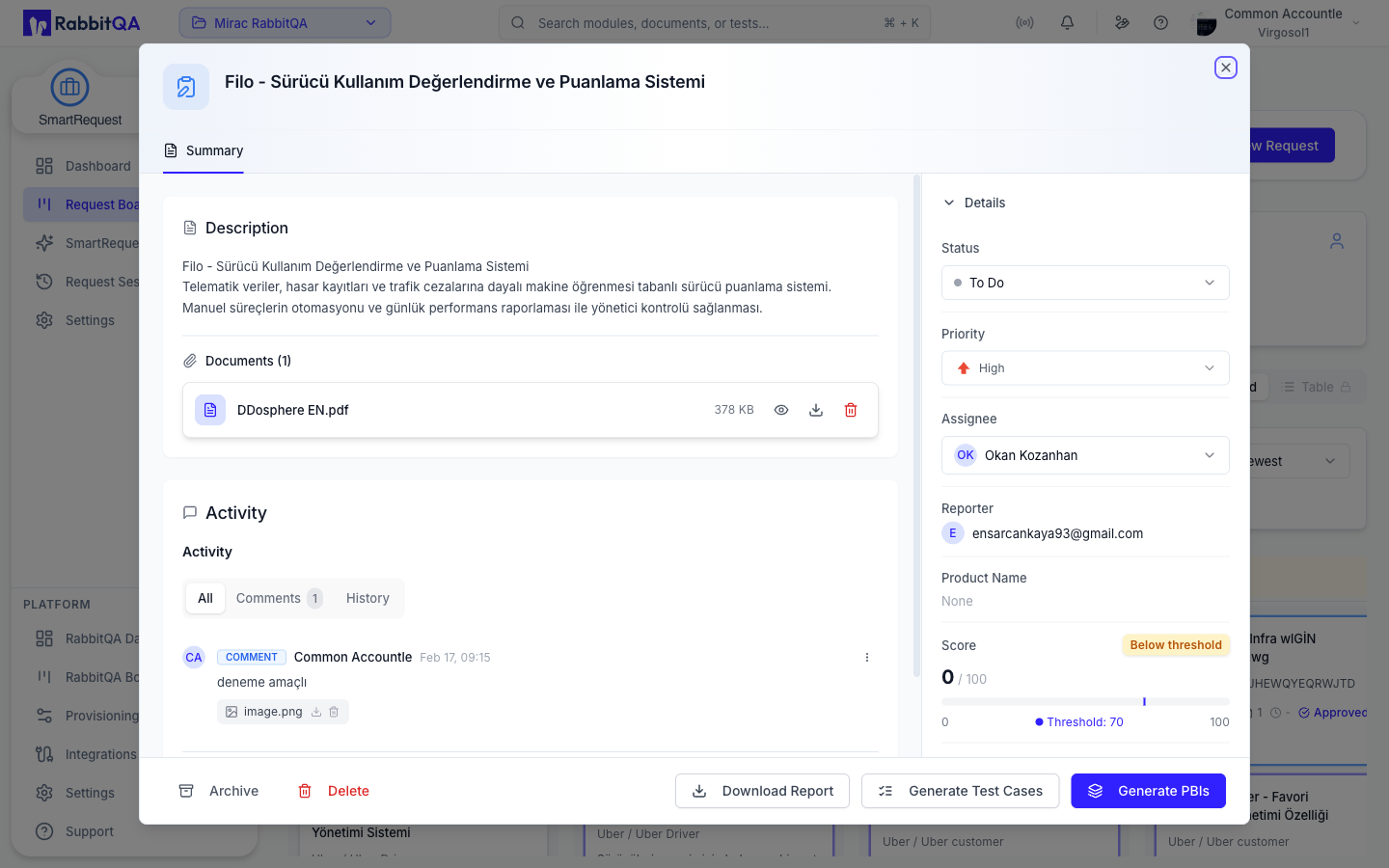
Selecting a card opens the detail dialog.
Tabs
| Tab | Contents |
|---|---|
| Summary | The editable description, status and threshold badges, priority, and the attached documents |
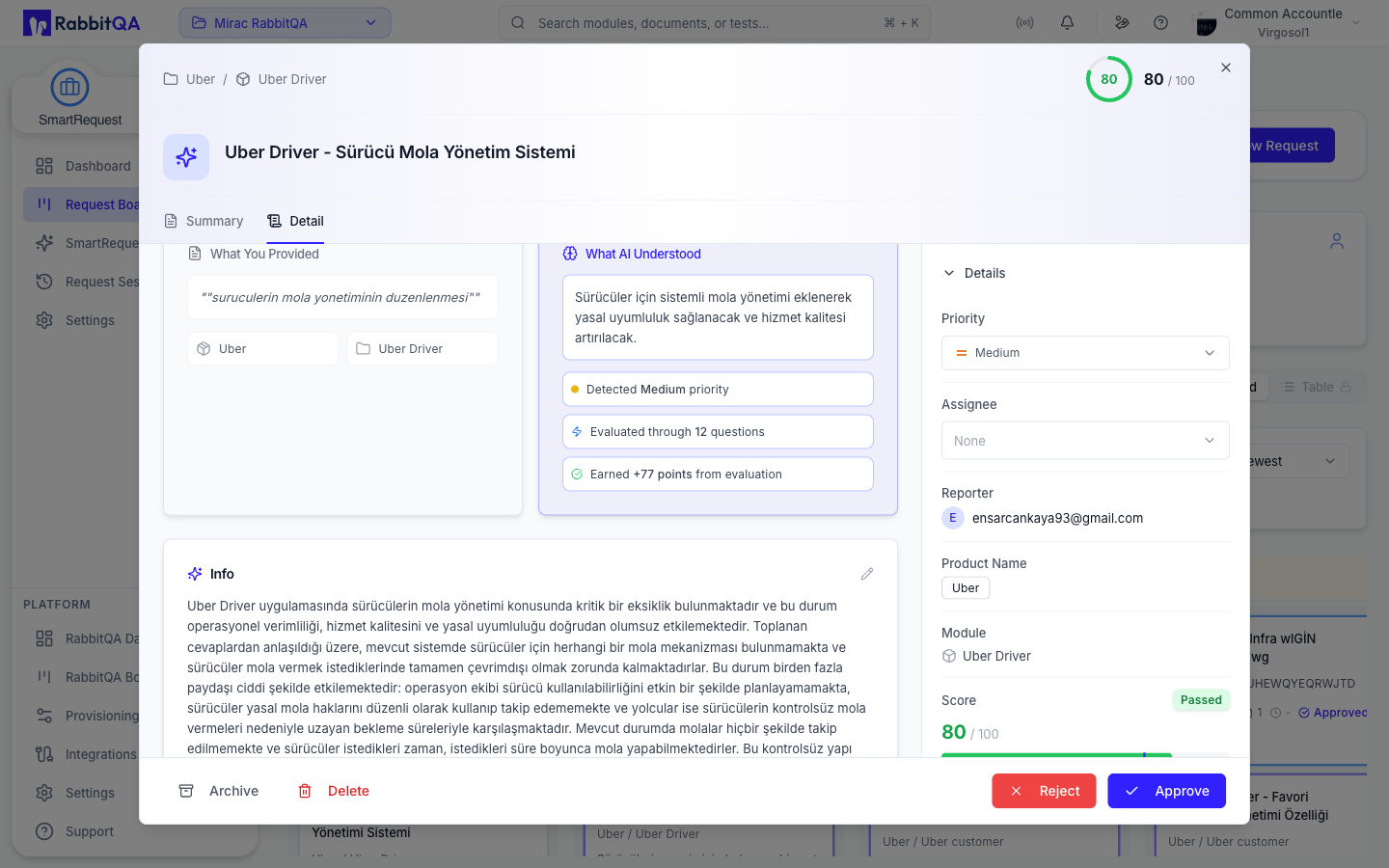
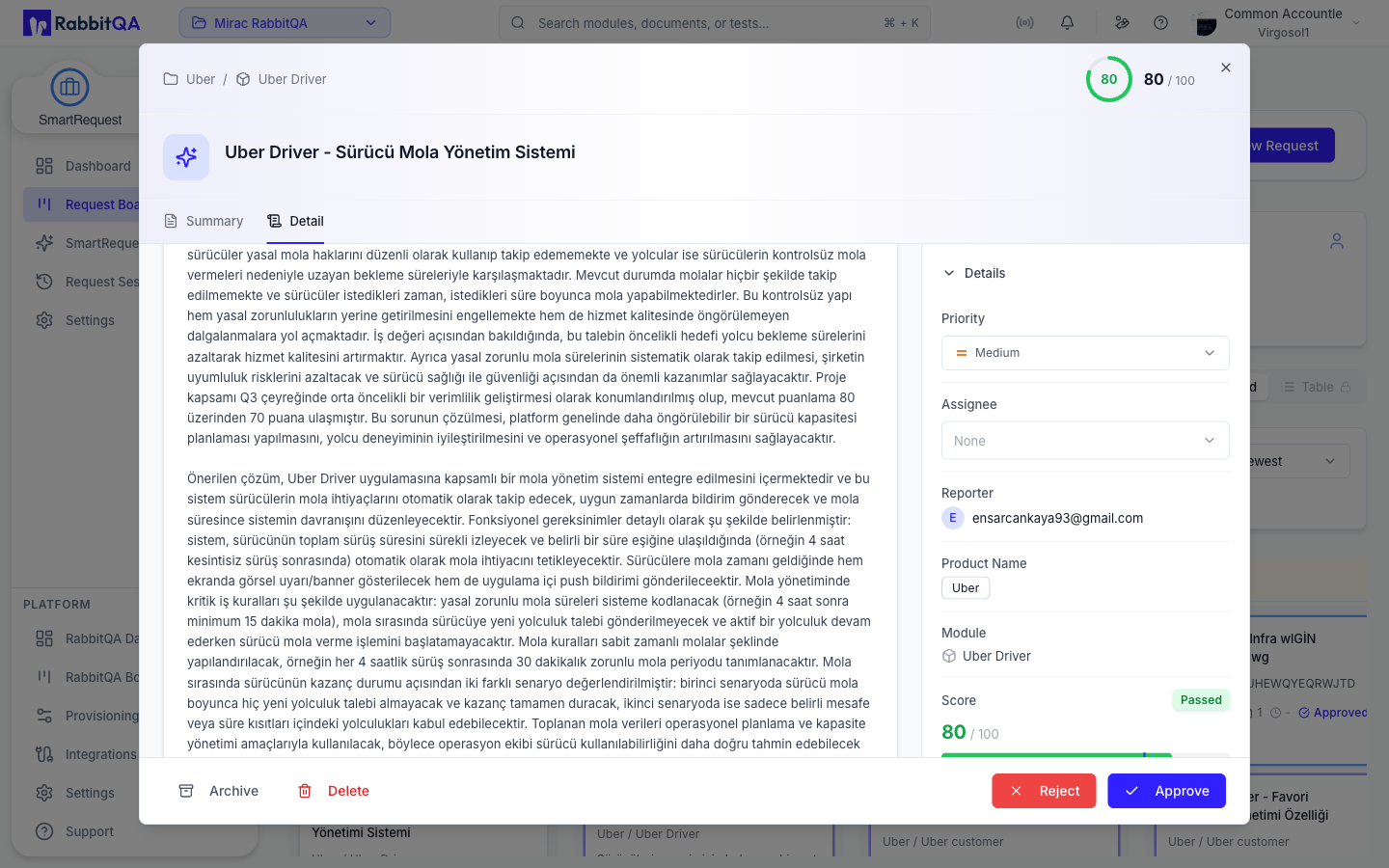
| Detail | The full generated request, with translation and PDF export |
The Detail tab is not shown for manual cards, which have no AI-generated content until one is generated over them.
The title and description are edited in place by selecting them, for users who can update requests.
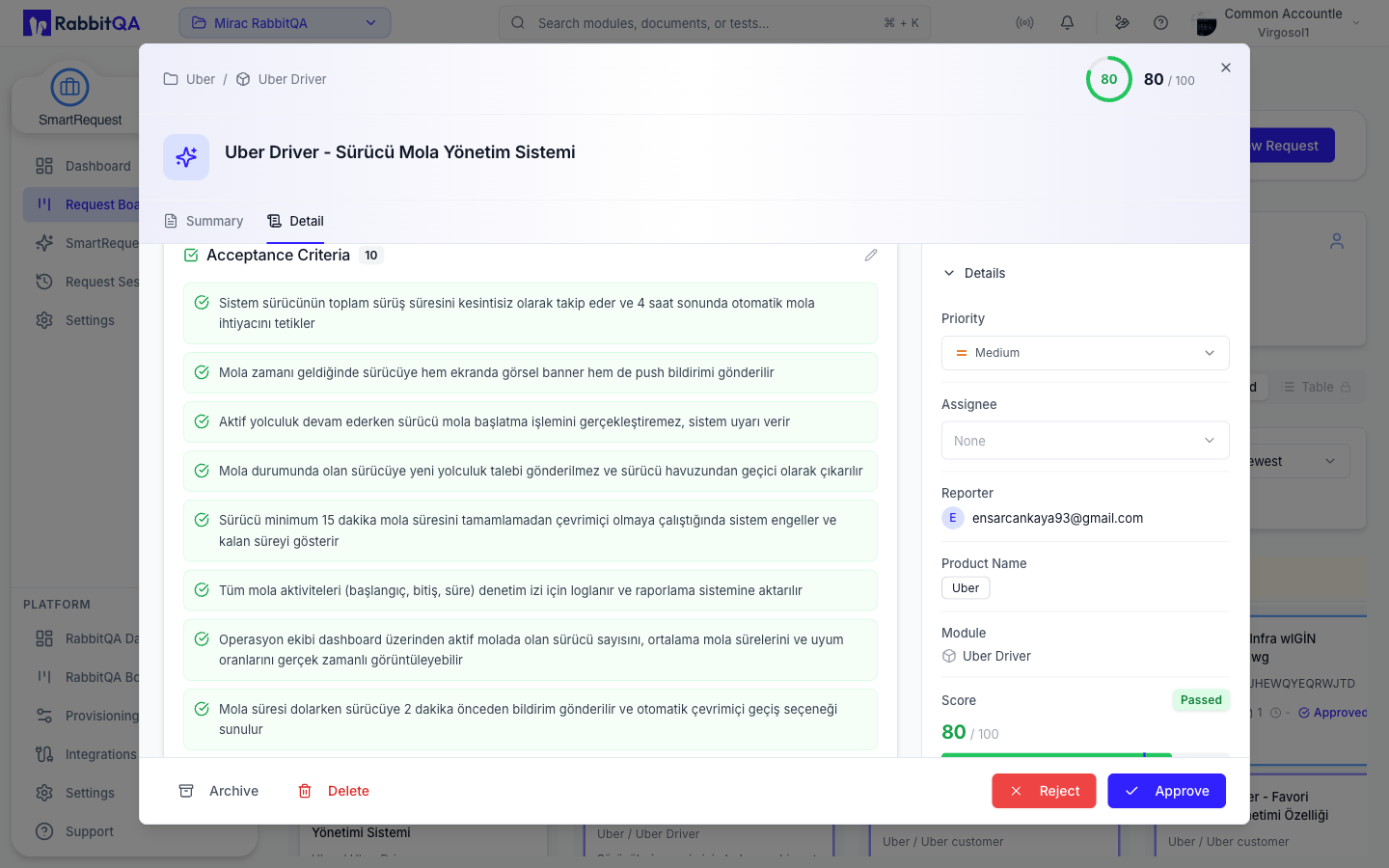
Sidebar
The right-hand panel carries the request's own fields.
- Status — the workflow status dropdown, for approved requests.
- Priority — Critical, High, Medium, or Low.
- Assignee — the user responsible.
- Reporter, product, module, and dates.
Approval flow
When the request has approval steps, the detail view renders them in order with each step's state.
| Step state |
|---|
PENDING |
APPROVED |
REJECTED |
SKIPPED |
Documents
Attached documents are listed with their type and size. Images, PDFs, text, CSV, and Office files — Word, Excel, and PowerPoint — open in an in-app preview; anything else can be downloaded. Previews and downloads are served through a short-lived link generated for the file rather than a public URL.
Deleting a document requires update rights.
Activity
Below the request body, an Activity section carries three tabs.
| Tab | Shows |
|---|---|
| All | Comments and history interleaved |
| Comments | The comment thread |
| History | The audit trail |
Comments
Comments can carry attachments. Edit and delete appear on a comment only where the server grants you those rights on that comment.
- Up to 5 attachments per comment.
- Up to 50 MB per file.
- Images, PDF, Word, Excel, plain text, CSV, JSON, ZIP, and MP4.
Files over 10 MB upload directly to storage through a pre-authorized link, and the comment is confirmed once the upload finishes.
History
History is a first-class audit trail, not a side note. Every change is recorded as an old value and a new value with a timestamp and an actor — approval decisions, workflow moves, priority changes, assignment changes, and title or description edits.
Values are colored by what they mean rather than by which side of the arrow they sit on, so a REJECTED entry reads as a rejection even when it is the newer value.
The superseded value is struck through.
Manual Cards
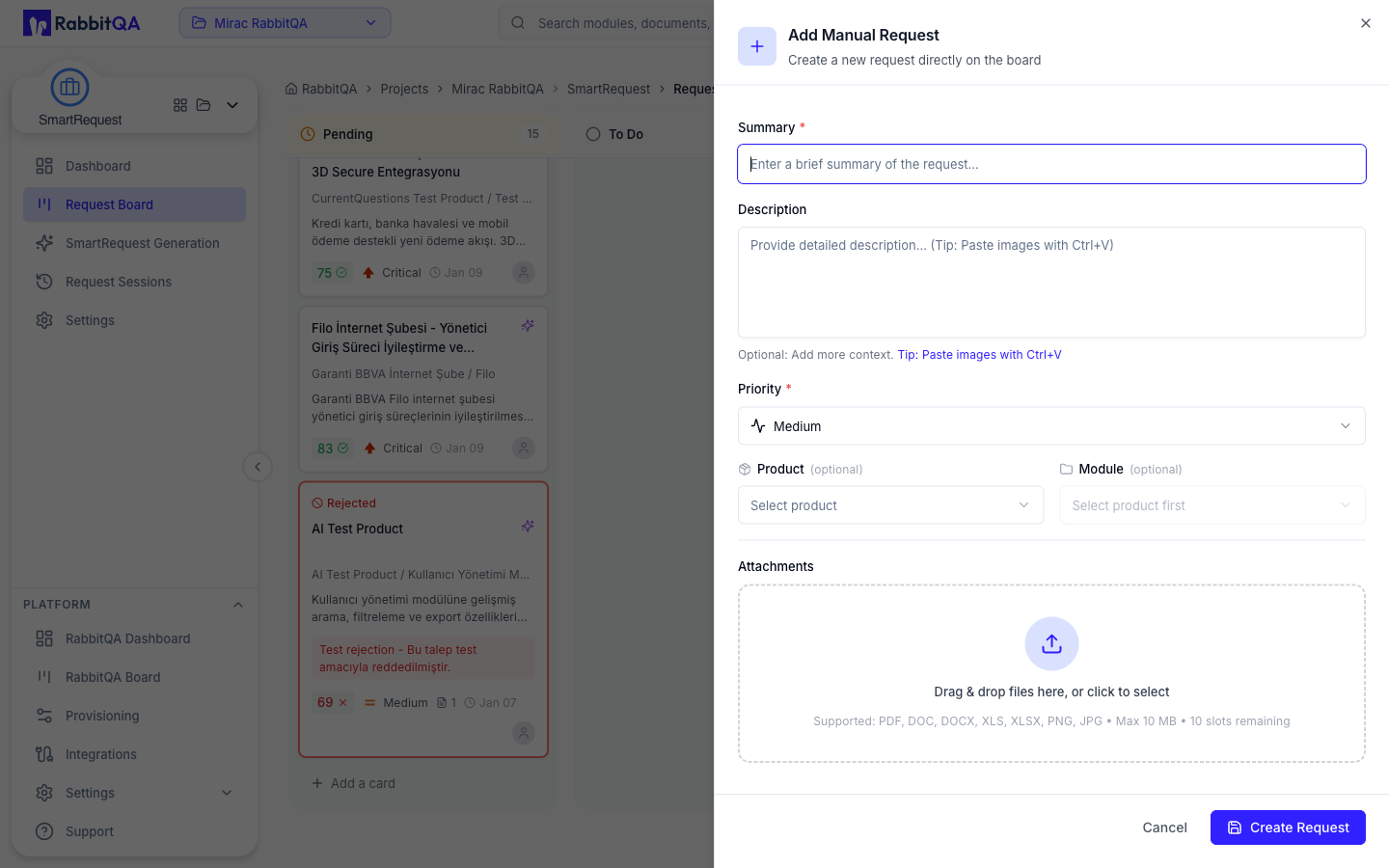
A manual card is a request created straight on the board, without an AI evaluation.
Create one with Add Card in the page header, the + button beside the view toggle, or Add a card in the Pending column.
| Field | Required |
|---|---|
| Summary | Yes |
| Description | No |
| Priority | Yes |
| Product | No |
| Module | No |
| Attachments | No — up to 10 files, 10 MB each, PDF, DOC, DOCX, XLS, XLSX, PNG, JPG |
The card is created in Pending, awaiting approval like any other request. Manual cards carry no score until one is generated, so the score badge is omitted.
Generating over a manual card
Once a manual card is approved and has both a product and a module, Generate with AI starts a SmartRequest evaluation session from it, turning it into a fully generated request.
Archive
Archive takes a request off the board without deleting it. Archived requests are reachable through the Archived tab or the Show Archived switch, and Unarchive puts one back.
Deleting, by contrast, is permanent and confirmed by a dialog.
Exporting and Handing Off
An approved request offers three actions in the footer of its detail dialog.
| Action | Result |
|---|---|
| Download Report | Opens the PDF export dialog |
| Generate Test Cases | Opens the CaseWriter AI generator with this request pre-selected |
| Generate PBIs | Opens Smart PBI generation with this request pre-selected |
PDF export
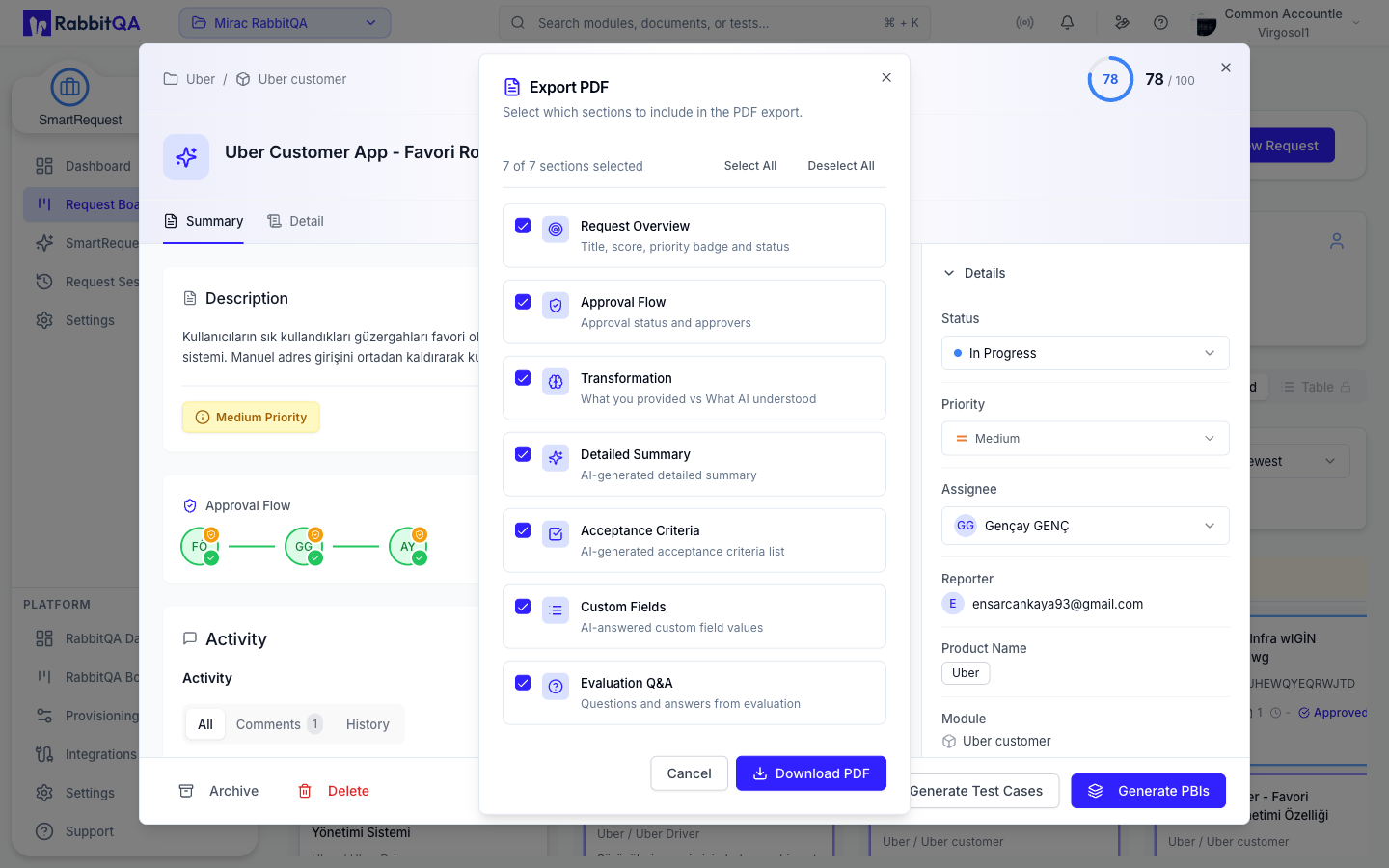
The export dialog lets you choose which sections to include.
| Section | Contents |
|---|---|
| Request Overview | Title, score, priority badge, status |
| Approval Flow | Approval status and approvers |
| Transformation | What you provided against what the AI understood |
| Detailed Summary | The generated summary |
| Acceptance Criteria | The generated criteria list |
| Custom Fields | The AI-answered custom field values |
| Evaluation Q&A | The questions and answers from evaluation |
All seven sections are selected by default — the dialog reports the count as 7 of 7 sections selected — and
Select All and Deselect All switch the whole list at once.
Download PDF produces the file.