PBI Board
The PBI Board is where backlog items live after they leave a generation session.
It sits at /smart-pbi/pbi-board and is titled PBI Board — Review and manage submitted PBIs.
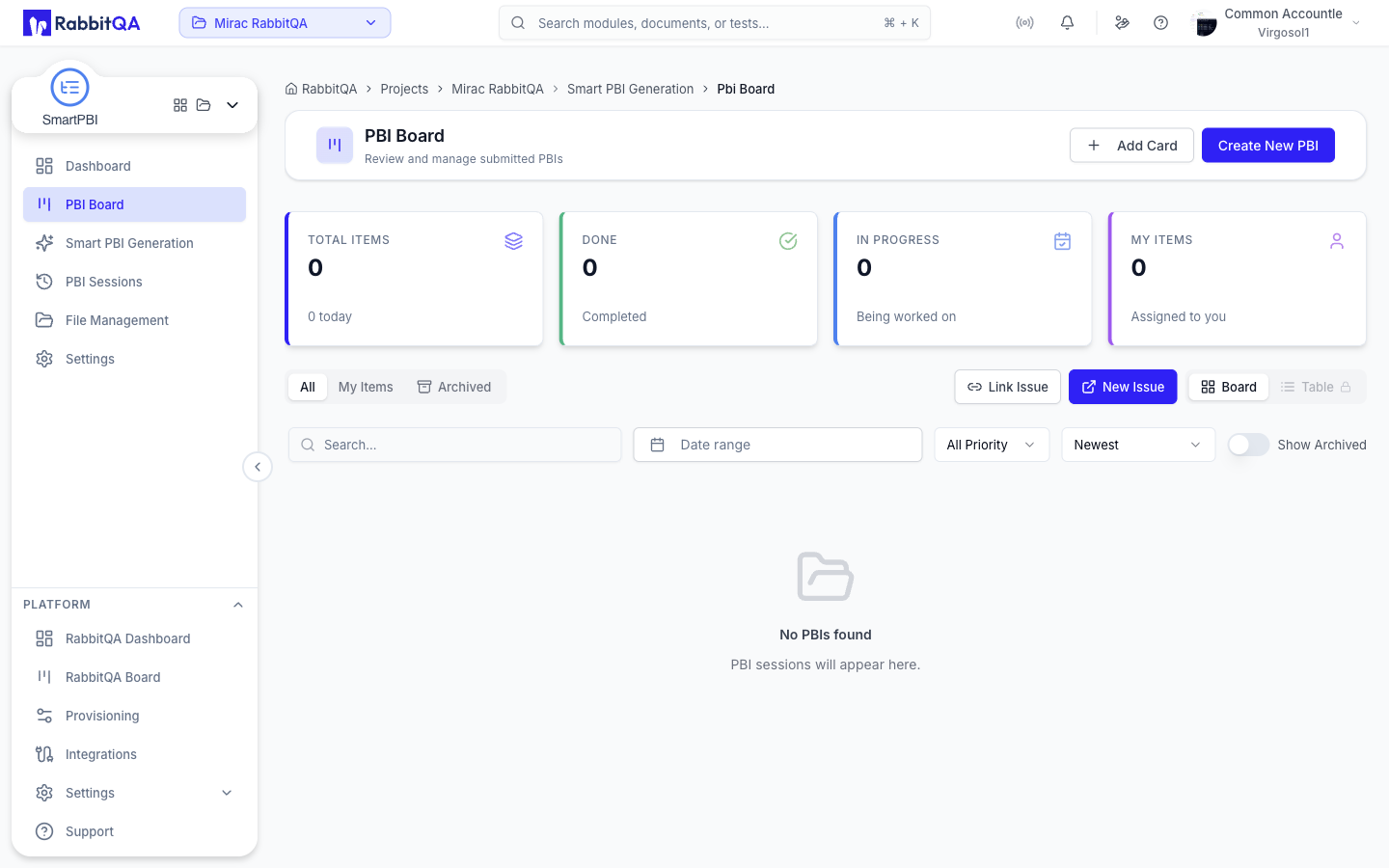
Summary cards
Four cards sit above the board.
| Card | Value | Subtitle |
|---|---|---|
| Total Items | Items on the board | How many were added today |
| Done | Items in the Done column | Completed |
| In Progress | Items in the In Progress column | Being worked on |
| My Items | Items assigned to you | Assigned to you |
The cards refresh on their own every 30 seconds; the board itself refreshes every 10 seconds.
Views
Three tabs split the board, each with its own count badge.
| Tab | Shows |
|---|---|
| All | Every item on the board |
| My Items | Only items where you are the assignee |
| Archived | Only archived items |
Next to them, a Board / Table switch chooses the layout. Board is the kanban layout and is the only one currently selectable — the Table option is locked.
Finding an item
| Control | Behavior |
|---|---|
| Search | Free-text search, applied half a second after you stop typing |
| Date range | Filters by creation date |
| Priority | All Priority, Low, Medium, High, Very High, Critical |
| Sort | Newest, Oldest, Recently Updated, Priority |
| Clear | Resets the tab, search, priority, and date range |
| Show Archived | Mixes archived items into the current view |
Clear appears only once a filter is active. Filters reset when you leave the board and come back.
Workflow columns
The kanban layout has seven columns.
| Column | Meaning |
|---|---|
| To Do | Waiting to be picked up |
| Blocked | Work is blocked |
| In Progress | Work in progress |
| Ready to Check | Development done, ready for testing |
| Test Blocked | Testing is blocked |
| Test In Progress | Testing is in progress |
| Done | Complete |
Drag a card to another column to change its status, and the move is confirmed with a Moved to {column} message.
A card is only draggable when you hold the PBI update permission. Cards in Done are not draggable, so an item cannot be dragged back out of Done; neither can a card that is awaiting approval or was rejected. There are no other forbidden transitions — any draggable card can go to any column.
Items still waiting on approval, and items that were rejected, are held out of all seven columns. They become visible in a column once the approval flow completes.
Cards are colored by type: purple for Epic, blue for Feature, green for User Story. A card shows its priority, creation date, and assignee initials, and a child card is grouped under its parent.
Card actions
The menu on each card offers:
| Action | What it does |
|---|---|
| View Details | Opens the item detail panel |
| Copy URL | Copies a link that reopens this card's detail panel |
| Open in Jira | Opens the linked Jira issue in a new tab, if one exists |
| Create Jira Issue | Creates a new Jira issue from this item |
| Link Jira Issue | Links an existing Jira issue to this item |
| Approve / Reject | Acts on an item waiting for approval |
| Archive / Unarchive | Hides the item from the board, or brings it back |
| Delete | Removes the item permanently |
Create Jira Issue and Link Jira Issue disappear once the item already has a linked issue. Approve and Reject appear only on items awaiting approval, and only for users who hold the approval permission.
Clicking the avatar in a card's footer assigns the item. The picker lists company users who can actually act on a PBI, plus an Unassigned option.
Item detail
Clicking a card opens a detail panel.
The main area holds the item's title, description, acceptance criteria, tags, and child items. Title, description, acceptance criteria, and tags are edited inline.
The sidebar holds the fields you set on the item.
| Field | Values |
|---|---|
| Status | The seven workflow columns |
| Priority | Low, Medium, High, Very High, Critical |
| Assignee | A company user, or Unassigned |
| Story Points | A numeric estimate |
| Risk | Low, Medium, High |
The footer carries Archive / Unarchive and Delete on the left. On the right, an item awaiting approval shows Reject and Approve; otherwise it shows Generate PBIs, which opens the generation wizard with this item preselected as a source, and Generate Test Cases, which hands the item to CaseWriter.
Each button appears only if you hold the matching permission.
Approval flow
An item can be submitted for approval, approved, rejected, and reopened. Approvers are configured for the board, as individual users or as user groups.
The approval panel adapts to how many approvers are configured.
- One approver — a single status line: waiting for a named person, approved by them, or rejected by them, with the timestamp and any comment.
- Several approvers — a row of approver avatars in step order, with a connector between them and an n/m approved counter. Hovering an avatar shows that step's number, outcome, timestamp, and reason.
A step is Pending, Approved, Rejected, or Skipped. When the flow is rejected, the steps that never ran are marked as skipped. The step that is waiting on you is badged Your turn.
An administrator can approve a step on someone else's behalf. That step is then marked as an override and credited as approved by {admin} (on behalf of {approver}).
Approving and rejecting
Approve opens a dialog with an optional comment. Reject opens a dialog where a reason is required — the button stays disabled until you type one.
Each approval step is stored, so the full decision history stays attached to the item.
Adding items to the board
Add Card
Add Card in the page header opens the Add Manual PBI panel.
| Field | Notes |
|---|---|
| Session | Required — pick the session the card belongs to |
| PBI Type | Epic, Feature, or User Story |
| Parent | Optional; only parents valid for the chosen type are offered |
| Title | Required |
| Description | Required |
| Business Value | 0-100 |
| Story Points | 1, 2, 3, 5, 8, 13, 21 |
| Priority | Low, Medium, High, Very High, Critical |
| Risk | Low, Medium, High |
| Assignee | Name or email |
| Due Date | Date picker |
| Status | Free text, for example To Do |
| Acceptance Criteria | One or more entries; an empty entry blocks saving |
| Tags | Comma-separated |
A Send to Jira button in the panel header creates the item directly as a Jira issue instead.
Transferring from a session
Items generated in a session are moved onto the board from the session's results. See Smart PBI Generation and PBI Sessions.
Create New PBI
Create New PBI in the page header opens the generation wizard.
Jira issues
Two buttons in the board toolbar work without an existing card.
| Button | What it does |
|---|---|
| Link Issue | Pick a Jira project, search issues by key or summary, and link one. A board card is created for it. |
| New Issue | Pick a Jira project and issue type, fill in the Jira create screen, and create the issue. A board card is created for it. |
Both are also available per card, from the card menu, to attach an issue to an item that already exists.
When an item is sent to Jira, RabbitQA pre-fills the Jira create screen from the item where the target project exposes a matching field:
- Risk and Business Value, when the project has fields with those names
- Assignee, matched against the users the field allows
- Due Date
- Status, where the project exposes it on the create screen
A value is only sent when the Jira project actually offers a compatible field or option, so a project without a Risk field simply receives no risk value.
Archiving and deleting
Archive hides an item from the board without removing it; archived items stay reachable through the Archived tab and the Show Archived switch, and Unarchive brings one back. Both actions ask for confirmation.
Delete removes an item permanently and cannot be undone.
Sharing a card
Copy URL on a card menu produces a link of the form /smart-pbi/pbi-board?selected=<code>.
Opening it loads the board with that card's detail panel already open.
Not in the interface yet
The platform stores comments, comment attachments, and a change history for every board item, but the board screen does not currently expose controls for them. There is no comment box, no attachment upload, and no history timeline on the board today.
