Sources
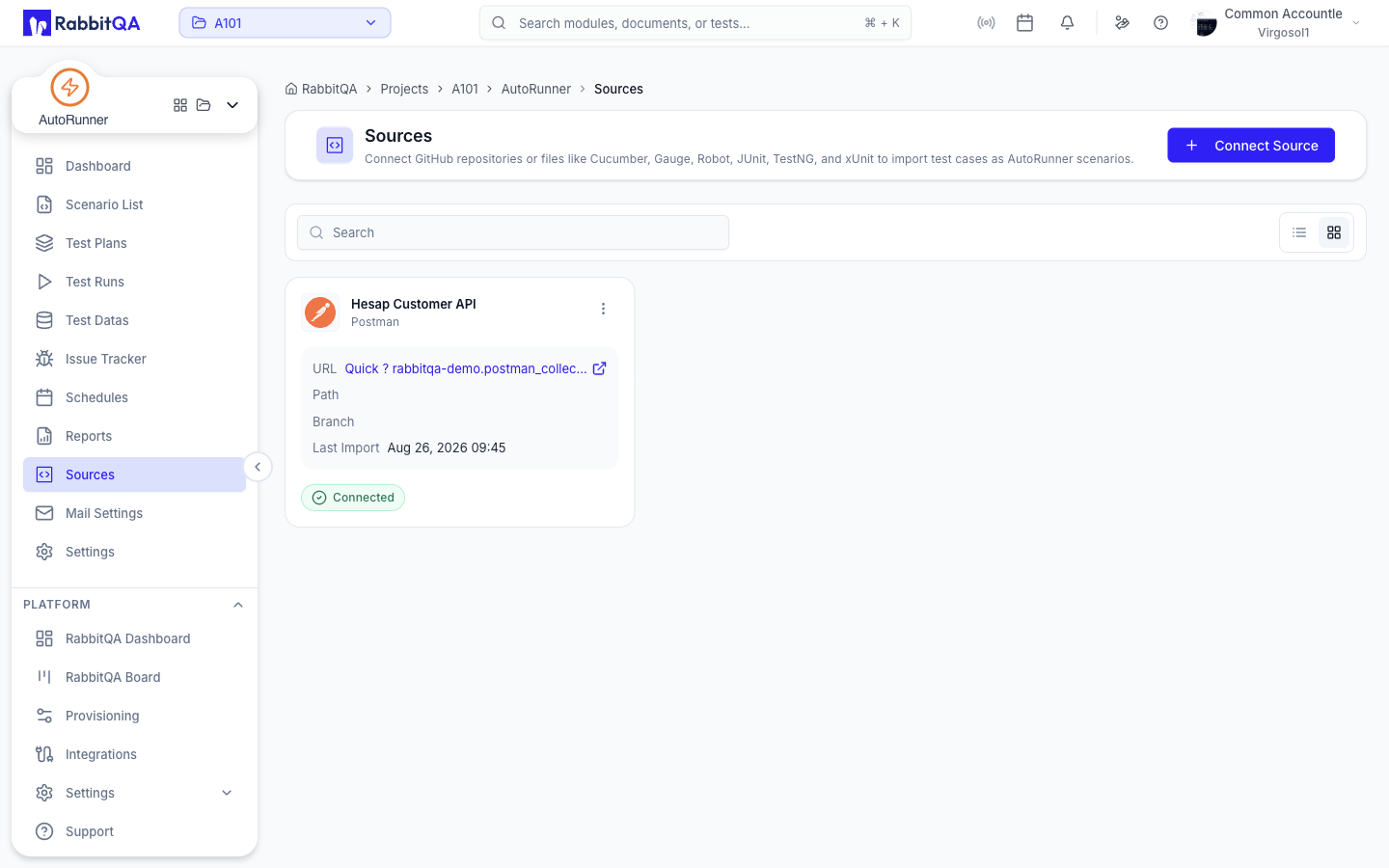
A source is where AutoRunner's scenarios come from. Connect a Git repository or a Postman collection, and its tests become scenarios in the workspace.
Source Types
| Type | How it is created | Where it appears |
|---|---|---|
| Repository | Connect a Git repository holding Cucumber, Gauge, Robot, JUnit, TestNG, or xUnit tests | Sources list |
| Postman | Upload a Postman collection, optionally with an environment file | Sources list |
| AI source | Provisioned automatically the first time you open AI Studio | Not listed here — reach it through AI Studio |
The Sources page lists repository and Postman sources. The workspace's AI source is managed behind AI Studio instead.
Browsing Sources
Switch between Grid view (the default) and List view with the toggle in the toolbar, and filter with the Search box.
List view columns:
| Column | Content |
|---|---|
| Source Name | The source's display name |
| Repository | The connected repository |
| Repository Path | The path within the provider, for example org/repo-name |
| Branch | The branch AutoRunner reads |
| Last Import | When scenarios were last imported |
Grid cards show the same fields plus the provider and framework, and a Connected status pill.
Connecting a Source
Select Connect Source and complete the drawer.
| Field | Required | Notes |
|---|---|---|
| Source Name | Yes | For example, "E-commerce Web Testing" |
| Description | No | A short description of the source |
| Project Type | Yes | Web, Mobile, Service, Desktop, or RoboClick. Cannot be changed after creation. |
| Test Framework | Yes | The available frameworks depend on the project type. Cannot be changed after creation. |
Framework options per project type:
| Project type | Frameworks |
|---|---|
| Web, Mobile | Gauge, Cucumber, Robot, JUnit, TestNG, xUnit |
| Service | Postman, plus the Web and Mobile frameworks |
| Desktop | SAP, Oracle, Logo Tiger, plus the Web and Mobile frameworks |
| RoboClick | Gauge |
Project type and framework are fixed once the source exists. If you picked the wrong one, disconnect the source and connect a new one.
Repository Sources
For a framework that supports templates — JUnit, TestNG, Cucumber, Gauge, Robot, or xUnit — you first choose how the repository is provided:
- Use Template — RabbitQA creates a ready-to-run private repository for your company.
- My Repository — connect an existing Git repository.
For your own repository, fill in the Repository section:
| Field | Required | Notes |
|---|---|---|
| Repository | Yes | A configured Git connection. Use + Add to create one. |
| Repository Path | Yes | For example org/repo-name. Auto-detect analyzes the repository and reports the framework it detected with a confidence percentage. |
| Branch | Yes | Loaded from the repository; refresh to reload the list. |
| BDD Path | No | Where the specs live, for example specs/ or features/. |
Adding a Git Connection
+ Add next to the Repository field opens Connect Git Repository.
| Field | Example |
|---|---|
| Display Name | company-repo |
| Provider Base URL | https://github.com/ |
| Email / Username | [email protected] |
| Personal Access Token | Your provider access token |
Use Test Connection to verify the credentials before you select Connect.
AutoRunner recognizes GitHub, GitLab, and Azure DevOps from the provider URL.
Postman Sources
For a Postman source, upload the files in the Collection Files section:
- Collection — required, a Postman
.jsoncollection. - Environment — optional, a Postman
.jsonenvironment.
Large collections upload in chunks and then parse in the background.
AI Collection Builder
AI Collection Builder generates a Postman collection from a Swagger or OpenAPI specification. It is available next to the collection upload here, and again in Settings > Source for an existing Postman source.
- Upload the specification file —
.json,.yaml, or.yml, up to 10 MB. - Optionally add AI Instructions describing the scenarios you want, for example "Generate CRUD operations for all endpoints. Include authentication headers and error response tests."
- Select generate, then review the result before applying it.
Importing a specification by URL is not available yet. Upload the file instead.
Managing a Source
| Action | What it does |
|---|---|
| View source / View Scenarios | Opens the source's scenarios |
| Sync Source | Re-imports the repository content for the selected source |
| Edit Source | Changes the name, description, repository settings, or collection files |
| Disconnect | Removes the source from the workspace |
Disconnecting a source removes its scenarios from the workspace, and test plans lose those scenarios. Past run history is kept. This cannot be undone.
Syncing
Sync Source pulls the current repository content so runs execute your latest tests.
Settings > Source offers the same controls plus more detail:
- Repository Configuration — SCM provider, repository path, and BDD/specs path.
- Branch Settings — the active branch, the last sync time, and Sync Now.
- Sync History — previous syncs and their outcome.
See Settings for that tab, and CI/CD Integration for syncing as part of a pipeline.
Next Steps
- Scenarios — Browse what a source contributed to the workspace
- Test Plans — Combine scenarios from several sources into one plan
- AI Studio — Author AI-generated scenarios
- Settings — Source, run profile, and notification settings
