Analysis Sessions
Analysis Sessions is the history of document scoring in Analyzer.
Each row is one document version and the state of its analysis, whether that analysis finished, is still running, failed, or was never started.
These are analysis sessions, not PBI sessions. Product backlog item generation runs are owned by Smart PBI and listed there.
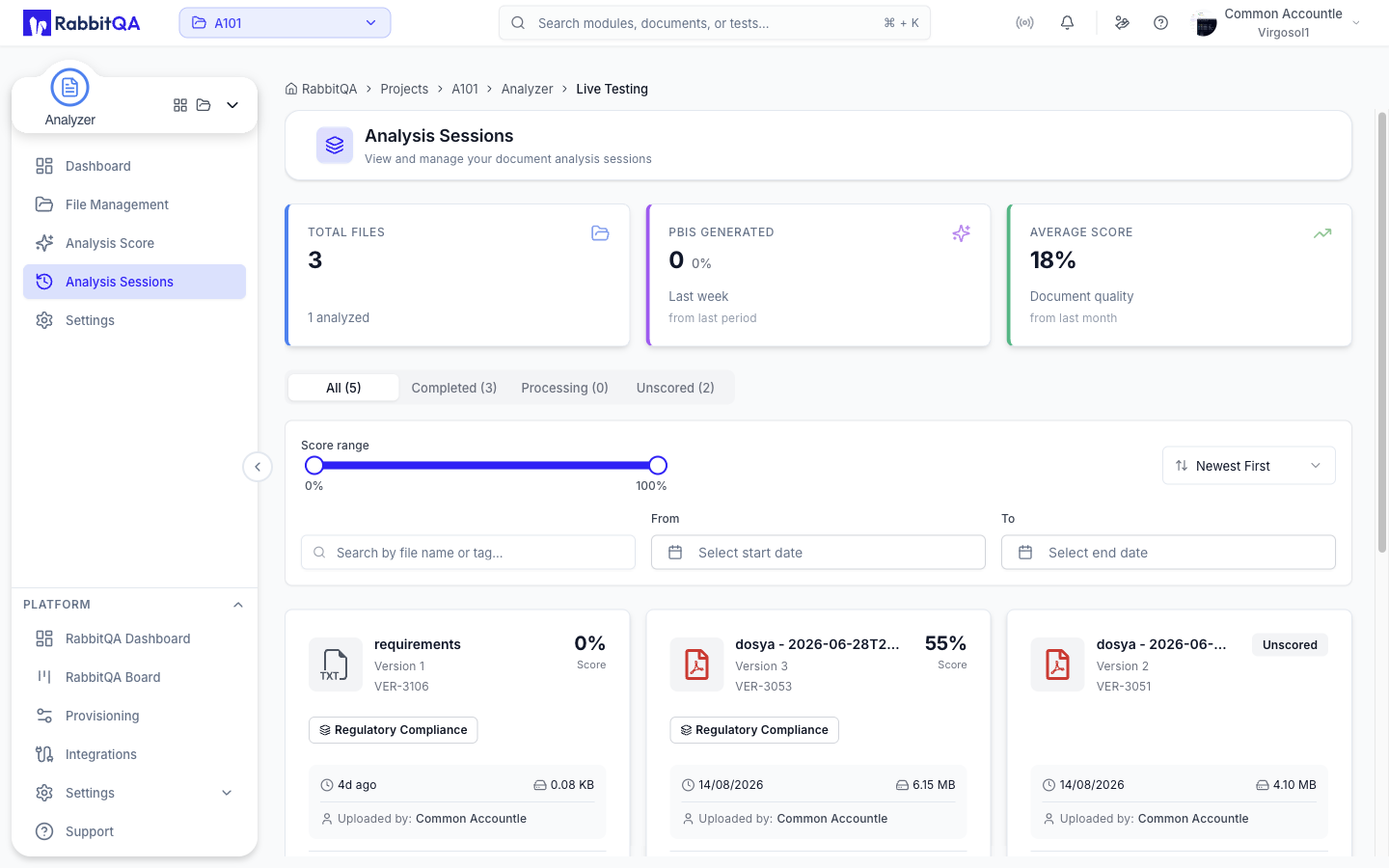
Header metrics
| Card | Value |
|---|---|
| Total Files | Documents in the repository, with how many are analyzed |
| PBIs Generated | Product backlog items generated in the last week |
| Average Score | Average quality score across analyzed documents |
Filtering the list
Four tabs split the list, each with its own count.
| Tab | Shows |
|---|---|
| All | Every session |
| Completed | Analyses that finished |
| Processing | Analyses that are queued or running |
| Unscored | Versions with no analysis |
Alongside them:
- Score range — a 0-100 slider.
- Search — by file name or tag.
- From / To — upload date range.
- Sort — Newest First, Oldest First, Highest Score, Lowest Score, Name A-Z, or Name Z-A.
Every active filter appears as a removable chip, and Clear all resets them together. Results are paginated, 20 per page by default.
The list refreshes on its own, so a running analysis moves from Processing to Completed without a reload.
Session cards
Each card shows the file name, its version, the session code, and either the score as a percentage or a Processing or Unscored badge.
Below that it carries:
- The template used for the analysis.
- A Combined badge when the version was scored together with other files. Hovering it lists every file in the group and marks the current one.
- Upload time, file size, and who uploaded it.
Card actions
| Action | Effect |
|---|---|
| Analyze | Opens Analysis Score with this file and version |
| Generate PBIs | Hands the file and version to Smart PBI |
| Generate Test Cases | Hands the file and version to CaseWriter |
| Share Report | Copies a link that opens this version's analysis report |
| Download File | Downloads the original document |
| View Details | Opens the session detail page |
| Delete Session | Removes the session and its analysis data after confirmation |
Analyze, Generate, and Delete appear only for users with the matching permission. Share Report appears only once the version has a score.
Session detail
Clicking a card opens /analyzer/sessions/{id}.
The header shows the file name, the version, and the state of the run.
While it is running
The page shows the analysis progress and elapsed time, and updates itself when the run completes.
When there is nothing to show
A version that was never analyzed shows No Analysis Yet, and a run that failed shows Analysis Failed together with the error reason the backend reported.
Both states offer a Start Analysis or Retry Analysis button, a File Information card with name, version, size, upload date and uploader, a Download File button, and a summary of what an analysis would produce.
The start button is disabled with an explanation for users without analyzer:analysis:create, rather than hidden.
The report
A completed session shows:
- The overall score as a dial, with a star rating and a quality band — Excellent from 80, Good from 60, Needs Improvement below that.
- PBIs estimated and Test Cases estimated, each clickable to open the matching generator.
- Analysis Metrics — a card per metric with its score, the AI's reasoning, and, where the run included them, suggestions and examples.
- AI Insights, Coverage Assessment, and Estimation Summary, according to the options the run was started with.
A Combined scoring banner sits at the top when the session is part of a combined run, listing the files that were scored together.
Actions at the bottom: Download File, View File Details, Share Report, Download Report as PDF, Generate PBIs, and Generate Test Cases. The header also carries Delete for users who can delete an analysis, and Back to Sessions.
