Business Check
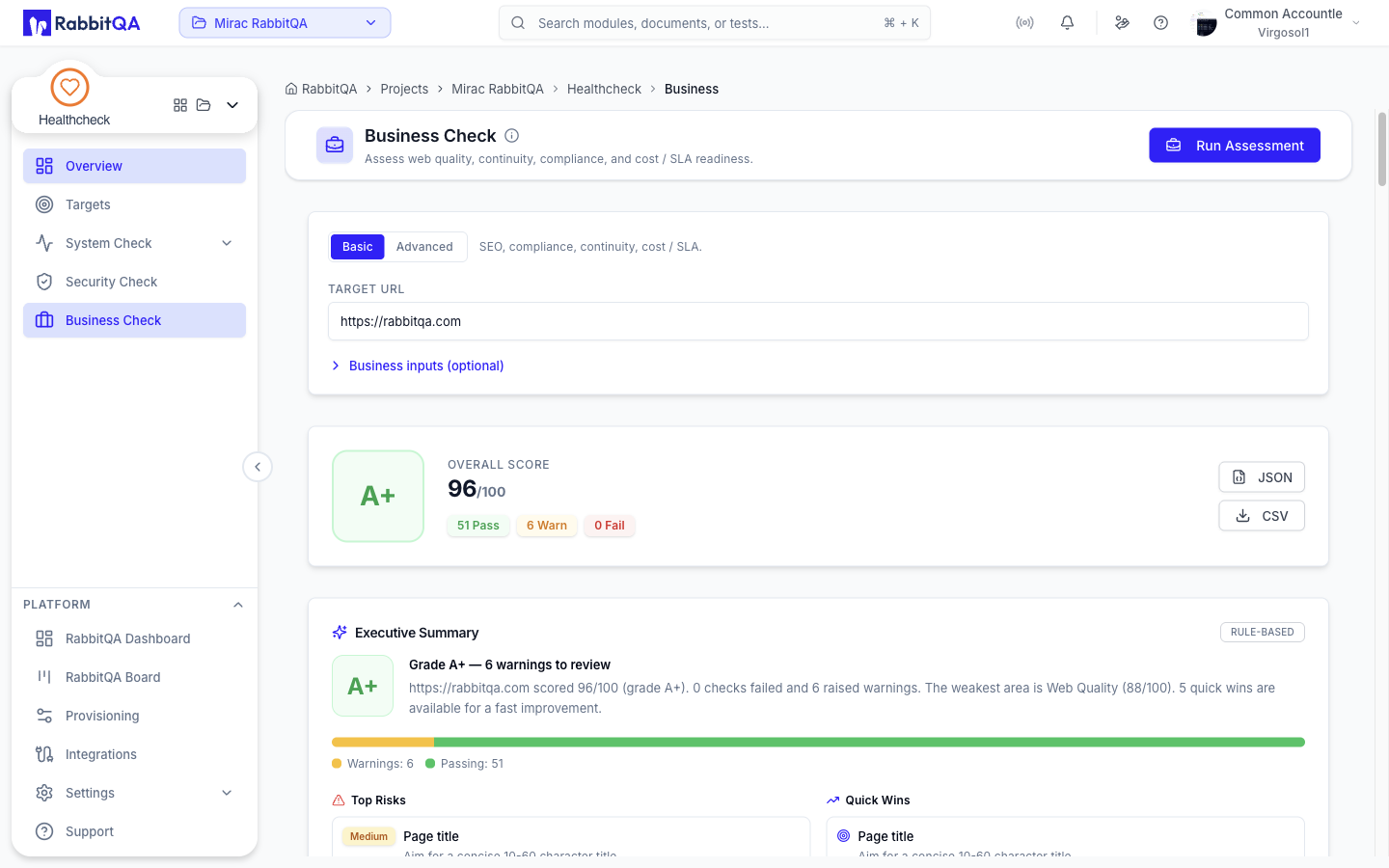
Business Check assesses the non-security business health of a site: web quality, compliance, continuity, and cost or SLA readiness. Like Security Check it runs asynchronously against a URL and returns a graded scorecard.
It is a single screen at /healthcheck/business.
The seven domains
Every assessment scores seven domain modules.
| Domain | What it covers |
|---|---|
| Web Quality | Site and SEO quality |
| Continuity | SSL, DNS, and email readiness |
| Compliance | Regulatory posture such as GDPR, KVKK, PCI, SOC 2, and ISO |
| Analytics & Marketing | Analytics and marketing instrumentation |
| Trust & Reputation | Trust signals |
| Cost & SLA | Cost and service-level readiness |
| Advanced Web | The optional deep web pass |
All seven cards are always drawn. A domain the run did not cover shows a dash rather than a score — Advanced Web does this on every basic run.
Running an assessment
- Choose Basic or Advanced.
- Enter the target URL.
- Optionally expand Business inputs (optional).
- Click Run Assessment.
Basic and Advanced
- Basic covers SEO, compliance, continuity, and cost or SLA.
- Advanced adds a deep web pass and reveals a Deep web checks picker.
The five deep checks, all selected by default in Advanced mode:
| Check | What it looks at |
|---|---|
| Structured data | Structured-data markup |
| Broken links | Links that do not resolve |
| Mixed content | Insecure resources on a secure page |
| Social meta | Social sharing metadata |
| security.txt | The security.txt disclosure file |
Business inputs
Four optional numeric inputs feed the assessment.
| Field | Example |
|---|---|
| Monthly Revenue | 50000 |
| SLA Target % | 99.9 |
| Current Uptime % | 99.5 |
| Downtime Cost / Hour | 1200 |
They are collapsed by default and can all be left empty. Values that are not numbers are dropped silently, so check what you typed before running.
Starting an assessment requires the create permission. Without it the whole run panel is hidden and only saved results are shown.
Reading the results
Assessments run asynchronously and the page polls for the result. If the run has not finished after roughly a minute the page reports The assessment timed out. Please try again.
Grade and counts
The hero shows the letter grade and the score out of 100 returned by the backend, plus three badges counting the items that Pass, produce a Warn, and Fail.
Domain scores
Below the hero, one card per domain shows that domain's score out of 100 with a progress bar.
Result items
Every check the assessment ran is listed, grouped by domain and then by category.
Each item shows:
| Field | Values |
|---|---|
| Status | pass, warn, or fail |
| Impact | critical, high, medium, or low |
| Title | What was checked |
| Recommendation | What to do about it |
Executive summary
When the backend produces one, an Executive Summary card appears above the domain cards. It is generated from the assessment result and contains a grade tile, a headline, a narrative, a distribution bar over failing, warning, and passing items, then Top Risks, Quick Wins, and Weakest Areas. A badge marks whether it came from a provider or from rules.
History and trend
Business score trend charts up to the last twenty completed assessments for the target on screen. Assessment history lists recent runs with their grade, target, score, and start time; selecting a completed row loads it. Runs that are still going or that failed cannot be opened.
Opening the page loads the most recent completed assessment automatically.
Exports
Two buttons export the result:
- JSON — the whole assessment object.
- CSV — one row per result item, with domain, category, title, status, impact, and recommendation.
Exports are available to anyone who can view the assessment.
Running it from elsewhere
The Assess button on a saved target, the Run Full Check button on the Overview, the Comparison tab, and the Target Report all start a Business Check assessment too. All of them run in basic mode with no business inputs — the deep checks and the input fields are only reachable from this screen.
